On iPad, with Screen Time, you can get information about how much time you spend on your devices—including which apps and websites you use and for how long.
Time Allowances help you balance time across entertainment, games, and social media apps, and schedules manage when those apps are available. Content restrictions manage what can be accessed, and you can use Screen Time across all your devices and view your Screen Time summaries. You can also quickly check your device use with a Screen Time widget on your Home Screen.
Note: To use all the latest Screen Time features, you need iPadOS 27, iOS 27, macOS 27, visionOS 27, watchOS 27, or later on all your Apple devices. For a Family Sharing group, upgrade every device to iPadOS 27, iOS 27, macOS 27, visionOS 27, watchOS 27, or later before setting these features up.
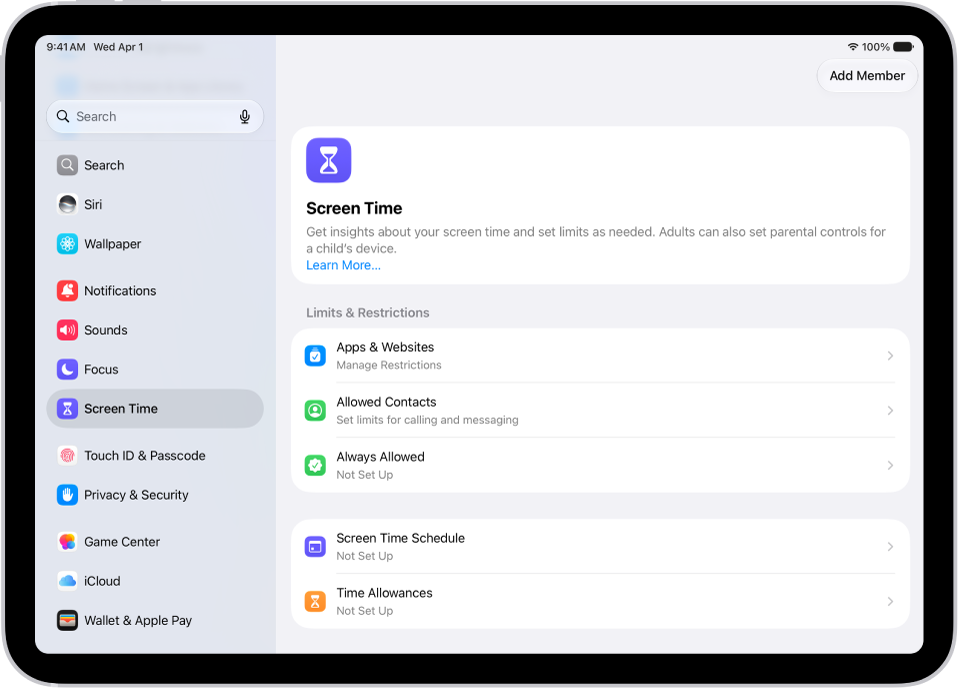
Turn on Screen Time
- Open the Settings app on your iPad.
- Tap Screen Time and then do any of the following:
- Tap Screen Time Schedule, then tap Turn On App & Website Activity.
- Tap Time Allowances, then tap Turn On App & Website Activity.
- Tap Manage Screen Time, then tap Turn On App & Website Activity.
Note: You can quickly check your device use by adding a Screen Time widget to your Home Screen.
Use Screen Time across your devices
Syncing your Screen Time settings and reports across your iPad, iPhone, and Mac where you’re signed in to the same Apple Account shares your screen time schedules, time allowances, and usage data across those devices. It also lets you see your combined Screen Time activity across devices.
- Open the Settings app on your iPad.
- Tap Screen Time, tap Manage Screen Time, turn on Share Across Devices.
Any Screen Time limits or schedules you set apply to your iPad, iPhone, and Mac while Share Across Devices is on. Turn it off, and each device has its own Screen Time settings.
Note: Share Across Devices requires macOS 27, iOS 27, iPadOS 27, watchOS 27, or visionOS 27 or later on all your Apple devices. When you’re setting it up in a Family Sharing group, each device has to run macOS 27, iOS 27, iPadOS 27, watchOS 27, or visionOS 27 or later.
View your Screen Time summaries
With Screen Time turned on, a weekly report gives you an overview of how often you pick up your iPad and other devices, the time you spend on your devices, your most used apps, and more.
- Open the Settings app on your iPad.
- Tap Screen Time, then tap Daily Average.
- Tap Week to show a summary of weekly use, or tap Day to show a summary of daily use.
You can also scroll down to view a report of your Pickups and Notifications to see how many times you picked up your devices and how many notifications you received. You can swipe left and right on your Screen Time summaries to view your history.
Turn off Screen Time
- Open the Settings app on your iPad.
- Tap Screen Time and then do any of the following:
- Turn off Screen Time: Tap Manage Screen Time and then tap Turn Off App & Website Activity.
- Turn off your Screen Time schedule: Tap Screen Time Schedule and then turn off Schedule.
- Turn off your Time Allowances for apps: Tap Time Allowances, tap Manage Categories, select a category, and select Delete (your category name) Category.
You can also view your summary by tapping a Screen Time Weekly Report notification when one appears on your screen. (If the notification disappears, you can find it in Notification Center.)
See also