Several iPhone 18 Pro users have stated that they are unable to access the App Store because users see a white blank screen when they go to the App Store. Sometimes the App Updates page is also not showing and loading. See App Store Search Not Working on iPhone 18 Pro.
You will need to load the App Store so that you can download apps. This article explains how you can fix if you see a white and blank screen when you open the App Store.
Blank App Store Fix
Test after each step to see if your issue is resolved:
1-The first thing you may want to do is to check Apple’s System Status page. This is Apple’s support page with status information for its services, stores and iCloud. Go to this page and look for “App Store”. If this page shows any issues, you may be unable to fully access or use the App Store. If this is the case, Apple is the one to blame, and Apple will resolve this. You just need to wait.
2-Restart the App Store app. Here is how:
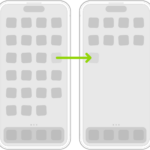
- Go to your Home screen and swipe up, this will bring up the app switcher. Swipe left or right until you find the App Store. Swipe up on the app’s preview to close it. Then reopen the App Store.

3-The third thing is to make sure that your iPhone 18 Pro is connected to the Internet by ensuring that your device has a Wi-Fi connection or a cellular-data connection. If you are not connected to the Internet, the App Store will not load. Open Safari and open a web site. Does the web site load? If not, you may have a connection problem. Here is how you can troubleshoot:
- On your device, turn on Airplane Mode, wait for one minute and then turn it off (Settings > Airplane Mode).
- If you are trying to open the App Store over cellular, make sure that Cellular Data is enabled for the App Store. To check this, go to Settings and tap Cellular or tap Mobile Data, then turn on “App Store”.
- If you are trying to open the App Store over Wi-Fi, make sure that your device is not too far away from your router. You may also try to restart your router. To restart your router, unplug it from its power source, wait 1 minute and then plug it back in.
4-Restart your iPhone 18 Pro. Here is how you can restart your device:
- Press and hold the side and the volume up (or down) buttons together until you see the power off slider. Then drag the slider. Wait until your device completely shuts off. Then press and hold the side button until the Apple logo appears.

5-Try this fix: Launch Settings then tap [your name], Media & Purchases and Sign Out. Now launch the App Store. Tap Sign In and enter your Apple Account and password.
6-On your iPhone 18 Pro, tap Settings > General > Date & Time and turn ‘Set Time Automatically’ on.
7-Go to Settings > General > Date & Time and turn ‘Set Time Automatically’ off. Now set your date one year ahead. Now go to the App Store. If your issues are fixed, turn on ‘Set Time Automatically’.
8-Go to Settings > General > Language & Region. Change the current language. You may select any language. However, you may want to choose a language you know. Then open the App Store, if your apps load, then go back to the Language settings, and change your language back.
9–Update the iOS software. Make sure that your iPhone 18 Pro is running the latest version of the iOS software. Simply go to Settings > General > Software Update. This will check for updates. If there is an update available, follow the onscreen instructions to install the update on your device.