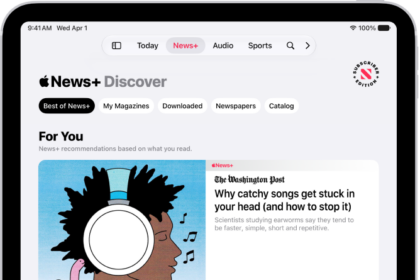
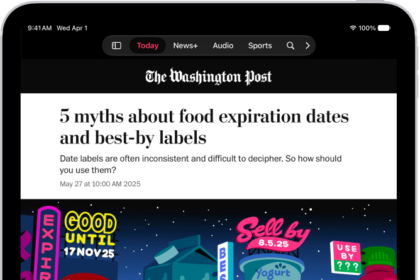
After the recent iOS update, many users have reported issues with the Apple News app failing to load. This problem primarily affects paid members and manifests as a spinning loading icon on the “Welcome to Apple News” screen before the app abruptly closes. This issue has been observed on iPhones and particularly affects paid Apple News+ subscribers.
If you’re facing this issue, here are some fixes you can try:
Fix 1: Update to the Latest Version of iOS
Ensure your device is running the latest version of iOS. Apple often releases updates to address known bugs and improve app compatibility. To update your iPhone 18 Pro:
- Open Settings.
- Tap General > Software Update.
- If an update is available, tap Update Now.
Fix 2: Remove Interfering Apps or Profiles
Certain VPN, security, or firewall apps (e.g., Norton) can interfere with Apple News by disrupting the network stack. To resolve this:
- If you have a VPN app or a security app installed, temporarily uninstall it:
- Press and hold the app icon on your Home screen.
- Tap Remove App > Delete App.
- Check if any configuration profiles are installed:
- Go to Settings > General > VPN & Device Management.
- Remove any profiles if they’re not essential.
After resolving the issue, you can reinstall these apps if needed.
Fix 3: Re-enable Apple News in iCloud
Sometimes, toggling the Apple News status in iCloud settings can resolve the loading issue. Here’s how:
- Open Settings.
- Tap [Your Name] > iCloud.
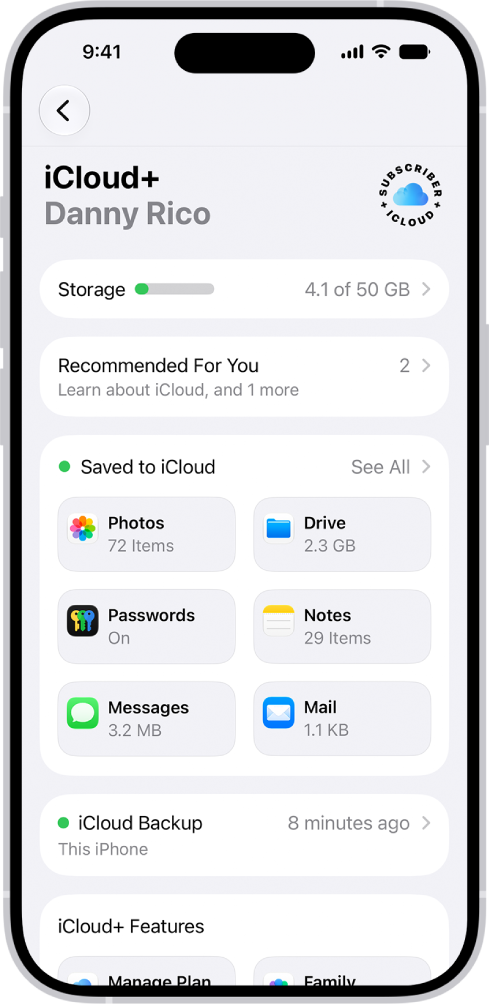
- Tap See All next to Saved to iCloud, then toggle News off.
- Wait a few seconds and toggle it back on.
Fix 4: Adjust Your Region Settings
Incorrect region settings may also cause the app to malfunction. To reselect your region:
- Go to Settings > General > Language & Region.
- Tap Region, select your current region again, and confirm.
Fix 5: Reinstall the Apple News App with a Specific Method
If the above fixes don’t work, follow these steps to reinstall the Apple News app:
- Turn off Apple News in iCloud:
- Open Settings and tap [Your Name] > iCloud.
- Tap See All next to Saved to iCloud, then toggle News off.
- Delete the Apple News app:
- Press and hold the app icon.
- Tap Remove App > Delete App and confirm.
- Restart your iPhone 18 Pro:
- Press and hold the Side button and either Volume button until the slider appears. Drag the slider to turn off the device, then press and hold the Side button to restart.

- Press and hold the Side button and either Volume button until the slider appears. Drag the slider to turn off the device, then press and hold the Side button to restart.
- Reinstall Apple News:
- Go to the App Store and re-download the app.
- Disable Wi-Fi before opening the app:
- Turn off Wi-Fi in Settings or Control Center.
- Open the News app:
- A message will appear saying the app is not connected to the internet.
- Re-enable Wi-Fi:
- Turn Wi-Fi back on. The app should start syncing and load your content.
- Do not re-enable iCloud for Apple News:
- Re-enabling iCloud News might recreate the spinning loading issue.
These fixes should help you restore Apple News functionality on your iPhone 18 Pro. If the issue persists, consider reaching out to Apple Support for additional assistance.