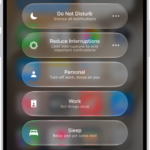
You are exercising and you’re listening to music or a podcast using your AirPods, Apple Watch and iPhone 18 Pro, but then suddenly, for no reason, the sound keeps pausing. I had this problem too. I was very annoyed to be interrupted by this, spoiling the overall workout experience. This may happen every kilometer or mile when you get a notification. This issue may also occur when you stream or listen to downloaded music and ebooks.
If the sound keeps pausing for you, this article will take you through the steps you can try in fixing this.
Update your iPhone 18 Pro, Watch
Update your iPhone 18 Pro and Apple Watch and ensure that they have the latest iOS and watchOS. On your iPhone 18 Pro, go to Settings > General > Software Update. On your watch, you can use your iPhone or watch. If you want to update on your watch, go to Settings > General > Software Update. Alternatively, you can open the Apple Watch app on your iPhone and then go to General > Software Update.
If you are also using AirPods or other headphones, ensure that they have the latest firmware.
Turn off Voice Feedback
If updating does not help you, you may want to turn off Voice Feedback. Voice Feedback is an Apple Watch feature that lets you hear your progress by receiving audible announcements on your workout progress. For example, Siri will read your notification when you close your rings; or Siri may alert you when you’ve finished another kilometer. This may cause your music or sound to pause. Try turning this off and then try again. Follow these steps:
- Open the Fitness app on your iPhone.
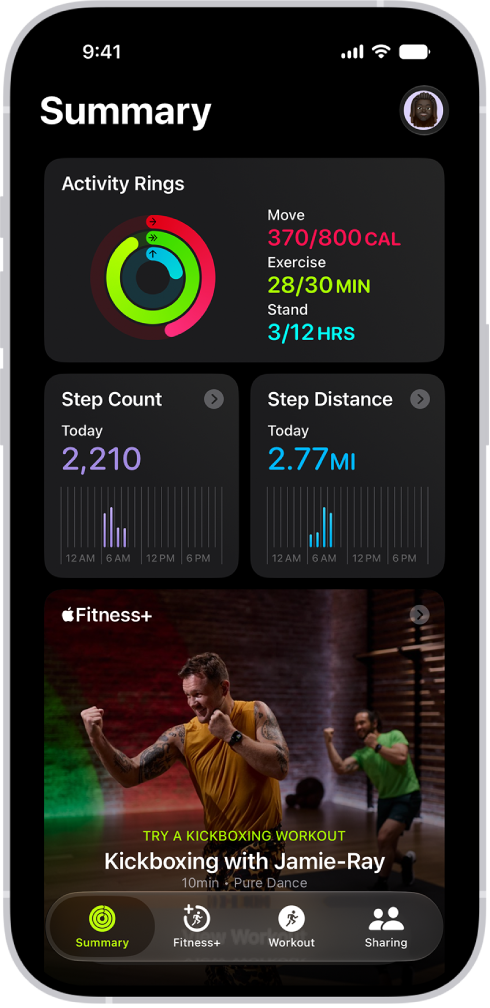
- Tap Summary, then tap your picture or initials.
- Tap Workout.
- Find Voice Feedback and turn it off.
This feature can also be disabled on your watch. Follow these:
- Tap Settings on your Apple Watch.
- Tap Workout.
- Turn off Voice Feedback.