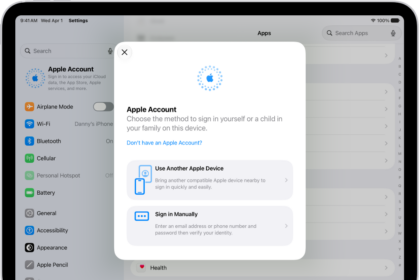
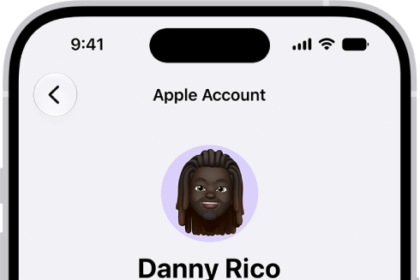
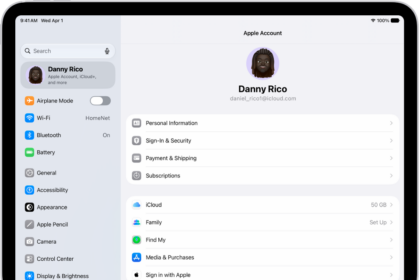
Some iPhone users have complained that they are unable to tap their name in the Settings of their iPhone 18 Pro or iPhone 18 Pro Max. Users have said that the section appears to be grayed out and tapping does nothing.
When you go to Settings, you will see your name along with your profile photo at the top. Tapping your Apple Account name shows the options to change important account settings, including, but not limited to:
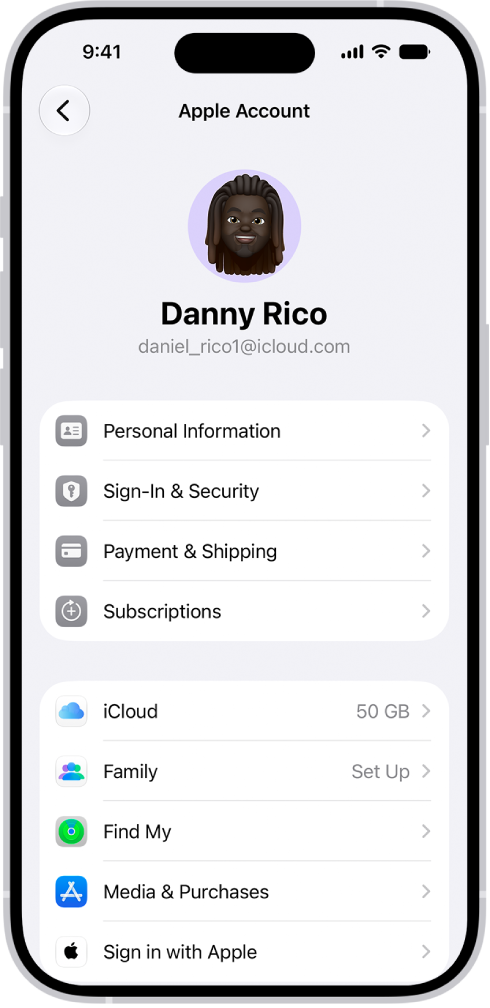
- Apple Account settings
- Find My
- iCloud settings
- Subscriptions
- Payment & Shipping
- Media & Purchases
If you cannot access these settings, there are two likely causes:
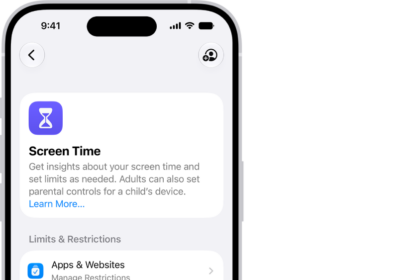
- It may be because you have Content & Privacy Restrictions turned on in Screen Time.
- You have an MDM (mobile device management) profile.
1. Check for restrictions preventing account changes
- Open Settings and then tap Screen Time.
- Tap Content & Privacy Restrictions.
- Scroll down and find the Allow Changes To section. Tap Accounts. You will need to enter your Screen Time passcode.
- Ensure that this setting is set to Allow.
Now exit Screen Time and go back to Settings. You will see that your Apple Account name is now accessible.
Note: If you are a child and part of a family group, your parents may have set up Screen Time, and you will need to ask your parent (or whoever set up the family group) for the Screen Time passcode.
2. Check for profiles
If your iPhone 18 Pro is provided to you by your work or school, there may be a profile installed. To check if there is a profile, go to Settings > General > VPN & Device Management. If Screen Time is not causing your problem, this could be the problem. Contact your company or school.