This article explains how you can resolve when you receive the “Face ID has been disabled” error. The exact error message is:
A problem was detected with the TrueDepth camera. Face ID has been disabled.
If Face ID is disabled, you may not be able to use Face ID to unlock your iPhone 18 Pro or iPhone 18 Pro Max. You will not also be able to use Animoji and Memoji. However you will be still able to use your device, but you will have to enter your passcode when necessary. This error message may appear on the Home screen or in Settings. See Can’t Turn Off Stolen Device Protection on iPhone 18 Pro.
Face ID has been disabled
Please try each step until you resolve your issue:
1– Simultaneously press and hold the side button and either volume button until the sliders appear, then drag the Power Off slider.

2– Make sure that your iPhone 18 Pro is running the latest version of iOS. You may easily check for updates and if there is an update available, you may easily update your device.
3– Hard reset your iPhone 18 Pro. Don’t worry, this is just a force restart. It will not reset your device (it will not delete content etc). Here is how:
- Press and quickly release the volume up button. Press and quickly release the volume down button. Press and hold the side button. When the Apple logo appears, release the side button.

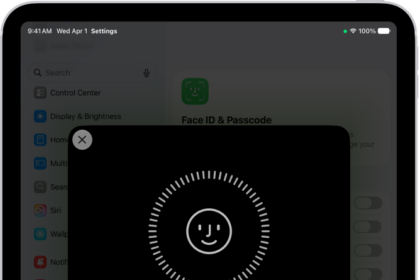
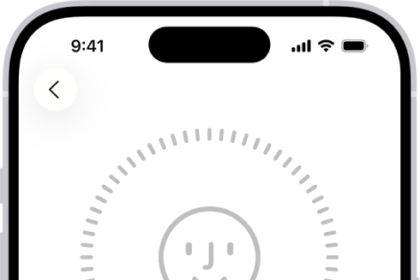
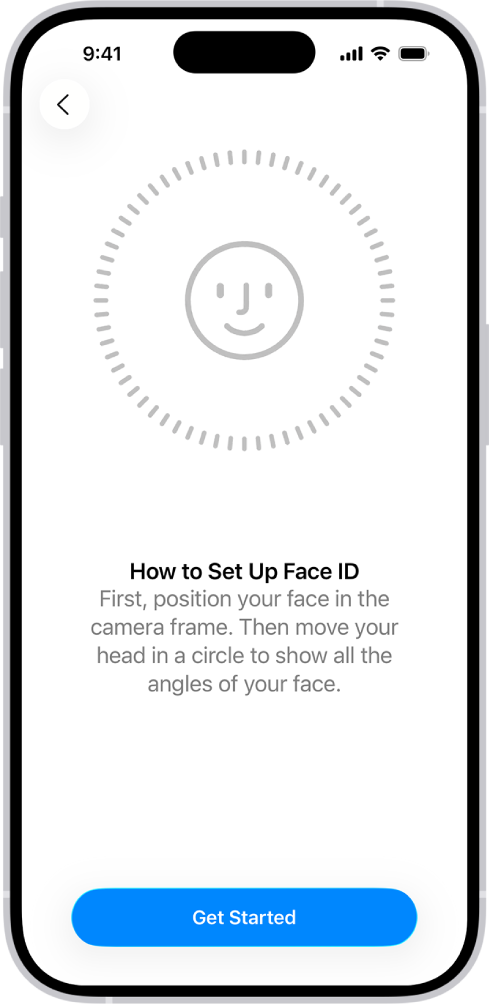
4– Reset Face ID and set up a new one. Here is how:
- On your iPhone 18 Pro, go to Settings > Face ID & Passcode. You may have to enter your device’s passcode. Then tap Reset Face ID. This will remove your Face ID settings. And now restart your device and then go to Settings > Face ID & Passcode and tap Set Up Face ID. And follow the onscreen instructions.
5-Restore your iPhone. This step involves resetting your device, so please make sure that you have a recent back up.
- Go to Settings > [your name] > iCloud > iCloud Backup, then tap Back Up Now. (You can also back up with your computer by connecting your iPhone to it and then selecting Back Up Now in the Finder, the Apple Devices app or iTunes).
- Now it is time to reset your device. Simply, go to Settings > General > Transfer or Reset iPhone, then tap “Erase All Content and Settings.”
- Follow the onscreen instructions and when you are asked, select Restore from iCloud Backup.
6-If nothing above helps you, then you may want to contact Apple. You may also want to book an appointment with Apple at the nearest Apple Store. It is probable that your issue is a hardware problem.