This short article explains how you can troubleshoot when the Fitness app is not working properly. See Fitness App Crashing or Freezing on iPhone 18 Pro. The Fitness app on your iPhone 18 Pro or iPhone 18 Pro Max lets you view your activity progress and history.
With the Fitness app, you can track your activity and progress, so that you can optimize your workouts. The data that your Apple Watch collects should sync automatically and wirelessly with your iPhone. Sometimes you may start having problems. Sometimes you may notice that the Fitness App is not working correctly. Sometimes sync may fail. If your activity isn’t syncing, meaning the Fitness app on your iPhone 18 Pro is not updating; try the following troubleshooting steps.
After you try each step below, please check to see if your problem is fixed.
Fix Fitness App:
1. Make sure that the Bluetooth setting on your iPhone 18 Pro is on (Settings > Bluetooth).
2. Make sure that your watch’s battery isn’t critically low.
3. Turn on and wait a few seconds and turn off Airplane Mode on your iPhone and Apple Watch.
- On your iPhone > Settings > Airplane Mode.
- On your watch > Settings > Airplane Mode.
4. Restart your iPhone 18 Pro. You can do so by going to Settings > General and Shut Down
5. Restart your Apple Watch by pressing and holding the side button until the sliders appear. Tap the Power button, then slide the Power Off slider. To power your watch on again, press and hold the side button until you see the Apple logo.
6. Try these steps:
- Close the Fitness app on your iPhone. Here is how:
- Go to Home screen, swipe up from the bottom of the screen, you will see the most recently used apps, find the Fitness app, and then swipe up on the app.

- Go to Home screen, swipe up from the bottom of the screen, you will see the most recently used apps, find the Fitness app, and then swipe up on the app.
- In the Summary tab, tap the Activity rings, scroll down, then tap Change Goals.
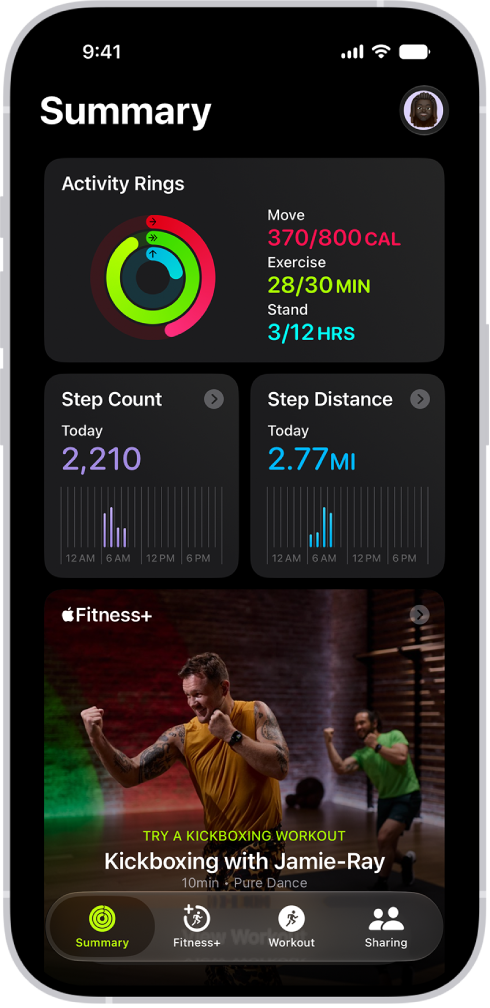
- Check to see if your issue is fixed.
7. Make sure that your iPhone and your Apple Watch have the latest software version.
- To update your iPhone 18 Pro, tap Settings > General > Software Update.
- To update your Apple Watch, place your Watch on its charger, and then on your iPhone, open the Apple Watch app, and tap My Watch and then tap General > Software Update.
8. Check your settings. On your iPhone, ensure that the following settings are turned on.
- Settings > Privacy & Security > Location Services and ensure that Location Services is enabled.
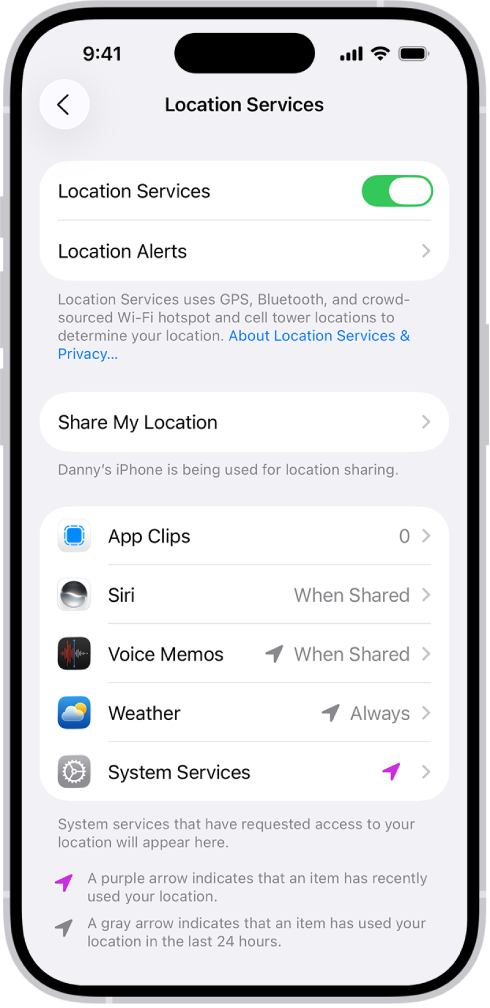
- Again go to Settings > Privacy & Security > Location Services and tap System Services and then make sure that Motion Calibration & Distance is turned on.
9. Calibrate your watch. This involves at least 20 minutes of outdoor running or walking on a flat surface. Follow the steps below:
- Wear your Apple watch.
- Go outdoors. Make sure there is a clear view of the sky. The area should be flat.
- Open the Workout app and select Outdoor Walk or Outdoor Run.
- Walk or run at least 20 minutes. When you are done, end the activity.
You may also want to reset your calibration data by opening the Apple Watch app on your iPhone. Then go to My Watch tab, then tap Privacy > Reset Fitness Calibration Data.
10. Unpair your Apple Watch. Please note that you will have to re-pair again with your Apple Watch to use your device again. On your iPhone, open the Apple Watch app, then tap My Watch, then tap All Watches. Now tap the (i) icon next to the Watch icon. And tap Unpair Apple Watch. And confirm this by tapping Unpair Apple Watch.
You will also have to enter your Apple Account to unpair your Apple Watch. By entering your Apple Account password, you will remove this watch from your account and disable Activation Lock. Enter your Apple Account password and then tap Unpair. And then pair your Apple Watch with your iPhone.
If you are still having issues, you may want to contact Apple Support.