The new iOS 26 brings an array of big and brand-new features like Liquid Glass, AutoMix, and custom message backgrounds. Apart from these already popular additions, Apple also silently pushed a bunch of handy features that can make a big difference in your day-to-day life. In this article, I’ve shared 14 hidden iOS 26 features that will improve your day-to-day experience with your iPhone.
HIDDEN iOS 26 FEATURES
Here are the top hidden iOS 26 features and changes that are worth knowing about:
1. MAKE LIQUID GLASS OPAQUE
The biggest single change in iOS 26 is the design overhaul. Apple is using a new Liquid Glass material throughout the operating system, and it has transformed the look of the iPhone’s software.
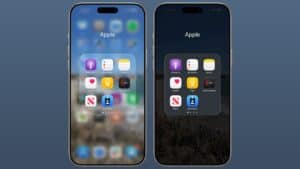
Hate the new glass look? There is an option to make it opaque in Accessibility settings with the Reduce Transparency option.
Simply head into the Settings app, then select Accessibility > Display & Text Size and hit the Reduce Transparency option. This will keep the glassy feature of all the icons and folders in iOS 26, but things will be a little more solid.
2. NEW BACKGROUND SOUNDS
With iOS 26, Apple added a bunch of new options for the Background Sounds feature. If you’re unfamiliar with it, it is an Accessibility option that allows your iPhone to play soothing background noise, like white noise or rain.
Prior to iOS 26, there were eight Background Sounds options, but now there are a total of sixteen. Here’s what’s new:
- Babble
- Steam
- Airplane
- Boat
- Bus
- Train
- Rain on Roof
- Quiet Night
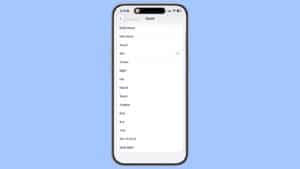
Background Sounds can be toggled on in the Settings app under Accessibility > Audio and Visual > Background Sounds. Once you’ve opted in and selected a sound, you can toggle Background Sounds on and off through the Hearing Accessibility shortcut in the Control Center.
3. NEW RINGTONE
iOS 26 includes a new ringtone that’s an alternative to the classic "Reflection" ringtone that Apple uses as a default on iPhones.
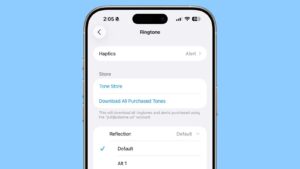
Apple didn’t give the new ringtone a special name, and it’s just listed as "Alt 1" as an option if you tap into Reflection. You can get to the ringtone in iOS 26 by opening up Sounds and Haptics in the Settings app, tapping on Ringtone, and then tapping on Reflection.
The classic Reflection ringtone is still the default, so if you prefer the new sound, you’ll need to set it manually.
4. CUSTOM SNOOZE DURATION
In iOS 26, Apple has introduced a hidden feature that allows you to customize the snooze length for your alarms.
The duration is customizable anywhere from 1 to 15 minutes, finally breaking free from the rigid 9-minute default that has frustrated iPhone users for years. You can access this hidden iOS 26 feature by tapping any alarm and tapping the number next to "Snooze Duration" in the options.
5. BATTERY DRAIN WARNINGS
Battery life is fickle, because some things need more power than others. The problem is it can be tricky to tell what those things are until it’s too late, and your battery has dropped so low you won’t last the rest of the day. Thankfully it looks like iOS 26 is changing that, with a new battery drain warning.
All the battery settings seem to have had a revamp in the iOS 26 beta, with extra information and new graphics for battery health. But crucially your iPhone will tell you if you’re using more battery than normal at any given point in the day, and it flags apps that are using more power. You can also see time to charge in the Battery section of the Settings app and on the Lock Screen.
6. KEEP YOUR AUDIO IN YOUR HEADPHONES
iOS 26 includes a new "Keep Audio in Headphones" feature that addresses a common frustration for iPhone users juggling multiple audio devices.
Found in Settings ➝ General ➝ AirPlay & Continuity, the new toggle prevents audio from automatically switching to newly connected devices like car speakers or Bluetooth speakers when you’re already listening through headphones or AirPods. Instead of having your music suddenly blast through your car’s sound system, audio continues playing through your original output device.
This seemingly hidden iOS 26 feature solves an awkward scenario many users will have experienced. Say you’re listening to a podcast through AirPods while walking to your car, only to have it unexpectedly resume through CarPlay when you start the engine. Now you can stop that happening by enabling this option.
7. THE BOOKMARKING GESTURE
iOS 26 has a hidden feature that makes it a lot easier to bookmark specific pages in the Safari browser. No more fiddling about with multiple screens and menus. Simply double tap the three-dot menu at the bottom of the screen, and the bookmarking options menu will appear.
8. FOCUS MODES FOR DIFFERENT SIM CARDS
A good number of you will have a second SIM card or eSIM in your phone, presumably for some kind of work or non-personal number — rather than having a separate phone. But that can make it harder to switch off and disconnect when you’re not actually working. Or vice versa.
Thankfully, iOS 26 changes this, with new Focus mode upgrades that let you apply Focus modes to specific SIMs in your phone. Using the example of a work phone, it essentially means you can silence a work number when you’re off the clock, and keep your personal number from interfering during work hours.
9. ADAPTIVE POWER MODE
If your phone is deliberately using a lot of power, for whatever reason, there’s a feature that can help out there too. Adaptive Power Mode is a new iOS 26 feature that can save battery when you’re using more battery life on your phone. Maybe you’re using Maps more, or taking a lot of photos. It’ll let you know your battery usage is up, and will help you trim down features you don’t need so that your battery lasts as long as it normally does.
According to the setting description this can include reducing brightness or slowing down some apps — meaning they may take longer to get things done. But, in the process, that means they’ll use less power and allows that energy to be used elsewhere.
10. REMAINING CHARGING TIME ESTIMATES
iOS 26 includes a hidden feature that lets you know how long it’ll take your battery to charge when it’s plugged in or on a wireless charger, with the new option allowing you to better optimize your charging practices.
You’ll be able to determine how fast a charger is charging your device based on the estimated time to a full charge. If you’re charging from a slow connection or a Qi-based charger limited to 5W, the setting will let you know that you’re connected to a slow charger.
You can see the time remaining until a full charge in the Battery section of the Settings app. It’s quite a simple feature, in the grand scheme of things, but it’s one that has a lot of practical uses.
11. DIRTY LENS WARNINGS
A dirty lens can ruin a perfectly good picture, which is not something you want on any photo — especially if it’s time sensitive. . When iOS 26 detects that the lens is smudged or otherwise obstructed, it’ll display a small pop-up at the top of the viewfinder.
You can ignore this, from the looks of things, and the size of the warning doesn’t look like it’ll be getting in the way of taking photos. But it’s a handy feature to have, especially if you like using your camera regularly.
12. SEARCH YOUR APPLE WALLET
At this point, I suspect your Apple Wallet is pretty full. Which is not ideal if you’re looking for specific cards or passes in there. So iOS 26’s new search feature should make it a lot easier to find what you’re looking for quickly, be it a credit card, some kind of ticket, digital car keys or your ID.
13. HDR SCREENSHOTS
If you want to capture some extra dynamic range in your screenshots and screen recordings, iOS 26 can let this happen. Once done all your screenshots will be saved in the HEIF format while screen recordings will be in the HEVC codec — those are the same as photos and videos captured by the iPhone camera.
To turn this on head into Settings > General > Screen Capture.
14. ALBUM ARTWORK
When you play songs from Apple Music, Spotify, and other services, album artwork is now full screen on the Lock Screen.
Do you agree with our picks? Know of a hidden iOS 26 feature we didn’t mention? Let us know in the comments below.
See also: 100 new iOS 26 features for iPhone! Do you know them all?