Without your contacts, your iPhone isn’t a complete phone. You can import your contacts from Google or iCloud, but there will be times when you’ll need to manually add a new contact to your iPhone. Here’s how it works.
How to Add Contact Using the Phone App and Contacts App
You can add a new contact to your iPhone using the "Phone" app and the "Contacts" app. The process is the same.
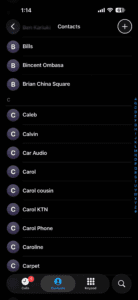
- Open the Phone app on your iPhone, then tap the Contacts icon at the bottom of the screen.
Alternatively, find and tap the Contacts app icon on your iPhone Home screen. - If you’re in the Phone app, tap (add) in the upper-right corner.
 If you jumped to the Contacts app in Step 1, is in the lower-right corner.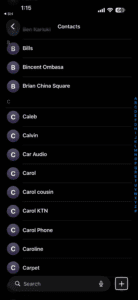
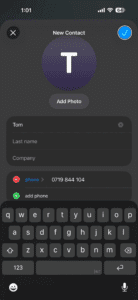
- Enter any contact information you want.
- Tap the Done button in the upper-right corner when you’ve finish making entries.
The new contact appears in your address book.
See also: How to edit contact on iPhone
How to Add a Contact from The Call Log
Quite often, you want to save the phone number of someone who has just called you. In this case, you won’t need to enter the phone number itself.
- Go to the Phone app on your iPhone.
- Do one of the following, depending on which Phone app layout you’re using:
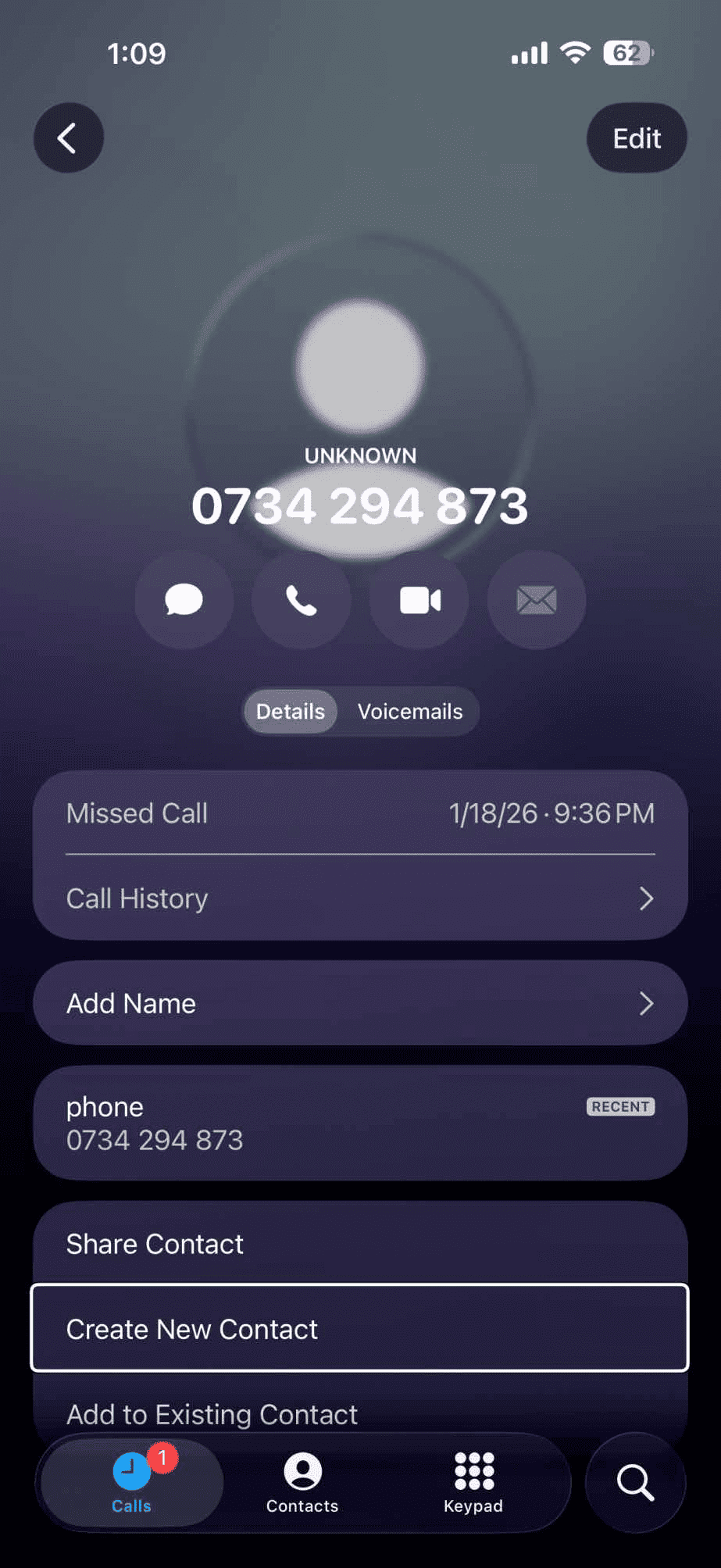
- Unified layout: Tap Calls at the bottom of the screen, then tap the number you want to add to Contacts.
- Classic layout: Tap Recents at the bottom of the screen, then tap the Info button next to the number you want to add to Contacts.
- tap the Create New Contact button.
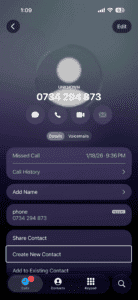
- Enter any contact information you want.
- Tap Done to save the contact.
Find a contact
- Open the Contacts app on your iPhone.
- Tap the search field at the bottom of the contacts list, then enter a name, address, phone number, or other contact information.
Share a contact.
- Open the Contacts app on your iPhone.
- Tap a contact, tap Share Contact, then choose the fields you want to share.
- Tap the Done button then choose a sharing option, such as Messages or Mail.
Quickly reach a contact
- Open the Contacts app on your iPhone.
- Tap a contact.
- Tap a button below the contact’s name to do any of the following: – start a message, make a phone call or a FaceTime call; or compose an email.
- To change the default phone number or email address for a contact method, touch and hold the button for that method below the contact’s name, then tap a selection in the list.
See also: How to delete contact on iPhone