SUMMARY
- Stickers on iPhone allow users to send custom images in iMessage, adding a fun and personalized touch to conversations.
- You can create stickers from any photo or video in your Photos library.
- Stickers can be used as reactions, memes, or to decorate iMessage threads, and can be sent as images or placed directly on messages.
Stickers might just be the iMessage feature you’ve been missing out on as an iPhone owner. With recent iOS updates, Apple has made using and creating stickers more compelling than ever.
What are Stickers on iPhone?
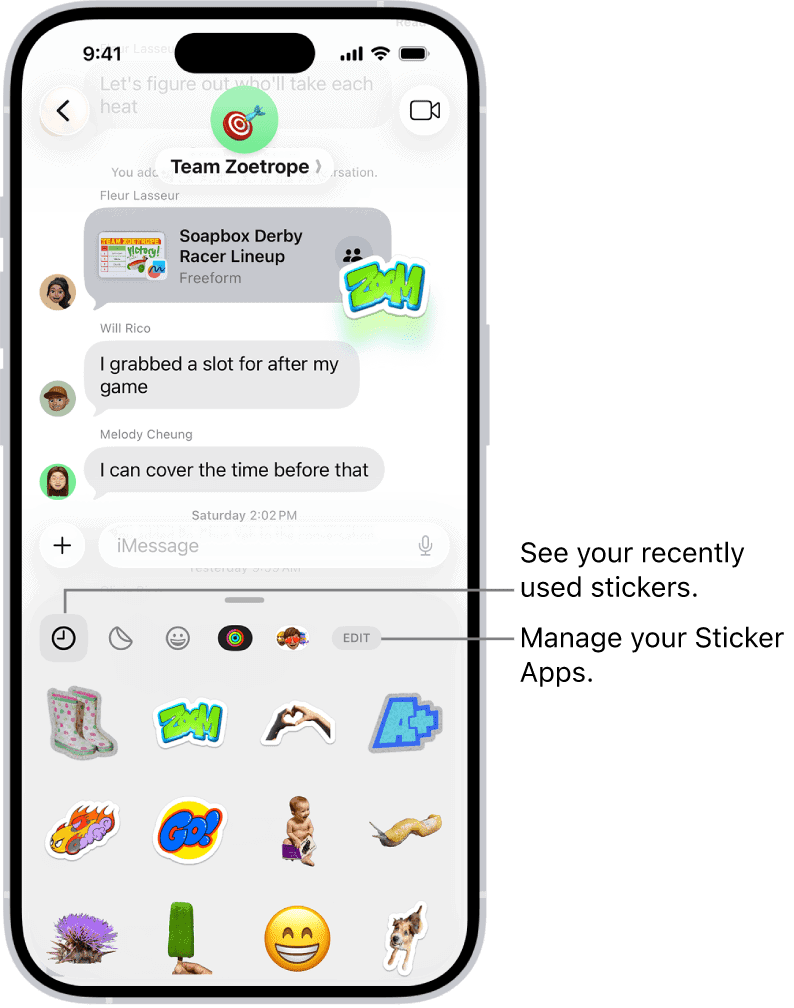
Stickers is an iPhone feature that allows you to keep and send a selection of custom images to iMessage users. In addition to sending still and animated images, stickers can be “peeled” and placed over messages and other content in your conversations.
The feature won’t work over standard SMS, so you’ll need to see the blue bubbles in a chat for the feature to work. They work in both standard conversations and group chats, as long as the chat takes place over iMessage. Stickers will sync between devices including iPhone, iPad, and macOS.
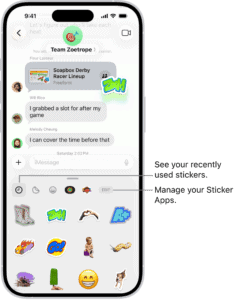
Send a sticker in a message on iPhone
- Open the Messages app on your iPhone.
- In a conversation, tap the Add icon ( ).
- Tap Stickers, then tap the icon for any of the following sticker packs:
- Live Stickers you or a friend made: Tap the Live Stickers button.
- Emoji: Tap the Emoji button.
- Memoji: Tap the Memoji Stickers button, tap a Memoji in the top row to view the stickers in the sticker pack, then choose a pose or expression. See Create Memoji.
- Stickers from other creators: Download a sticker app from the App Store.
- Add a message (optional), then tap the Send button.
Messages has a built-in app store so you can buy (or download for free) sticker packs, new effects, and more. To get some free stickers and see what other third-party add-ons are available, tap the add icon ( ), and then tap Stickers on the menu. Now swipe the row of sticker apps to the left, tap Edit to display the Manage Sticker Apps screen, and then tap Get Sticker Apps on the App Store.
Once you’ve acquired sticker apps on your iPhone, tap the add icon ( ), tap Stickers on the menu, and then tap the sticker app in the row of sticker apps to display the available stickers. You can then tap a sticker to add it to your message.
Place stickers on a conversation
You can add stickers on message bubbles in conversations, and angle the stickers or make them different sizes. You can also place a sticker on top of another sticker.
- Open the Messages app on your iPhone.
- In a conversation, tap the Add icon ( ).
- Tap Stickers, then tap an icon—such as the Live Stickers button, the Emoji button, or the Memoji Stickers button—in the top row to browse a sticker pack.
- Drag a sticker onto a bubble, then do any of the following:
- Adjust the angle: Rotate a second finger around the finger dragging the sticker.
- Adjust the size: Move a second finger closer to or away from the finger dragging the sticker.
Your recipients see the sticker as soon as you place it on a message.
To find out who sent a sticker in a conversation, touch and hold the sticker, then tap Sticker Details.
Tip: Quickly add stickers to messages. Touch and hold a message, tap Attach Sticker, then choose a sticker to appear on a corner of that message bubble.
Move, resize, or delete stickers
After you place a sticker on top of message bubbles in conversations, you can make changes to it.
Do any of the following:
- Move or resize a sticker: Touch and hold the sticker, then make any changes.
- Delete a sticker: Touch and hold the message bubble, tap Sticker Details, swipe left on the sticker you want to delete (on your iPhone only), then tap the Delete button.
- See any text covered by a sticker: Double-tap the message bubble.
Note: You and your recipients must be using iOS 17.2, iPadOS 17.2, macOS 14.1, watchOS 10.2, visionOS 1, or later, to see these updates to stickers.
Create Live Stickers
You can create your own Live Stickers to use in messages by lifting subjects from photos and adding effects that help bring the stickers to life.
- Open the Messages app on your iPhone.
- In a conversation, tap the Add icon ( ), then tap Stickers.
- Tap the Live Stickers button, then tap the Add button.
- Tap a photo, then tap the Add button.
- To add an effect, tap Add Effect, choose an option (such as Comic or Shiny), then tap the Done button.
Save other people’s Live Stickers
When someone sends you a Live Sticker you like, you can save it to reuse later.
- Open the Messages app on your iPhone.
- Open a conversation with a sticker you want to save.
- Touch and hold the sticker, then do one of the following:
- For a sticker sent in a message: Tap Save to Stickers.
- For a sticker placed on a message bubble: Tap Sticker Details, then tap Save.
You can also create and send Memoji that use your voice and mirror your facial expressions.