Want to know how to send an audio message on iPhone? The Messages app on your iPhone enables you to send a voice message instead of text to iMessage recipients. Audio messages are automatically deleted to save space on your iPhone, but if you want to save them, you can.
Record and send an audio message
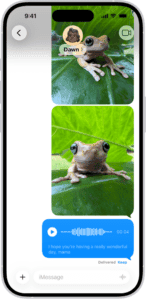
Instead of writing a text message, you can record an audio message that can be played right in the Messages conversation. Here’s how to send an audio message on iPhone:
- Open the Messages app on your iPhone.
- In a message conversation, tap the add icon (+) to open the Add menu.
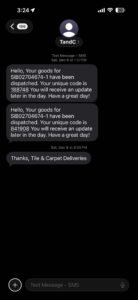
- Tap the Audio button, then begin speaking.
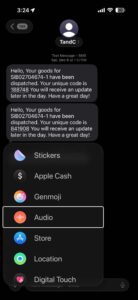
- Tap the Stop button to pause or end your recording, then do any of the following to your voice message:
- Send it: Tap the Send button.
- Listen to review it: Tap the Play button.
- Add to the end of it: Tap the Continue Recording button (with the message duration).
- Cancel it: Tap the Close button.
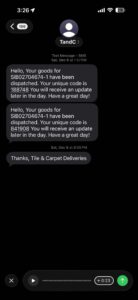
- Tap Keep to save an incoming or outgoing audio message on your iPhone.
Otherwise, the recording is deleted from the conversation—on your iPhone only—2 minutes after you send or listen to it. Recipients can play your voice message any time after they receive it. To save it, they need to tap Keep within 2 minutes after listening to it.
Tip: Send follow-up audio messages more quickly by touching and holding the Record Audio button in the text field.
Always keep audio messages
- Open the Settings app on your iPhone.
- Tap Apps, then tap Messages.
- Tap Expire (below Audio Messages), then tap Never.
Listen or reply to a recorded audio message
- Open the Messages app on your iPhone.
- Open a conversation with an audio message, then tap the Play button to play it.
- Do any of the following:
- Slide right and left on the audio message to fast-forward or rewind.
- Long-press the Play button or the Pause button to adjust the playback speed.
- Tap Keep to save an audio message in the conversation.
- To save the message in the Voice Memos app , long-press the audio message, then tap Save to Voice Memos.
Use Raise to Listen
When you receive an audio message on your iPhone, you can quickly listen to and reply to the message by merely raising your iPhone to your ear. Do either of the following:
- Play an audio message: Raise your iPhone to your ear.
- Reply to an audio message: Lower your iPhone and raise it to your ear again, then speak after you hear a tone. Tap the Send button to send your reply.
Turn off Raise to Listen
If you don’t want audio messages to play when you raise your iPhone to your ear, you can turn the feature off.
- Open the Settings app on your iPhone.
- Tap Apps, then tap Messages.
- Turn off Raise to Listen.
See also: How to send message to group on iPhone