Your iPhone is set up with a default ringtone, but you can choose among a large number of Apple-provided choices.
Your iPhone comes with more than 50 ringtones, so you have a good chance of finding one that you like.
Change your ringtone on iPhone
- Open the Settings app on your iPhone.
- Tap Sounds & Haptics.
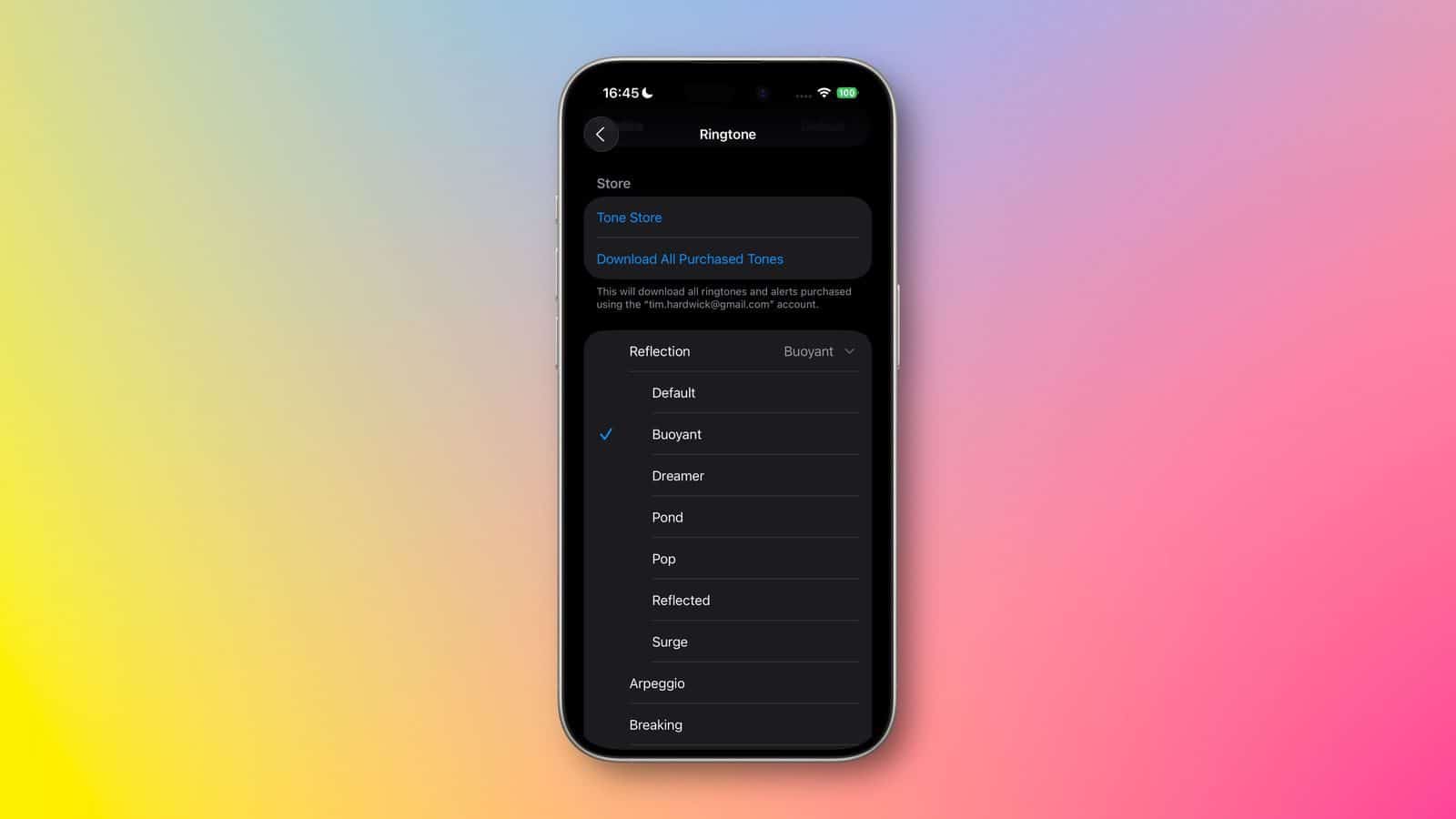
- Tap the sound that you want to change.
- Tap each ringtone in the Ringtone section until you find one you like and set it as the new sound.
Tip: Tap the Classic button at the bottom of the Ringtone section to reach the classic tones that came with early iPhone models.
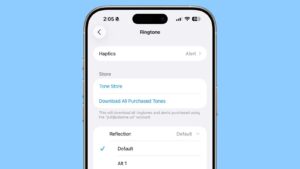
While on the Ringtone screen, tap the Haptics button, and then pick a haptic (vibration pattern) to accompany the ringtone. You can tap Create New Vibration to create a custom vibe.
Tap the back icon (<) to return to the Sounds & Haptics screen. You can then choose tones and vibrations for other items in the Ringtone and Alerts section — Text Tone, New Voicemail, New Mail, Sent Mail, and so on.
Set a ringtone for a contact
You can set custom ringtones for individual contacts on your iPhone by using the Contacts app. So when, say, one of your children call, you can have a ringtone that you associate only with them. And you can do the same for your parent, colleague, or best friend.
- Open the Contacts app on your iPhone.
- Tap a person’s name.
- tap the Edit button.
- Tap the Ringtone button.
- Tap the ringtone you want, and then tap the Done button.
Back in the contact record, you can tap Text Tone if you want to assign a custom text tone too. Tap the Done button when you’ve finished tweaking the contact.
Buy ringtones
You can buy new tones for your iPhone. These purchases are associated with your Apple account and payment method on file.
- Open the Settings app on your iPhone.
- Tap Sounds & Haptics, then tap Ringtones.
- Scroll to the top and tap Tone Store.
- Find the ringtone you want to buy.
- To purchase the tone, tap on the price.
Your purchased tones and ringtones appear at the top of the list of sounds.
If you get a new iPhone or your previous purchases aren’t showing up, tap Download All Purchased Tones. You might not see this option if you already downloaded all the tones that you purchased or if you haven’t purchased any tones. You might not be able to redownload some previously purchased tones.