If you’ve ever been in a public place and heard the distinctive trill of an iPhone text tone, looked down at your phone and realized the message wasn’t for you — you’re not alone.
But it doesn’t have to be that way. Apple allows its iPhone users to set a unique text tone — so next time you’ll know when to check your messages.
Default text tone for the Messages app can be changed regardless of what iPhone model or iOS version you have, and can be done in a few easy steps.
Here’s how to do it.
Change text tone on iPhone
- Open the Settings app on your iPhone.
- Go to Sounds & Haptics.
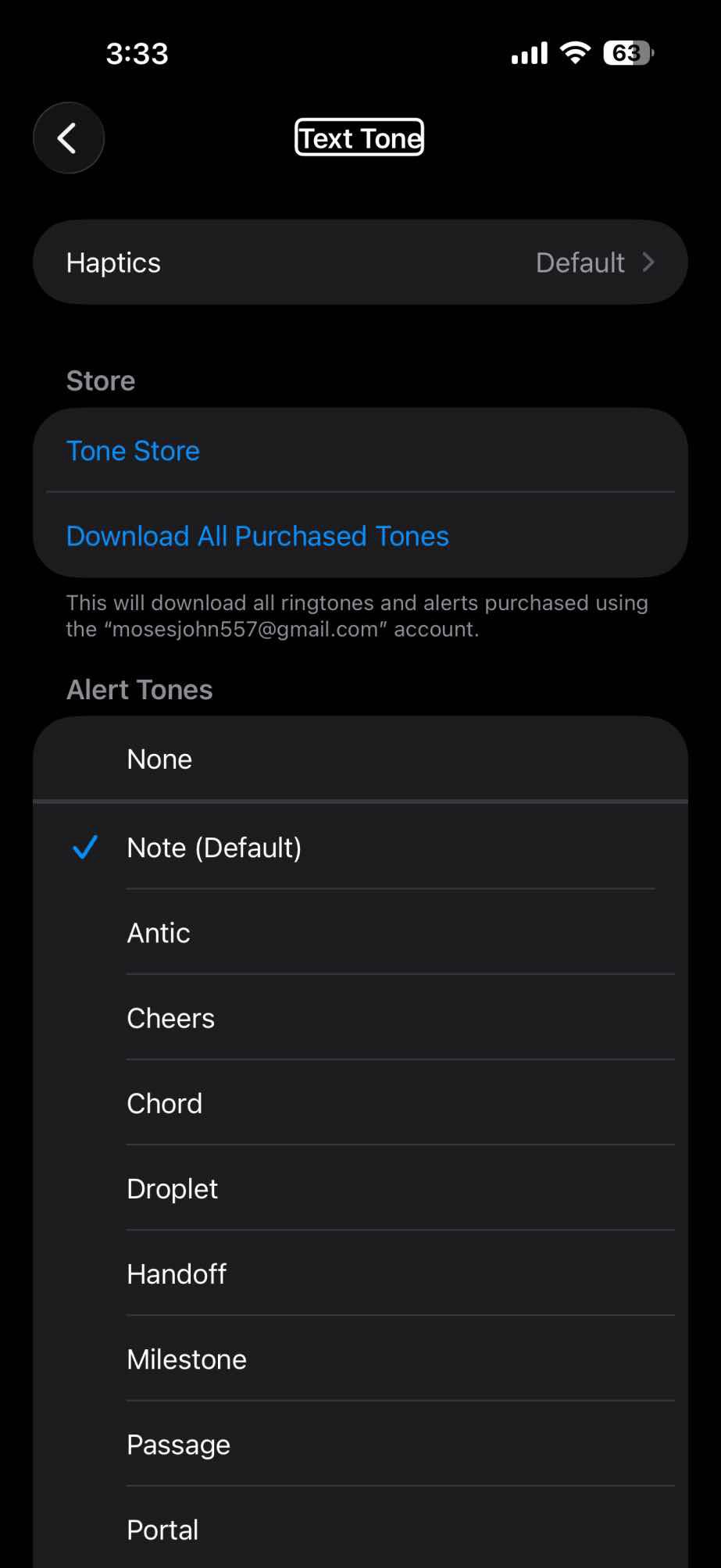
- Tap Text Tone.
- Tap a alert tone to hear it and set it as the new sound for text messages.
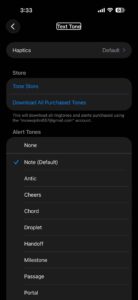
Note: You hear the sounds when you audition them in the Settings app, even if you have the ring/silent switch set to silent. After you exit the Settings app, however, you won’t hear a sound when a message arrives if the ring/silent switch is set to silent or the Do Not Disturb feature is enabled.
If you don’t want to hear an alert when a message arrives, instead of tapping one of the listed sounds, tap the first item in the list: None.
Set a text tone for a contact on iPhone
You can assign a custom alert sound and custom vibration pattern to anyone in your Contacts list.
- Open the Messages app on your iPhone.
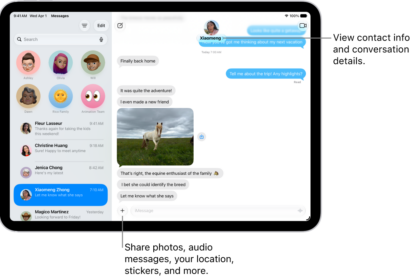
- In a conversation with one person, tap the contact icon at the top of the conversation.
- Tap Edit in the top-right corner, tap Edit Contact Info, then tap Text Tone.
If you don’t see Edit, tap Create New Contact or Add to Existing Contact. - Do any of the following:
- Specify a tone or sound: Tap a sound below Alert Tones (or tap Tone Store to download one).
- Specify a vibration pattern: Tap Haptics, then choose an option (or tap Create New Vibration to make your own).
- Mute notifications for this conversation: Tap None below both Haptics and Alert Tones.
- Tap the done icon (check mark).
Tip: While on the Text Tone screen, you can set the Emergency Bypass switch on (green) to allow this contact’s text tone to play when your iPhone is silenced or a focus is on. You can also set Emergency Bypass separately for the contact’s ringtone.
Buy text tones
You can use the Tone Store on your iPhone to buy new text tones. These purchases are associated with your Apple account and payment method on file. Go to Settings > Sounds & Haptics > Text Tone, then scroll to the top and tap Tone Store.
To set downloaded text tone on iPhone, go to Settings > Sounds & Haptics > Text Tone. Your purchased text tones appear at the top of the list of sounds. Tap a alert tone to hear it and set it as the new sound for text messages. List end
If you get a new device or your previous purchases aren’t showing up, tap Download All Purchased Tones. You might not see this option if you already downloaded all the tones that you purchased or if you haven’t purchased any tones. You might not be able to redownload some previously purchased tones.