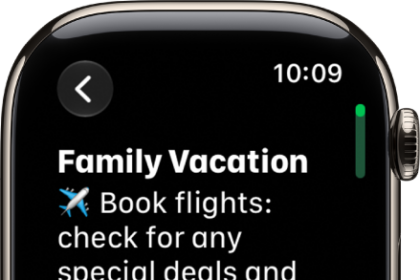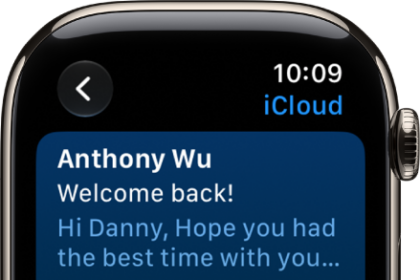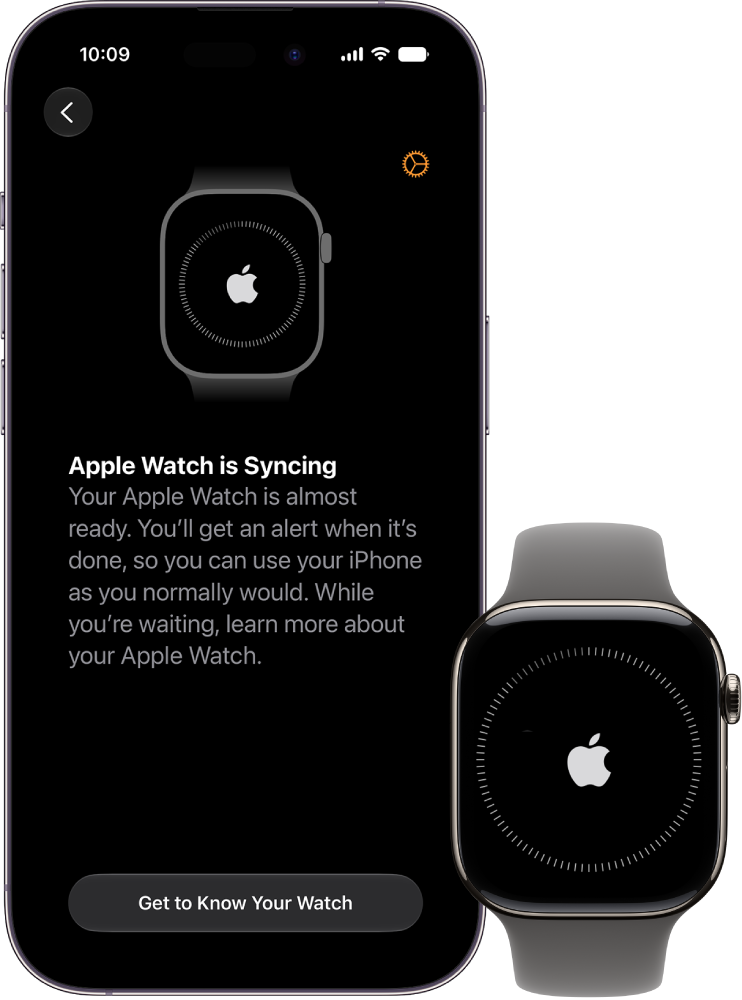
People with physical and motor disabilities may find it easier to control their Apple Watch from the larger screen on their paired iPhone. With Apple Watch Mirroring, you can control Apple Watch using iPhone’s assistive features like Voice Control and Switch Control.
You can use inputs including voice commands, sound actions, head tracking, or external Made for iPhone switches as alternatives to tapping the Apple Watch display. An image that mirrors your Apple Watch display appears on your iPhone, and you use gestures on that mirrored image.
Note: Apple Watch Mirroring isn’t available on Apple Watch SE.
- Go to the Settings app on the paired iPhone.
- Go to Accessibility and tap Apple Watch Mirroring. Then turn on Apple Watch Mirroring.
- Scroll: Swipe the display up or down.
- Swipe between screens: Swipe the display left or right.
- Press the Digital Crown: Tap the Digital Crown on the display.
- Press the side button: Tap the side button on the display.
- Press the Action button: (Apple Watch Ultra models) Tap the Action button on the left side of the display.
- Use Siri: Touch and hold the Digital Crown on the display.
See also