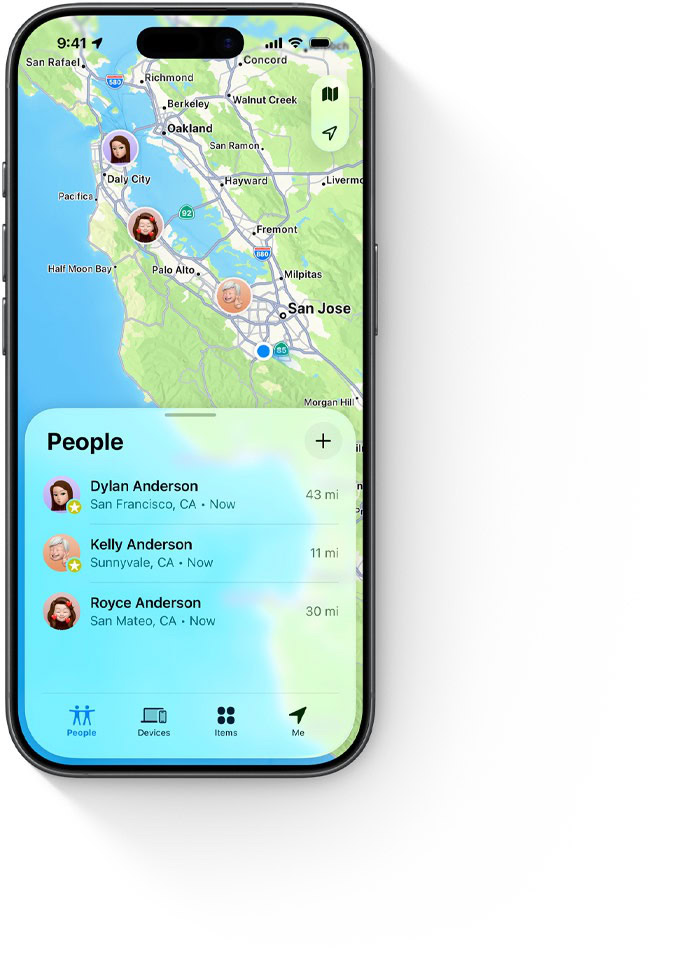
The People view lists everyone with whom you share your location, whom you follow, or both. The list reveals basic information, such as their current location (address or name), how far away they are, and the last update received.
With no one selected, the portion of the view with the map plots everyone you follow for whom a current location is known. This view zooms the map to show them all if they are in reasonably close proximity to one another. People are identified with their avatar.
Apple used to zoom the map in tightly, so I could see everyone near me in Seattle. However, in some update I missed, the zoom factor now encompasses my entire region. For me, that means I see my father in Port Townsend, about 56 miles away as the crow drives.
However, if your people aren’t within some reasonable distance of one another—say one of your children is in Europe, and you live as I do in Seattle—you only see the people nearest you. Apple doesn’t define this distance, but it seems to be within a few hundred miles.
You can also tap or click someone’s image or initials in the map view, and Find My zooms in to their surroundings just as if you had tapped or clicked their entry in the People list. In the version 27 releases, tapping or clicking on a zoomed-in, selected person in the map deselects them and zooms back out.
How exact the position is
Find My indicates its confidence about someone’s location by varying the diameter of the area around their profile image and the color—either blue or green. With a translucent blue circle centered on the person, the confidence could be described as high (within a few feet or a meter), medium (within about 100 feet or 30 meters), or low (about several city blocks). When the location is very precise and the person isn’t moving, you may see no blue circle—a pulsating green one appears instead.
If a person can’t be plotted that precisely, the circle of confidence can be quite large, and Find My calls out the lack of exact knowledge.
If someone is off the grid and has updated their location via satellite, you can see their location in Find My for iPhone: it appears as a tiny satellite icon next to their photo, and Satellite Location appears in the text on the sheet of actions. See how to send your location by satellite.
If you’re within about 150 to 200 feet (roughly 50 to 60 meters) of someone else who has shared their location with you and you both have an iPhone 15 series or later model, you can use Precision Finding, which gives precise directions. See how to use Precision Finding — the feature first appeared in AirTags. (This person-to-person finding relies on the UWB chip introduced in that series.)
When you use Precision Finding to locate someone else, they’re notified you’re looking for them and can likewise enable the feature (or start a game of cat and mouse).
Select a person and reveal their sheet for more ways to interact with their location or presence. You can click or tap Contact to view their contact card. You can also add them to Favorites, which sorts them to the top of the list.
Give a place your own name
You might notice an option called Location Label (the version 27 releases), Label Current Location, or Edit Location Name. This lets you assign custom labels to frequent locations—or any location—so that it appears more comprehensible when presented in a list. By default, Apple shows the best label it has, like the closest address or a building, park, or other geographical name.
You can choose to label a location your home, work, school, or gym, or add a custom label to make it more meaningful to you. For a friend I mutually follow, I’ve given his home a nickname rather than its address. These location labels appear in People, Devices, and Items.
Find someone from Messages
In the Messages app on an iPhone, iPad, or Mac, if someone has shared their location with you and their current location is known, a broad approximation appears below their profile photo, like the city and state in the United States. You can drill down further to see an inset map and bring up a larger one:
- On an iPhone or iPad, tap the avatar in a conversation entry.
- On a Mac, select a conversation entry and click the avatar (Tahoe or later) or the Info button in the upper-right corner (Sequoia and earlier).
Tap or click the inset map to reveal a larger one while remaining in Messages. Tap or click Open in Find My to switch to that app with the selected person. (In Sequoia or earlier, you can’t jump to Find My.)
If someone has remained at a location, the inset map shows the street name, city, and state in the United States; the larger map in Messages shows a more precise address, if available, like 5404 Ravenna Blvd NE, Seattle, WA 98115. (Not a real address!) If they’re in transit, the inset map shows more concise information, while the larger map provides more detail, such as the district or neighborhood they’re in.
In addition to the map, Messages overlays a link to get directions, showing car, transit, or walking time if close enough. A Stop Sharing My Location link appears below the map on the info pane. (See how to play a sound on a lost device or AirTag.)