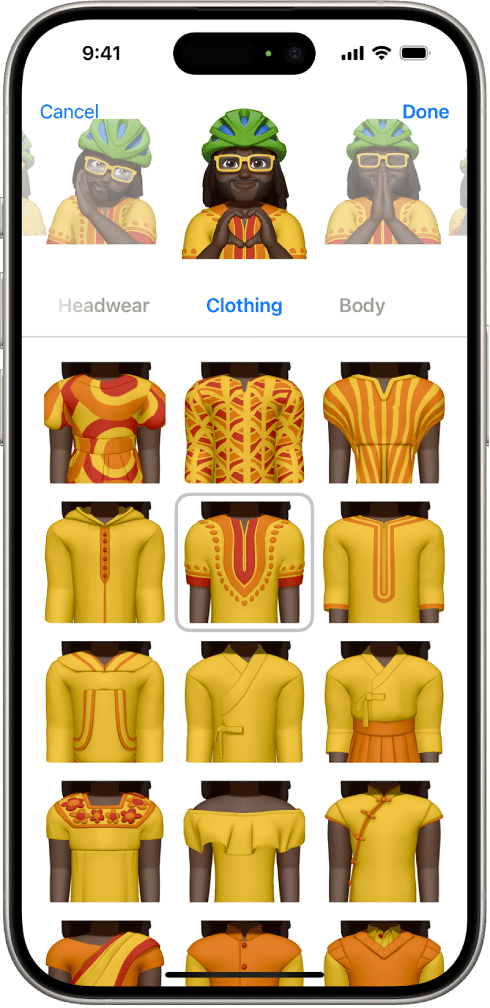
You can design your own personalized Memoji—choose skin tone, glasses, body, and more. You can create multiple Memoji to use in different contexts. Each Memoji—even the ones you create—automatically generates a range of poses and expressions. On supported models, you can send animated Memoji messages that record your voice and mirror your facial expressions. In this article, I’ll show you how to create a Memoji of your own and share it in Messages
What is a Memoji?
A Memoji is a fully customized avatar that you can create to mimic your personality and mood. It’s similar to the Apple Animoji® (or animated emoji) feature, which allows you to send voice recordings and facial expressions in the form of different animals, such as giraffes and sharks, as well as objects like chocolate swirls (aka: poop). Memojis, however, can actually resemble you or someone else. Cool, right?
What are Memoji stickers?
Memoji stickers are stickers you can customize just like regular Memoji but function similarly to other stickers available on the Messages App Store. When you create a Memoji, it automatically becomes a sticker pack filled with pre-loaded reactions, including “heart eyes" and "mind blown".
How does a Memoji work?
Before you get too excited about your iPhone Memojis, it’s important to understand the technology behind them. Facial tracking sensors—like those used for Face ID®—recognize your movements and expressions and mirror them. But you need a device with a TrueDepth camera system to create animated Memojis, which includes the iPhone X, iPhone iPhone XS, iPhone 11, iPhone 12, iPhone 13, iPhone 14, iPhone 15 and iPhone 16 series.
Create Memoji
Making a Memoji is as fun and silly as it sounds. Ready to get started? Here’s how to set up a Memoji in a few easy steps:
- Open the Messages app on your iPhone.
- Start a new message or open a conversation.
- Tap the Apps button.
- Tap More.
- Tap Memoji.
- Tap the More button, then tap New Memoji or Edit.
- Tap each feature (Skin, Hairstyle, and others to the right) and choose the options you want.
- Tap Done to save the Memoji to your collection.
Send Memoji stickers
- Open the Messages app on your iPhone.
- Start a new message or open a conversation.
- Tap the Apps button.
- Tap Stickers.
- Tap the Memoji Stickers button.
- Choose a Memoji and an expression or pose, or create a new Memoji.
- Tap the Send button.
How to make your Memoji talk
On supported models, you can send Memoji messages that record your voice and mirror your facial expressions.
- Open the Messages app on your iPhone.
- Start a new message or open a conversation.
- Tap the Apps button.
- Tap Memoji.
- Swipe and tap to choose a Memoji.
- Tap the Record button to record your facial expressions and voice, then tap the Recording button to stop.
- Tap Replay to review your message.
- Tap the Send Recording button to send your message or the Discard Recording button to cancel.
You can also take a photo or video of yourself as a Memoji, decorate it with stickers, then send it. Or you can become a Memoji in a FaceTime conversation.