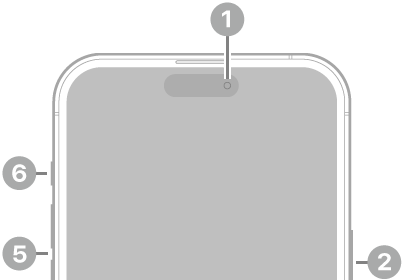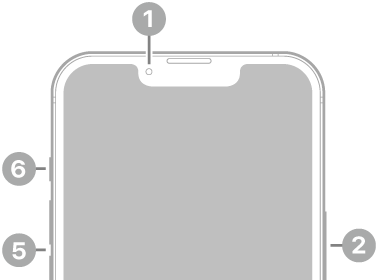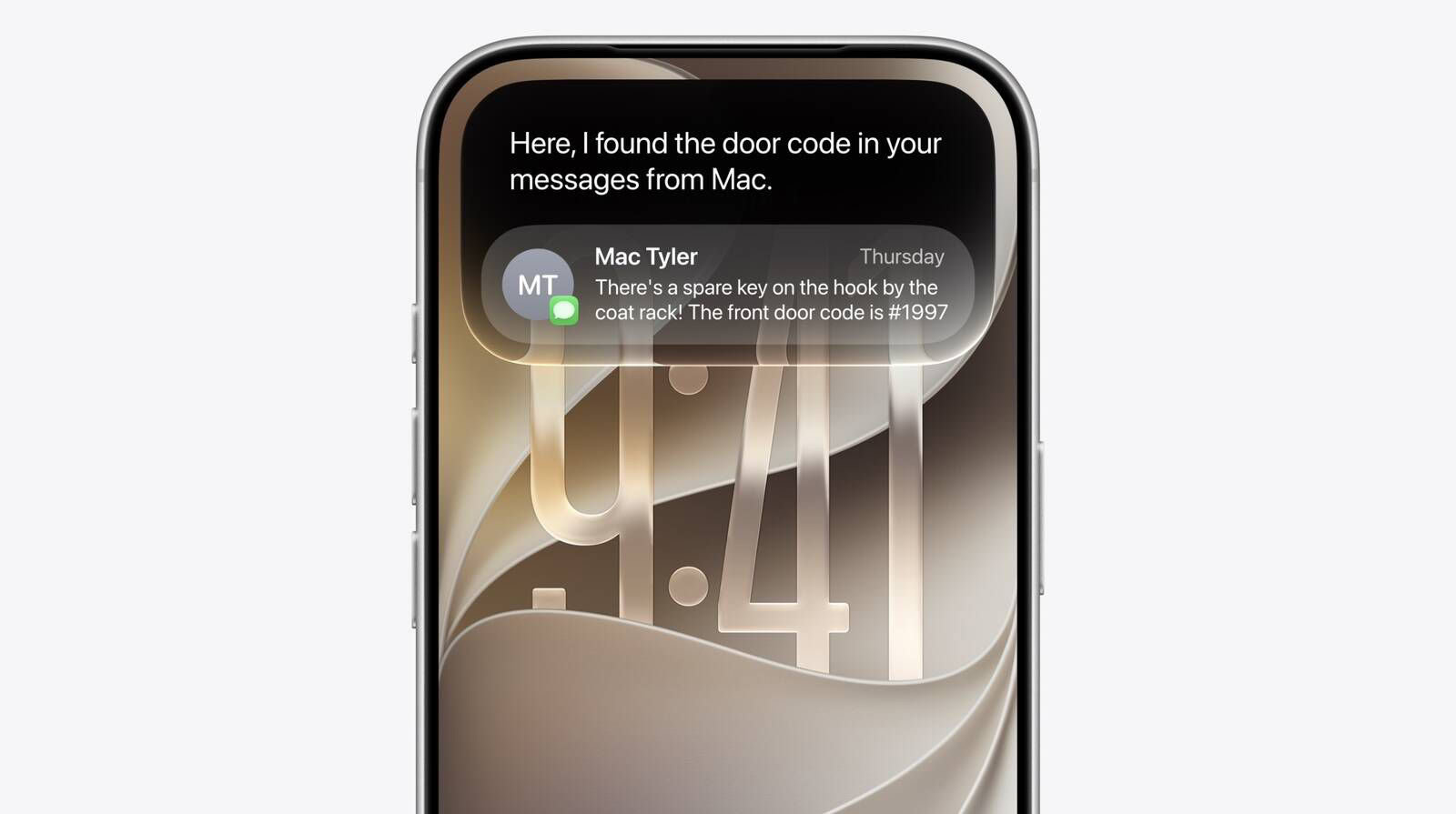
Starting with iOS 27, Apple has introduced a new way to activate Siri on iPhone and iPad. Consequently, Siri keeps opening in iOS 27. The good news is you can make it stop.
Why Siri keeps opening in iOS 27
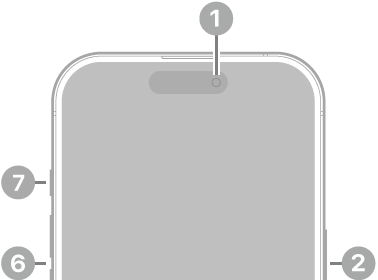
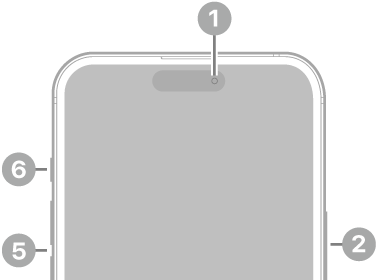
If Siri AI keeps opening accidentally, it’s possible that you’re swiping the wrong spot. In iOS 27, Siri AI takes over the swipe gesture for a lot of the iPhone and iPad top edge.
Opening Notification Center is unchanged on iOS 27 and iPadOS 27 by default. However, enabling Siri AI changes a key swipe gesture on both iPhone and iPad.
One of the many ways of invoking Siri AI, once enabled, is by swiping down from the center of the top edge of your iPhone or iPad display. This previously opened Notification Center.
You can still access Notification Center by swiping down from the top-left corner once Siri AI is enabled. Alerts now animate in from the top left corner. This is a way to point users toward Notification Center’s smaller surface area.
Apple is greatly prioritizing Siri AI access in iOS 27. The majority of the top edge is devoted to invoking the new Siri experience.
The last time Apple made a change to activating Siri came when the company introduced the hands-free "Hey Siri" trigger phrase in September 2014. The "Hey Siri" command only worked when the phone is plugged into a charger. Apple later improved this experience on later iPhones by allowing Hey Siri trigger phrase to work without plugging the device into the power source.
What You Can Do About Accidental Siri Activations
Currently, there’s no option to disable invoking Siri from the top middle swipe down. The only way to stop Siri from opening accidentally is to build new muscle memory around avoiding the Dynamic Island area.
You can, however, stop Siri AI from activating through its other triggers. Here’s what you can do:
- Go to Settings > Siri to find Siri settings. Tap Requests, then choose Off to disable the Hey Siri feature entirely, even when your phone is in use.
-
If you want to take things even further, you can turn off Press Side Button for Siri to prevent Siri from being activated by squeezing the power button on accident.
-
To turn off Siri completely, open Settings, tap Siri, then tap Turn Off Siri. Tap Turn off Siri again to confirm.
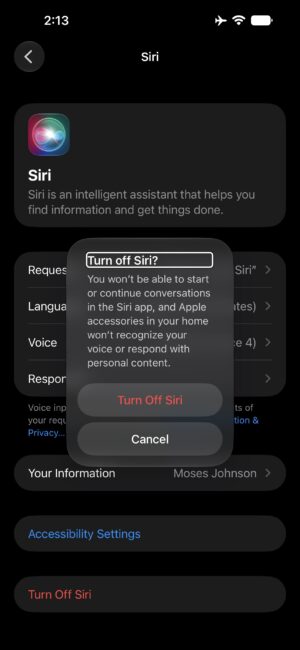
With Siri turned off, you won’t be able to activate Siri AI at all.
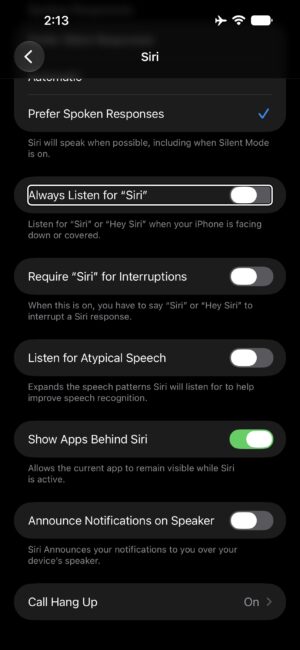
Tip: If you don’t want to turn off Hey Siri, you can eliminate most accidental "Hey Siri" activations when your iPhone is sitting idly on a nearby desk or table. Open Settings, tap Accessibility, tap Siri, then turn off Always Listen For Siri. Now place your phone face down when you are not using it.
Notifications now live in the top left corner
Now it’s Notification Center’s turn to be put in the corner. On iPadOS 27 beta 1 in particular, the area above Home screen app icons was pretty much devoted to invoking Siri AI. The area for opening Notification Center actually shrank if you disable displaying AM/PM or the date.
Apple improved this with iPadOS 27 beta 2, creating a more uniform region on either side. It’s roughly the size of two app columns with Notification Center on the left and Control Center on the right. The rest is for invoking Siri.
This isn’t Apple’s first gesture shake-up
Apple did something similar before. Back in 2017, when the iPhone X ditched the Home button, the Control Center jumped from a swipe-up from the bottom gesture to a swipe-down from the top-right corner move. Eventually, it became standard across all iPhones, and nobody thought about it again.
After 15 years of muscle memory, it’ll take some time to determine if this change is worth it or something that should be reconsidered. In the meantime, early feedback sounds overwhelmingly positive around Apple’s new Siri AI system. Hearing that Siri is good now will also take some getting used to, I’m sure.
After almost two months of using the new behavior, I think I’d toggle it off if there were a setting to do so.