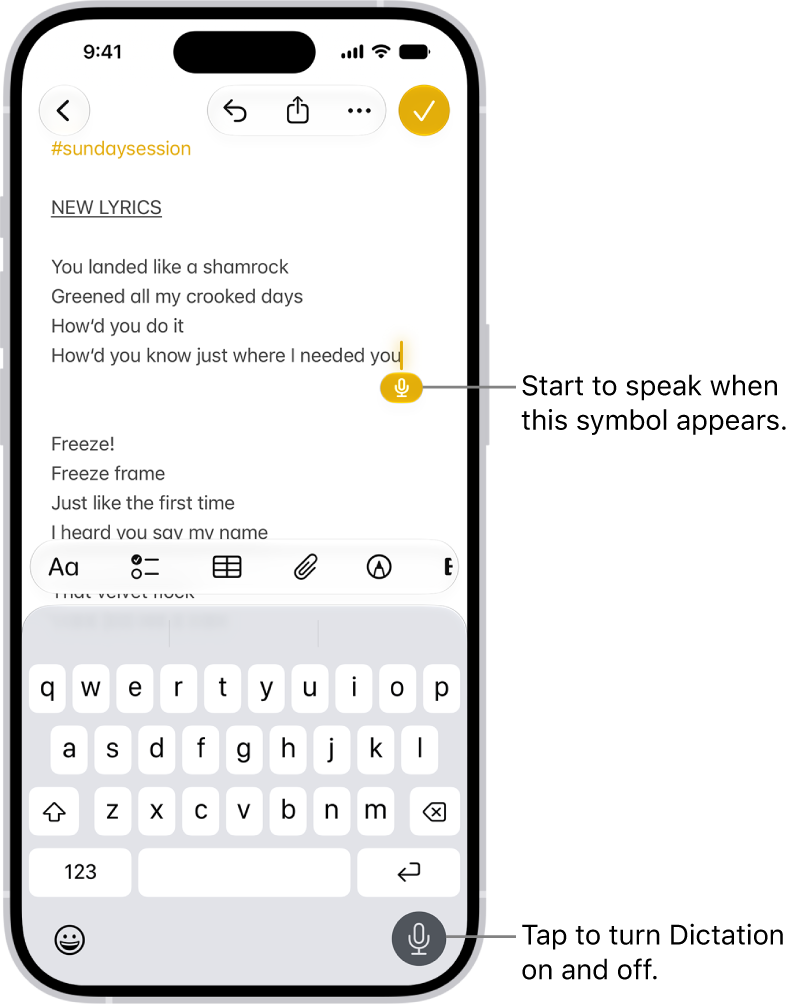
On iPhone, you can dictate text instead of typing it on Magic Keyboard. As you speak, iPhone automatically inserts punctuation for you, and you can insert emoji by saying their names, like “happy emoji.” Dictation may not be available in all languages or regions, though.
Note: Dictation may not be available in all languages or in all countries or regions, and features may vary. Cellular data charges may apply.
- Open Settings, tap General, tap Keyboard, turn on Enable Dictation, and then choose a dictation shortcut.
- To insert text by dictating, tap to place the insertion point and then press the dictation shortcut key twice.
- To use Magic Keyboard again, quickly press the dictation shortcut key twice.
iPhone adds punctuation automatically while you speak to insert text, and you can insert emoji by name. Saying “happy emoji” or “mind blown emoji” inserts those emoji, for example.