Getting a new iPhone® is exciting—but it’s hard not to worry about losing important information, like the phone numbers of friends, family, and coworkers. Fortunately, it’s easier than ever to transfer your contacts from your old iPhone to a new iPhone.
There are several ways to transfer contacts from iPhone to iPhone. You can use iCloud to sync your contacts, transfer data to a new iPhone using iCloud backup, or export a list of your contacts using AirDrop, Messages, Mail, or other services.
Here’s how to transfer contacts from iPhone to iPhone.
How to transfer contacts with iCloud Sync
Using iCloud® Sync to transfer contacts to your new iPhone is simple. Just follow these steps:
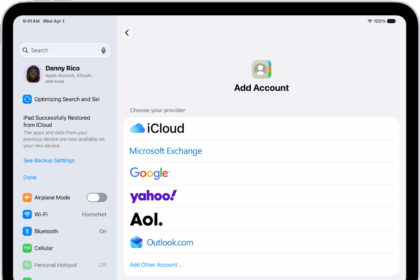
- Make sure both iPhones are connected to Wi-Fi and signed in to the same Apple account. Go to Settings > [Your Name] to see your Apple account username at the top of the screen. If you need to, scroll down and tap Sign Out, then sign in to the correct account.
- On both iPhones, go to Settings > [your name] > iCloud.
- Tap See All next to Saved to iCloud, then turn on Contacts.
- If given the option, choose to Merge your iPhone contacts with iCloud.
- Allow time for the contacts to upload and sync to your new iPhone.
It’s best to sync contacts from your original iPhone first, since it needs to upload them to iCloud before they transfer to your new iPhone.
It’s fine if you don’t want to use the same Apple account on both iPhones permanently. Just change them to the same account while transferring your contacts. When you sign out of iCloud later, you can choose to keep a copy of your contacts on the iPhone.
How to transfer contacts with iCloud Backup
If iCloud Sync didn’t work, or you don’t have your old iPhone, you can transfer contacts from your iCloud account to your new iPhone.
- Make sure you are connected to Wi-Fi on both devices.
- On your old iPhone, go to Settings > [your name] > iCloud.
- Tap See All next to Saved to iCloud, then make sure Contacts is turned on.
- Tap iCloud Backup, then tap Back Up Now.
- Turn on your new iPhone, and then follow the prompts until the Quick Start screen appears.
- Tap Set Up Without Another Device and continue following the prompts.
- On the Transfer Your Apps and Data screen, choose From iCloud Backup and follow the prompts, which includes signing into your Apple account.
- You might be asked to review and accept the terms and conditions in order to continue. If you agree, tap Agree to confirm.
- Choose the iCloud backup you just made on your old iPhone. If you don’t have the old iPhone, pick the most recent backup of your old iPhone and follow the prompts.
- A loading bar will appear when your iPhone begins restoring your information from iCloud. This might take some time to complete. Then follow any remaining prompts.
- When it’s done, your contacts should automatically sync.
How to transfer contacts from iPhone to iPhone without iCloud
To transfer contacts from iPhone to iPhone without iCloud, you can use AirDrop, Messages, Mail, or other services. Here’s how:
- Open the Contacts app on your iPhone.
- Tap Lists at the top left.
- Touch and hold an existing list (or create a new list by tapping Add List).
- Tap Export, select the fields you want to include, then tap Done.
- Choose a method to send or save the exported contact cards, such as Messages or Mail.
- Open the vcf file on your new iPhone and add the contacts to your device.