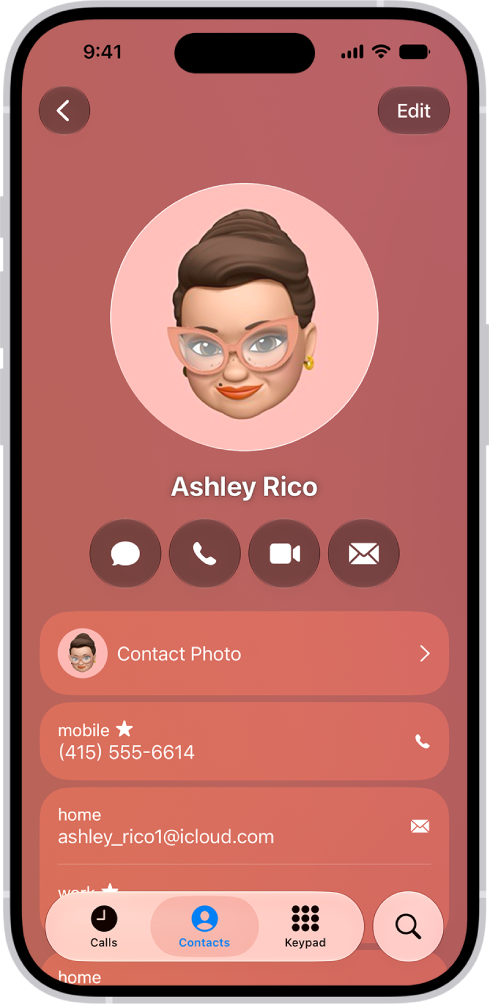
On iPhone, you can export some or all of your contacts to another device or app. You can export an existing list or create a new list, select the fields you want to include, and then send or save the exported contact cards, such as with Messages or Mail.
- Open the Contacts app on your iPhone.
- Tap the Lists button.
- Touch and hold an existing list (or create a new list by tapping Add List).
- Tap Export, select the fields you want to include, and tap the Done button.
- Choose a method to send or save the exported contact cards, such as Messages or Mail.