You can reduce the number of unwanted text messages you receive on your iPhone when you screen messages from unknown senders.
Screen and filter messages from unknown senders on iPhone
You can prevent unknown senders from texting you directly. Their messages are filtered other folders, and your iPhone doesn’t notify you about them unless you want it to do so.
- Open the Settings app on your iPhone.
- Tap Apps.
- Tap Messages, and then set the Screen Unknown Senders switch on (green).
The Settings app displays the Allow Notifications button below the Screen Unknown Senders switch. - If you want to allow notifications from some unknown senders, tap Allow Notifications, then turn on or off those categories. (Options vary by country and region.)
For example, you can allow notifications for time-sensitive texts, like verification codes. - To detect and filter SMS, MMS, and RCS messages from unknown senders into folders for Transactions and Promotions, tap the Back button, tap Text Message Filter, then turn on Text Message Filter and third-party message filtering extensions you install.
Note: Filters applies to promotions and transactions (or whatever your third-party message filtering extension offer). Text message filtering doesn’t apply to any sender you’ve replied to three times or more. Try blocking and reporting those senders.
Review messages from unknown senders
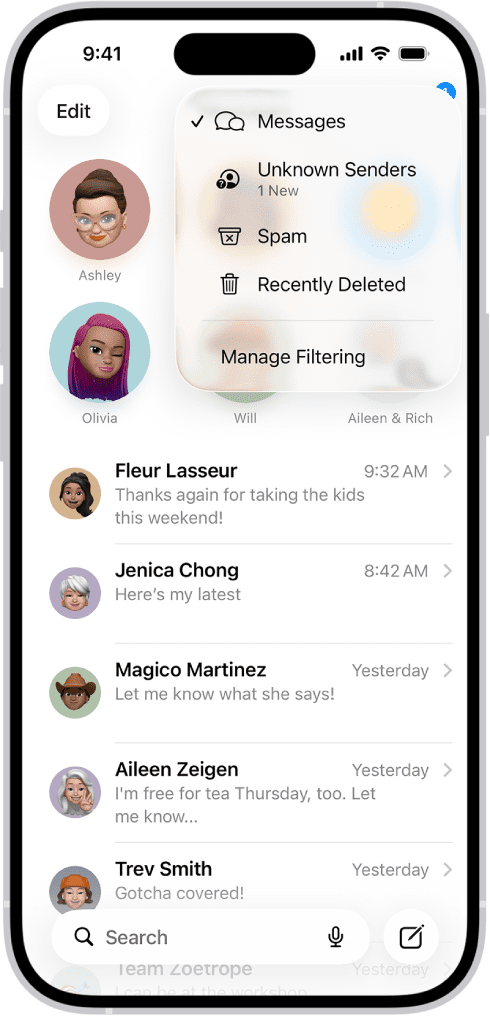
After you set the Screen Unknown Senders switch on, you can reach the messages from unknown senders by tapping the filter icon and then tapping Unknown Senders on the menu. From this menu, you can also tap Messages to display messages from known senders, tap Spam to display messages that Messages has deemed spam, and tap Recently Deleted to see messages you’ve deleted in the last 30 days.
- Open the Messages app on your iPhone.
- Tap the Filter button at the top of the conversation list, then tap Unknown Senders.
Make an unknown sender a known sender
A known sender is anyone you’ve marked as known, added to the Contacts app, or sent a message to. If a message from someone whose messages you want to see was filtered to Unknown Senders, you can mark the sender as known, and this allows their messages to appear in your conversation list. To open a link sent by an unknown sender in iMessage, you must first make them a known sender.
- Open the Messages app on your iPhone.
- Tap the Filter button at the top right of the conversation list, then tap Unknown Senders.
- Do any of the following:
- Tap the message from the sender whose messages you want to see, then tap Mark as Known.
- Add them to Contacts.
Until you mark a sender as known or add them to contacts, any future messages are filtered to Unknown Senders.