Several users have said they are unable to take an electrocardiogram (ECG) using the ECG app on the Apple Watch. Some users have said that the Apple Watch ECG doesn’t work. Other users have said that the Apple Watch ECG is not updating. Others have said that the Apple Watch ECG has poor recording. ECG is also called EKG. There may be a few reasons why the Apple Watch ECG feature is not working. This article explains how to fix the problem. Please try the troubleshooting steps below. Make sure to check your Apple Watch after each troubleshooting step to see if ECG starts working.
1. Check if the ECG feature is available in your country
The first thing you should do is to ensure that the ECG app is available in your country. The ECG app is not available everywhere. Initially, the functionality was limited to the United States. This is because ECG is considered a medical device or feature and each country has different regulatory approval processes. However, Apple has continued to gain regulatory approval and it has been adding many additional countries.
Apple’s website lists all of the countries where Apple Watch’s ECG feature is available.
2. Check if the ECG app is available on your Apple Watch
The ECG app is not available on all Apple Watch models. The Apple Watch Series 4 or later and all Apple Watch Ultra models have the ECG app. All Apple Watch SE models (including SE 2nd generation and SE 3rd generation) do not support this feature. You can identify your watch model by looking at the back of the watch case.
Note: The ECG app is not intended for use by people under 22 years old.
3. Restart
When ECG app is not working on your Apple Watch, you can fix the problem by simply restarting your iPhone and watch:
Apple Watch: Press and hold the side button until the power off slider appears. Drag the slider to power off. Wait for 30 seconds for your watch to turn off. Then press and hold the side button again until you see the Apple logo.
If your Apple Watch is unresponsive or won’t restart normally, try a force restart: Press and hold both the side button and the Digital Crown simultaneously for about 10 seconds until the Apple logo appears, then release.
iPhone X, 11, 12, 13, 14, 15, 16, 17, or later: Press and hold the side button and the volume up button (or volume down button) together until the power off slider appears. Drag the power-off slider. Wait for 30 seconds for your device to turn off. Then press and hold the side button again until the Apple logo appears.
If your iPhone is unresponsive or frozen, try a force restart instead: Press and quickly release the volume up button. Press and quickly release the volume down button. Then press and hold the side button until the Apple logo appears.
iPhone 8 or earlier: Press and hold the power button (located on the side or top of the device) until the power off slider appears. Drag the power-off slider. Wait for your iPhone to turn off. Then press and hold the side button until the Apple logo appears.
4. Update
If you are still having this problem, ensure that your iPhone and watch are using the latest version of iOS and watchOS.
iPhone: Go to Settings > General > Software Update.
Apple Watch: On your watch, tap Settings > General > Software Update. Or alternatively, you can update your watch using the Watch app on your iPhone. Open the Watch app, tap My Watch (if shown), then go to General > Software Update.
5. Clean your Digital Crown
It is possible that your Apple Watch may not be able to take an accurate ECG because the Digital Crown, which is located on the side of the watch, is failing to sense your finger. Check your Digital Crown for substances like debris, dust, or lotion. Here is how you can clean it:
- Turn off your watch.
- Ensure that your watch is not connected to the charger.
- If you have a leather band, remove it.
- Do not use any cleaning products like soaps or other chemical sprays or materials.
- Hold the Digital Crown under lightly running, warm, fresh water from a faucet. Keep holding it for 10-15 seconds. While the water flows, continuously rotate and press the crown.
- Then dry your watch with a non-abrasive, lint-free cloth. Be sure to remove water from the surface of the Digital Crown, the space between the Digital Crown and the watch case, and the surrounding surfaces.
- Then try to use the app again.
6. Delete and reinstall
ECG on your Apple Watch still not working? Delete and then reinstall the ECG app. Here is how:
Delete the app:
- On your watch, go to your Home Screen by pressing the Digital Crown.
- Find the ECG app.
- Touch and hold the app until it jiggles.
- Tap the Delete button. A confirmation screen will appear asking if you are sure you want to delete "ECG." Tap Delete App.
Install the app again:
- Before reinstalling, restart your Apple Watch.
- Then open the App Store app on your watch.
- Tap Search.
- Use your voice or scribble to search for the ECG app.
- Find the ECG app; you may need to scroll down to find it.
- Tap the cloud icon with a downward arrow to install it again.
Alternatively, reinstall the ECG app using your iPhone:
- Open the Health app on your iPhone.
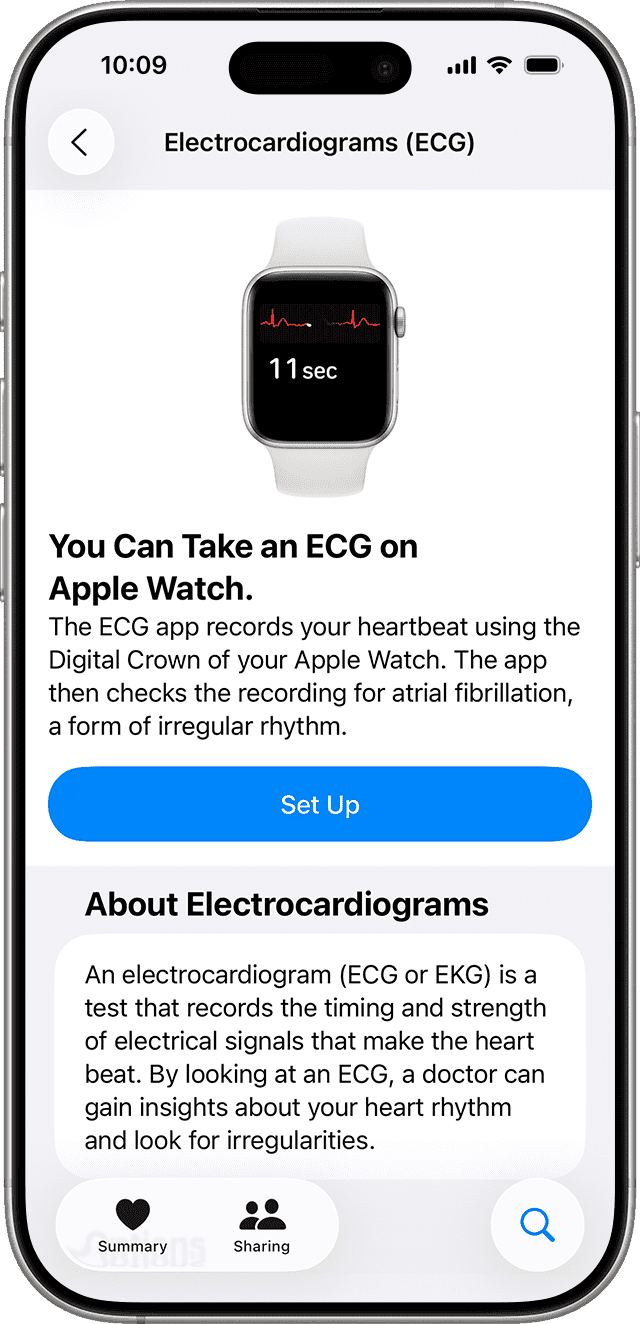
- Follow the onscreen steps to set up ECG. If you don’t see a prompt to set up, tap Search at the bottom right, then tap Heart > Electrocardiograms (ECG) > Set Up ECG App.
- After you complete set up, open the ECG app to take an ECG.
If you still don’t see the app on your Apple Watch, open the Watch App on your iPhone and tap Heart. In the ECG section, tap Install to install the ECG app.
7. Reset all settings
If you haven’t succeeded in fixing your Apple Watch ecg problems, try resetting all settings. This will not delete your data but all of your settings will be gone.
On your iPhone, go to Settings > General > Transfer or Reset iPhone > Reset and select "Reset All Settings." Then follow the onscreen instructions.
Then open the Health app on your iPhone. Follow the onscreen steps to set up ECG. If you don’t see a prompt to set up, tap Search at the bottom right, tap Heart, then tap Electrocardiogram (ECG). Set up the ECG app if needed.
See also: How to Set Up an Apple Watch for a Family Member who Doesn’t have their own iPhone