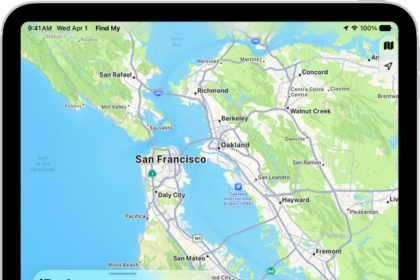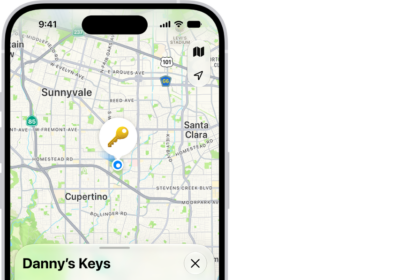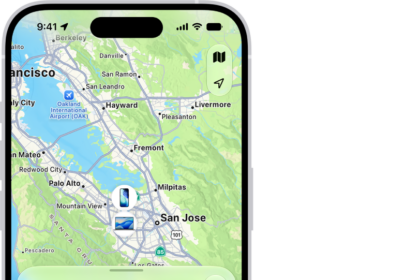
Apple has made continual improvements to the Find My app, adding features like tracking when an iPhone has no connection, when an iPhone is powered off, and when an iPhone has been erased.
Find My is Apple’s app for locating lost devices and keeping up with family. The functionality used to be split out into two different apps, Find My iPhone and Find My Friends, but was combined into one app starting iOS 13.
You can use the Find My app to check whether you left your iPhone at the office or make sure a family member got home safely. If you lose a device, you can have it play a sound to help you find it or display a message in case someone else picks it up. You can even erase it remotely if you think it might have fallen into the wrong hands. If the Find My iPhone is not working correctly, you won’t be able to track lost devices and more.
Several users have reported that the Find My app on iPhone is not working. More specifically, the Find My is not updating location or tracking lost devices.
Are you having this problem too? Are you unable to track lost devices because the find MY app is not updating location or working at all?
There is no single reason why your iPhone Find My app is not working, so you should try these troubleshooting steps. If you try each one, you’re likely to solve the problem.
How to troubleshooting Find My iPhone issues
1. Check your Wi-Fi connection
The first thing you should do when troubleshooting Find My iPhone issues is to make sure that you have a working internet connection either Wi-Fi or Cellular Data — if you’re not seeing a Wi-Fi signal where it usually appears, you may need to go into your settings and turn Wi-Fi off and then back on again.
2. Make sure your cellular data is on
If you’re trying to use Find My via cellular data, make sure that’s switched on in your settings. Go into your Settings app and tap Cellular. Make sure that Cellular Data is enabled at the top of the page. Then scroll down to the Cellular Data section, and make sure Find My is enabled for cellular use in the list of apps.
3. Check that Find My is turned on
Your devices won’t show up on Apple’s map if the feature isn’t active, so make sure the Find My feature is turned on in settings.
Go into your iPhone Settings app. Tap [your name]. Ttap Find My, and make sure that the toggle next to Find My iPhone is enabled.
Please note: In order to locate a device, you must turn on Find My [device] before it’s lost.
4. Turn on Bluetooth to Locate Devices Without a Connection
Apple in iOS 13 added a Find My Network option that lets your lost devices be located even when not connected to WiFi or LTE by leveraging Bluetooth and proximity to other nearby Apple devices.
When your lost device is offline but close to another device, it’s able to connect to that other device over Bluetooth and relay its location. That means that your devices are more trackable than ever, and there’s a better chance you can find a device that’s been lost.
Tracking a device in this way requires Bluetooth to be enabled because location is shared with another device using Bluetooth. Turning off Bluetooth or power makes your device untrackable, but if it’s on, has Bluetooth, and is near another Apple device, it can be tracked even if it can’t connect to WiFi or LTE.
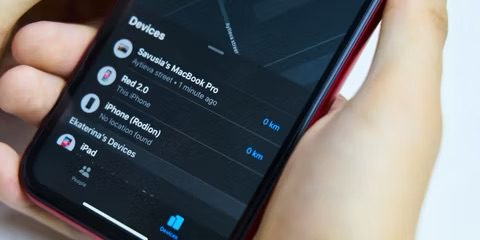
You’re not going to notice a difference in the Find My app when tracking a device over Bluetooth rather than a cellular or WiFi connection — it simply shows up in the list of devices like any other device that does have a standard connection. Offline devices do have their distance from you listed in gray instead of blue, and you can tell when the location data was last updated by the time listed. To turn on Bluetooth on your iPhone, go to Settings > Bluetooth.
5. Check Find My Location Settings
If you want to be able to find your lost device on a map using Find My, make sure that Location Services is turned on. To do this, go to Settings > Privacy & Security > Location Services, and turn on Location Services.
If you tap Find My, there’s an option to allow access to your location While Using the App, Ask Next Time Or When I Share, and Never. If Allow Location Access is set to Never, the Find My won’t update location. Try changing the app’s location settings and see if Find My starts working again.
6. Turn Find My Off And Back On
If the Find My iPhone is not working after trying the above steps, try turning the feature off and back on. Follow the steps below to turn off Find My on your iPhone:
Start the Settings app and tap [your name] > Find My. Tap Find My iPhone, then tap to turn it off. Type in your Apple account password and then tap Turn Off.
Now follow the steps below to turn on Find My for your iPhone:
Start the Settings app and tap your name, then go to Find My. If you want friends and family to know where you are, turn on Share My Location.
Tap Find My iPhone, then turn on Find My iPhone.
To see your device even when it’s offline, turn on Find My network.
To have the location of your device sent to Apple when the battery is low, turn on Send Last Location.
7. Turn on Find My network for AirPods Pro or AirPods Max
If your AirPods or supported Beats product are paired with your iPhone, they’re automatically set up when you turn on Find My iPhone.
To make sure that you can find your devices even if they’re powered off or disconnected, check that Find My network is turned on.
Put the Airpods in your ears. Now, start the Settings app on your iPhone and go into Bluetooth. Tap the More Info button next to your device in the list. Scroll down to Find My network. Make sure that Find My network is turned on.
8. Check your Apple account details
You can’t use Find My with a different Apple account than the device you’re locating. You can quickly check your Apple account details by going to Settings > [your name] and look at the email address under your name. This account is the one you need to sign in to iCloud with to find your phone.
9. Check The Date and Time on Your iPhone.
If your iPhone is displaying the wrong date or time, you could have incorrect settings set up. This may not seem like a big deal, but it could prevent the Find My app from working properly.
The easiest way to resolve the issue is to make sure your iPhone automatically updates the date and time. To do this:
Start the Settings app and go into General > Date & Time.
Toggle the Set Automatically to On (green).
10. Restart Your iPhone
Restarting your iPhone can fix minor software problems it might be experiencing, especially if the Find My app has crashed. If your iPhone has a Home button, press and hold the power button. For iPhones without a Home button, press and hold the side button and either volume button.
Release the button or buttons when slide to power off shows up on the screen. Swipe the power icon from left to right to shut down your iPhone.
Wait 20 seconds, then press and hold the power or side button again until the Apple logo appears on the screen. Your iPhone will turn back on again shortly.
11. Update Your iPhone
If the Find My iPhone still isn’t working, check for an iOS update. Software updates often fix known bugs and errors. iOS updates are also the only way to update native iPhone apps, like Find My. Start the Settings app on your iPhone and go into General > Software Update. Tap Download and Install or Install Now if an iOS update is available.
Easily Fix Find My iPhone App Not Working!
We hope you’ve fixed the problem and the Find My iPhone App is working again! Make sure to share this article on social media to teach your friends and family what to do when the Find My app is not working on their iPhone. Leave any other questions about your iPhone in the comments section down below.