Is dictation not working after iOS 27 update? Or perhaps the dictation icon is nowhere to be found at all? Don’t worry; these are several simple troubleshooting steps you can follow when dictation is not working on iOS 27.
1. Make Sure Dictation Is Enabled on Your iPhone
The dictation feature is represented by a microphone icon at the bottom of your iPhone on-screen keyboard. While dictation is enabled by default, you’ll need to turn it on in Settings first if you don’t see the microphone icon on the keyboard.
Here’s how to enable dictation on iOS 27:
- Go to Settings > General > Keyboard.
- Turn on Enable Dictation. If a prompt appears, tap Enable Dictation.
The microphone icon will now appear on the iOS keyboard; tap it to begin dictating.
If dictation is already enabled, but the icon is still missing, try disabling and re-enabling the feature. In the same Keyboards setting page, toggle off Enable Dictation, tap Turn Off Dictation to confirm, then toggle on Enable Dictation again.
iOS 27 lets you turn off the dictation button for Messages app in the Settings app. So, if you can’t see the dictation button in the Messages app, make sure you haven’t turn off the dictation button in the Settings app under Apps > Messages > Show in Text Field.
2. Add the Dictation Language to Your iPhone Keyboard
Let’s say you typically type in English on your iPhone but want to dictate something in Chinese. The iPhone’s dictation feature won’t recognize what you’re saying if Chinese hasn’t been added to the keyboard yet.
In this case, go to Settings > General > Keyboard > Keyboards > Add New Keyboard. From the list, choose Chinese (or your preferred language), select the keyboard input method, and tap Done.
If you intend to dictate text in a Chinese dialect, there’s an additional setting you need to do. In the Keyboards setting page, go to Dictation Languages. From the list, select one of the language variations in addition to Mandarin.
Now, when it comes to dictating your text, remember to switch the dictation language too. Tap the microphone icon, tap EN (which stands for English), and choose your new preferred dictation language.
Note: Dictation may not be available in all languages or in all countries or regions, and features may vary.
3. Allow Siri & Dictation in Your iPhone’s Screen Time Settings
If dictation still isn’t working on your iPhone, it may be due to your iPhone’s Screen Time settings, which can restrict the dictation feature on your device.
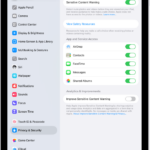
To check if that is the case, go to Settings > Screen Time > Content & Privacy Restrictions > Allowed Apps & Features. If Siri & Dictation is toggled off, toggle it on so your iPhone will let you use the dictation function again.
4. Test Your iPhone’s Microphone
If you have all the correct settings in place, yet dictation isn’t working, the issue may lie with your iPhone microphone and not iOS 27.
A quick way to test it is to record a short audio clip using your iPhone’s Voice Memos app. If it’s a software issue, there are solutions to fix your iPhone’s microphone quickly.
But if it’s a hardware problem, you’ll likely need to contact Apple Support or an Apple Authorized Service Provider.
5. Enable Advanced Dictation Preview
If you have an iPhone 17 Pro, iPhone 17 Pro Max, or iPhone Air running iOS 27, you have a meaningfully better dictation system on your device right now.
However, Apple did not turn it on by default, and most users have no idea it is there. It’s called Advanced Dictation Preview. The Advanced Dictation feature delivers a major boost in accuracy.
To turn on the new dictation feature in iOS 27, go to Settings > General > Keyboards, and scroll down to find Advanced Dictation Preview. Flip the toggle to get an improved dictation experience.
When enabled, the better dictation applies system-wide. That means it enhances features like speech-to-text available in any app on the system keyboard, as well as improving the experience of Siri AI.
The new dictation runs solely using the powerful on-device model, which means you get the same transcription quality whether your phone is connected to a data network or not.
6. General Fixes: Restart, Update, or Reset Your iPhone
If none of the above steps have resolved your iOS 27 dictation issues, as a last attempt, there are a few general fixes you can try. First, restart your iPhone. To do that, simultaneously press and hold the side button and either volume button. Then, swipe the red power slider from left to right to turn off your iPhone. Wait a few seconds, then press the Side button again until the Apple logo appears in the center of the display to turn your iPhone back on.
Also, go to Settings > General > Software Update to see if an iOS update is available for your iPhone. Dictation may not be working because your iPhone has a software bug. iOS updates can fix bugs, introduce new settings, and improve native features like dictation.
Lastly, you can opt to reset all settings on your iPhone. Doing this erases all of your iPhone’s saved settings and resets them to factory defaults without deleting your valuable data.
Go to Settings > General > Transfer or Reset iPhone > Reset > Reset All Settings. Enter your iPhone passcode and tap Reset All Settings to confirm your decision. Your iPhone will reset all of its settings, then restart.
To sum up, you’ll need to ensure that dictation is enabled in your iPhone Settings app first. Then, add the right languages to the keyboard and switch between your preferred languages before dictating.
Also, try restarting, updating, or resetting your iPhone. If you suspect the root cause is hardware, it’s best to contact Apple Support or an Apple Authorized Service Provider for further assistance. In the meantime, you can also try out some iPhone dictation apps on the App Store.