- If your iPhone is not receiving text messages from Android phones after iOS 27 update, first check to make sure your iPhone is running the latest version of iOS 27. This will help rule out the possibility that your current iOS 27 version is causing the issue.
- Troubleshoot any network issues that might be preventing your iPhone from receiving messages from Android.
- If you’re still having trouble, try Restarting your iPhone, checking the block list, and resetting your network settings.
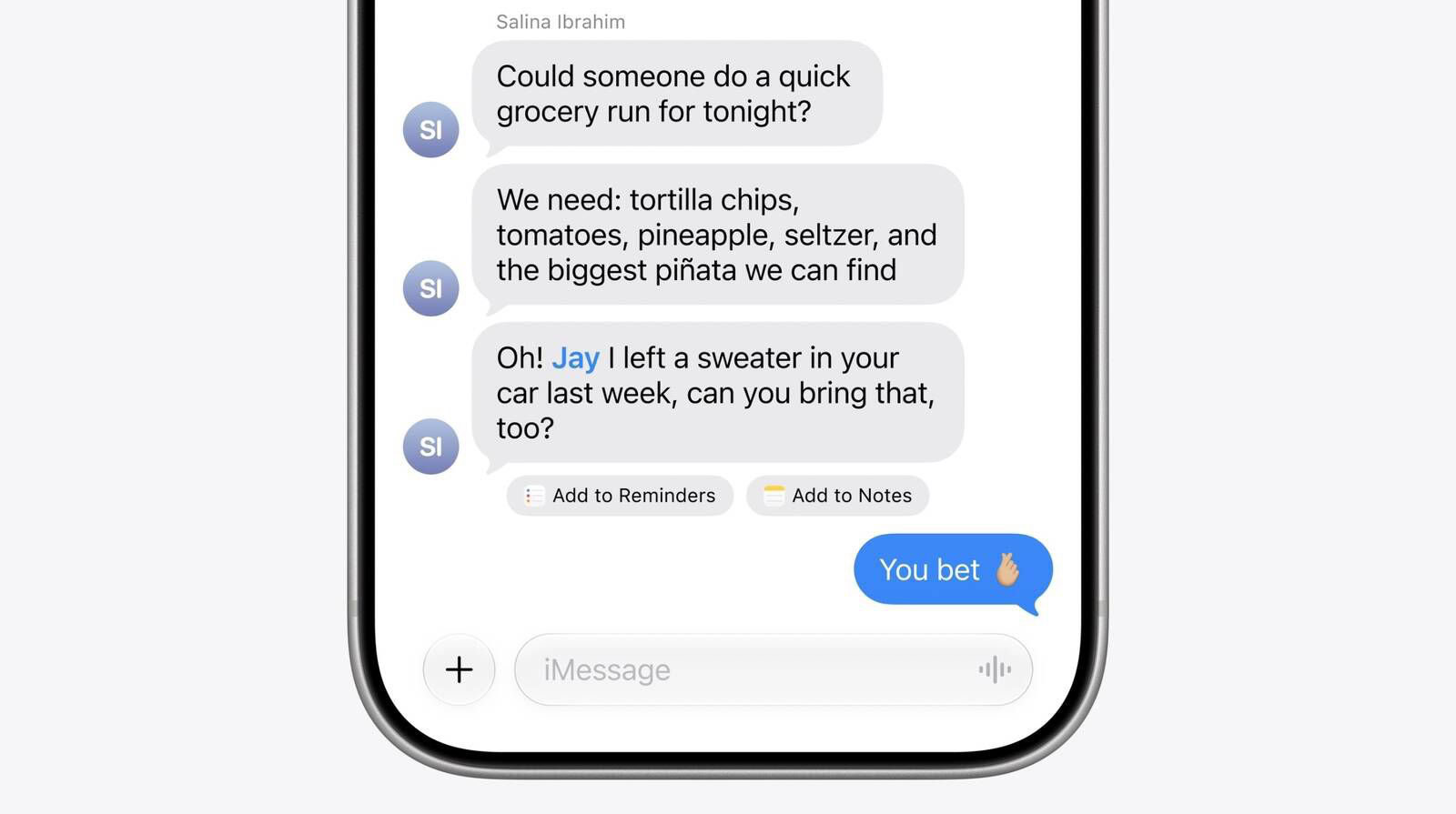
In ios 27, Messages gains new Apple Intelligence features that improves the app. The Messages app can detect when a conversation would benefit from creating a reminder or note and offer a shortcut to do so without leaving the thread. Apple is also bringing drawing tools directly into Messages, allowing users to create and share hand-drawn sketches within conversations. With all those new features, it’s super frustrating to find out the Android user you’re expecting a text from already sent it, but your iPhone didn’t receive it. If this is happening to you after updating your iPhone to the recent iOS 27 version, we’ll help you fix the problem.
here are ways to troubleshoot the problem if you have issues getting texts from Android devices on your iPhone after iOS 27 update,
How to fix iPhone not receiving texts from android after iOS 27 update
If your iPhone isn’t receiving texts from Android phones after iOS 27 update, follow these steps, testing after each step:
Turn off Screen Unknown Senders
This option automatically moves messages from unknown senders to the Unknown Senders folder, and hides notifications for them until you accept them. The app can also detect spam and move it to a new Spam folder, with notifications for these messages also hidden.
If this setting is on and you’re missing a message, first check to see if it was filtered to Unknown Senders. Tap Filter in the conversation list, then tap Unknown Senders.
Next, turn off Screen Unknown Senders to prevent this problem from occurring in the future.
- Go to Settings > Apps > Messages.
- Scroll down to Unknown Senders, then turn off Screen Unknown Senders.
Check for an iOS software update
Since your iPhone stopped getting messages from Android after iOS 27 update, it’s possible that an iOS bug is causing this issue. Thankfully, Apple might have already released an update addressing this problem. See if there are any pending updates and update your iPhone.
- Tap Settings.
- Tap General.
- Tap Software update.
- Tap Update Now and follow the onscreen instructions.
Check for a carrier settings update
Carrier settings holds important data about your selected network that enable you to send and receive text on your iPhone. Ensuring that your carrier settings are up to date is important, especially if you’re having trouble getting texts from Android after iOS 27 update.
- Connect to a cell phone or Wi-Fi network of your choice.
- Tap Settings.
- Tap General.
- Tap about.
- Should an update be available, tap Update.
Try to receive textss in another location
You won’t receive messages if your iPhone doesn’t have a cellular network signal. To check for this, look for the network signal bars in the status bar on your iPhone. You need at least three bars for uninterrupted messages.
If you find that the cellular is down to a single bar, “SOS only,” or “no service” for example, you may need to move to a different location with two bars or better. Usually at least some texts should get through with a single bar.
Turn Airplane Mode on and off
If you’re having trouble getting SMS messages from Android users after iOS 27 update, it’s worth noting that these can only arrive via your cellular network — not WiFi. Try toggling your iPhone’s Airplane Mode on and off to resolve any glitches affecting your cellular network.
- Tap Settings.
- turn on Airplane Mode.
- Wait five seconds.
- Turn Airplane Mode back off.
After that, you should start receiving messages from Android. However, if the problem persists, you’ll need to try other troubleshooting steps to fix iPhone not receiving texts from android after iOS 27 update issue.
Check your SIM card
If you still having problem receiving messages from Android on iOS 27, it’s possible your SIM card is loose. To resolve this, turn off your iPhone and remove the SIM card if it has one. Then, gently wipe it with a soft cloth to remove any dirt or debris that might be blocking the connection, then reinsert it. After that, turn your iPhone back on and see if you start receiving texts from Android.
Make sure you’re not blocking the Android number
If you’ve blocked the Android phone number on your iPhone, you won’t get text from that number. Here’s how to check if this is the case:
- Tap Settings.
- Tap Apps.
- Tap Messages.
- Tap Blocked Contacts.
- Scroll through the list of blocked numbers (if there are any) and look for the Android user’s phone number.
- If you see it, swipe the number to the left and tap Unblock.
Ensure group messaging is enabled
If your iPhone is not receiving group text from Android after iOS 27 update, make sure that group messaging is enabled on your iPhone. Here’s how:
- Tap Settings.
- Tap Apps.
- Tap Messages.
- In the SMS/MMS section, turn on Group Messaging by swiping the toggle button to the right.
Note: If you don’t see this option, it means your carrier doesn’t offer this feature.
Configure your iPhone to receive MMS messages
If you’re having problem receiving texts from Android users with embedded photos or videos after iOS 27 update, MMS might be turned off on your iPhone. You can enable MMS in settings. Here’s how:
- Tap Settings.
- Tap Apps.
- Tap Messages.
- Turn on MMS Messaging.
Note: Also, make sure that you have enabled cellular data or that your iPhone is connected to Wi-Fi in order to receive MMS messages from Android.
Restart your iPhone
If you’ve tried all the above troubleshooting tips and you’re still not able to get Android texts, you need to restart your iPhone, if you haven’t done so. This will get rid of temporary glitches in software that could be blocking Android text from being delivered to your iPhone. Here’s how:
- Tap Settings.
- Tap General.
- Tap Shut down.
- Drag the power slider to the right.
- After the iPhone has completely shut down, press and hold the side button until you see the Apple logo.
Reset your network settings
If you’ve tried everything up to this point and you still can’t get any texts from Android phones, you may want to reset your iPhone’s network settings. Please note that this troubleshooting step will delete all your network settings, including any saved WiFi network passwords and paired Bluetooth devices.
Nonetheless, this might make your iPhone to start receiving text from android again. Here’s how:
- Tap Settings.
- Tap General.
- Tap Transfer or Reset iPhone.
- Tap Reset.
- Tap Reset Network Settings.
Contact your carrier
Contact your carrier if you still can’t receive SMS messages from Android. When you contact your carrier, make sure that:
- Your account is set up to use your iPhone.
- Their SMS service is up and running.
- Your account doesn’t have a billing-related block.
Your texts don’t have errors on the carrier system.
We hope the issue is resolved and your iPhone has started receiving messages from your Android phones.
See also: How to fix iPhone not sending text to Android after iOS 27 update