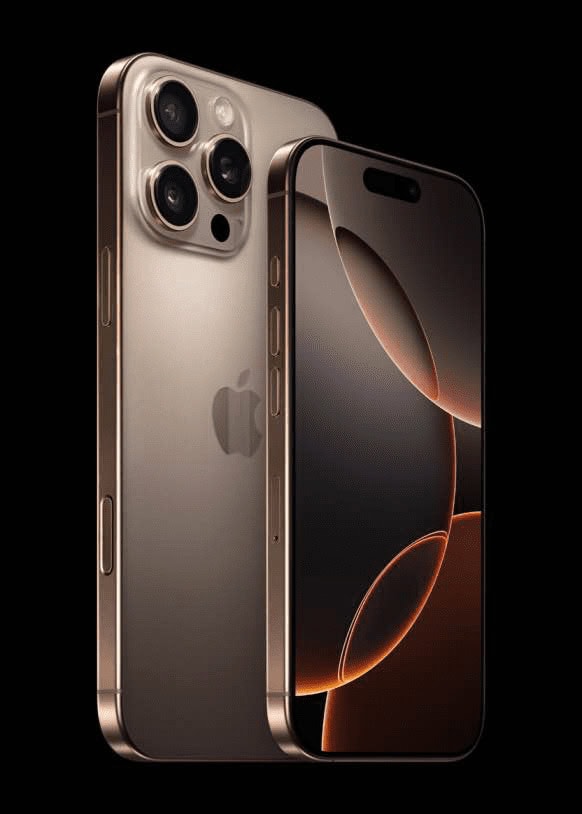
Is Siri not working on your iPhone 16? In this article, I’ll explain why Siri is not working on your iPhone 16 and show you how to fix the problem for good!
Siri is one of those great features that has really changed how we use our iPhones, making it easy to get everyday tasks done with just our voice. You can use Siri on your iPhone 16 to translate a phrase, set an alarm, find a location, report on the weather, get summarized knowledge from the web, and more. If Siri does not work properly, if Siri does not respond, then this guide is for you. This article provides solutions when Siri is not working on your iPhone 16, iPhone 16 Plus, iPhone 16 Pro or iPhone 16 Pro Max.
Fix Siri not working on iPhone 16
If Siri isn’t working for you, check a few settings on your device to make sure that Siri is set up to listen for your voice and respond to your requests.
Make sure Siri is configured on your iPhone 16
If Siri isn’t working on your iPhone 16, the first thing to check is whether the voice assistant is configured on your device. If you didn’t set up Siri when you first set up your iPhone 16, do the following:
- Head to Settings > Siri, then tap Talk to Siri.
- Choose “Hey Siri” or “Siri”
Turn on ‘Always Listen’ in Accessibility
If you want Siri to respond to you whenever your phone is nearby, there is a setting in Accessibility for you to turn on. If you don’t turn this on, Siri will not respond unless your iPhone is face-up and uncovered. You can also choose to keep this setting turned off if you like the option of turning off “Hey Siri” just by turning your iPhone face-down.
- Open the Settings app and go to Accessibility.
- Scroll down and tap on Siri.
- Toggle the switch next to “Always Listen for Siri.”
If you like, you can also select Prefer Spoken Responses under “Spoken Responses” so that Siri will respond even when Silent Mode is on.
Siri is unable to connect to internet
For some requests, iPhone must be connected to the internet. If your iPhone 16 is not connected to the Internet, Siri might say: "To do that, you’ll need to be online," "On it”, “Still on it”, “Something went wrong please try again," or "Something went wrong, please try again." If you’re having this problem, first turn Airplane Mode on and then back off again. Additionally, unplug your router from the power outlet and plug it back in again if you’re using Wi-Fi. Note that if your internet connection is extremely slow, Siri will not work. Finally, some VPN profiles might not allow use of Siri. Turn off VPN and try again.
Siri doesn’t understand me
Siri is an intelligent system, versed in many languages and dialects. One reason why you may feel Siri isn’t working on your iPhone 16 is because she doesn’t understand your language or accent, or you don’t understand hers.
Make sure you and Siri are on the same page by going to Settings > Siri and choosing the language and dialect that’s right for you. In English, Siri currently offers 6 accents: American, Indian, Irish, British, South African and Australian.
Note: you can set Siri’s language to be different from the language on your device.
How to: change Siri’s voice
Siri’s voice options depend on the language you choose (see above). Some languages offer both male and female voices, while others only have one option.
Go to Settings > Siri > Voice to change the gender and dialect that Siri speaks in.
Restart your iPhone
If Siri was working fine on your iPhone 16 but just hasn’t been responding to you lately, restarting your device can fix your issue. Go to Settings and tap on General, then scroll down and tap on Shut Down. To turn on your phone, press the side button until the Apple logo appears.
Retrain ‘Hey Siri’
To retrain “Hey Siri” voice recognition:
- Go to Settings and tap on Siri.
- Tap Talk to Siri, “Siri” or Hey Siri.”
- Tap “Off,” then tap “Siri” or “Hey Siri”
- You will see Set Up “Siri” and “Hey Siri” screen. Tap on Continue.
- Using a normal speaking voice, say aloud each of the commands you see on the screen.
- Tap Done when the “Siri Is Ready” page appears.