Several users have said that text notifications are not working on their iPhones after iOS 26 update. More specifically, iPhone users have reported problems with getting the notifications that let them know they have received a text message. I also experienced this issue when i updated to iOS 26. It seems that for many users with this issue, text notification sounds and banners may or may not show up to indicate a new message. Several users experiencing this problem have also stated that the red message indicator dot does not appear on the messaging app icon when they receive a new message. Without proper indication that a new text has arrived, users can miss important texts. They may never realize they have received a text, and so they won’t read or reply to the text. This can result in annoyed business partners or worried family members. In this article, we will give some troubleshooting tips to try and resolve this issue.
If you are also having problems with missed calls, be sure to check out our recent article: How to Fix iPhone not Ringing after iOS 26 update Problem.
Why is my iPhone not getting text notifications after iOS 26 update?
There are several reasons you aren’t getting text notifications on your iPhone after iOS 26 update, which we can troubleshoot. Some common reasons include misconfigured settings, software glitches, or Focus mode being enabled.
How to fix text notifications when they aren’t working after iOS 26 update
Before starting down the list of troubleshooting steps, make sure your iPhone is running the latest iOS 26 update. Head over to Settings > General > Software Update and install any available updates. Now, let’s work through these potential troubleshooting steps to get your text notifications back up and running:
Step 1: One quick fix is to check if your iPhone’s Focus mode is enabled. It’s possible that you turned on Focus mode like Do Not Disturb and forgot about it. To check, go into the Control Center and turn off Focus mode if it’s enabled.
Step 2: Check your Notification Settings on your iPhone. You can do this by opening the Settings app and selecting Notifications, then Messages. Once there, ensure that the ”Allow Notifications” toggle is switched on. Also, verify that notifications are set for Immediate Delivery. You should also confirm that the settings for Lock Screen, Notification Center, and Banners are enabled. Next, tap Sounds and choose a different alert tone. You should also enable Badges.
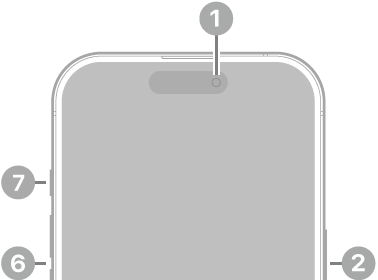
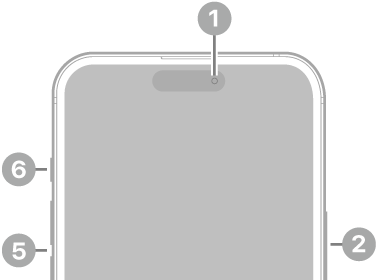
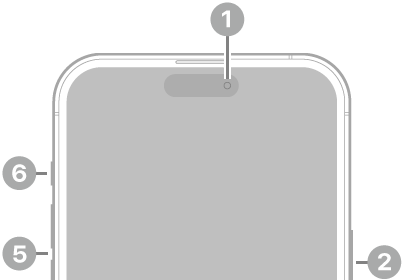
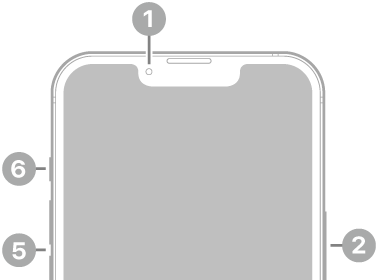
Step 3: Check Silent Mode. Look at the switch on the left side of your phone above volume buttons. If the switch is pushed away from your screen and showing an orange color strip, you have Silent Mode on. Flip the switch to turn it off.
iPhone Models with an Action button: These models replaced the mute switch with the Action Button, which can be customized. Make sure it’s not set to silent mode by going to Settings > Sounds & Haptics > Silent mode. These iphone models include: iPhone 16e and iPhone 15 Pro and iPhone 15 Pro Max.
Step 4: Check whether you have muted conversations for individuals. This assumes, however, that you’ve been chatting with them already and there are previous conversations in the Messages app. To do this, locate the conversation for the person from whom you aren’t receiving text notifications. Next, look for any conversation that shows a crossed-out bell icon next to it. If you find one, swipe left and tap the bell icon to unmute.
Step 5: If you are not receiving messages from someone, it’s possible that you have blocked them. To unblock them, follow these steps: Open the Settings app, tap Apps, then choose Messages. Select Blocked Contacts. When you find the person on this list, swipe left and tap Unblock.
Step 6: Check if you are filtering unknown senders. Go to Settings, scroll down again and tap Apps. Scroll down and tap Messages. Under Unknown Senders section, make sure Screen Unknown Senders and Filter Spam settings are turned off.
Related: How to fix notifications not working on iPhone after iOS 26 update
What to do if iOS 26 text notifications problem still isn’t fixed?
One additional step you can take to resolve iOS 26 text notifications problems is to turn your iPhone off and back on and see if the problem is resolved.
If you are still not receiving text notifications on your iPhone, there are two final options, both of which will take a little more time. First, you can reset your iPhone to factory settings. Second, you can take your iPhone to an Apple Store.
You shouldn’t need to go this far, but in case the above methods aren’t doing anything, you have these as final options at your disposal.