On iPad, you can use Private Browsing Mode, view the Privacy Report, and adjust settings in the Safari app to keep your browsing activities private and help protect yourself from malicious websites.
Tabs you open in Private Browsing don’t appear in History on iPad or in the tab list on your other devices, even if you’re signed in to the same Apple Account. And if you have a passcode set, Private Browsing locks when it’s not in use.
Here’s how to browse the web privately in Safari on iPad.
Visit sites privately
Tabs you open with Private Browsing stay out of History on iPad and off the tab list on your other devices. Those tabs aren’t shared with your other Apple devices, even when you’re signed in to the same Apple Account.
With a passcode set on your iPad, Private Browsing locks whenever it’s not in use, but not always immediately.
- Open the Safari app on your iPad.
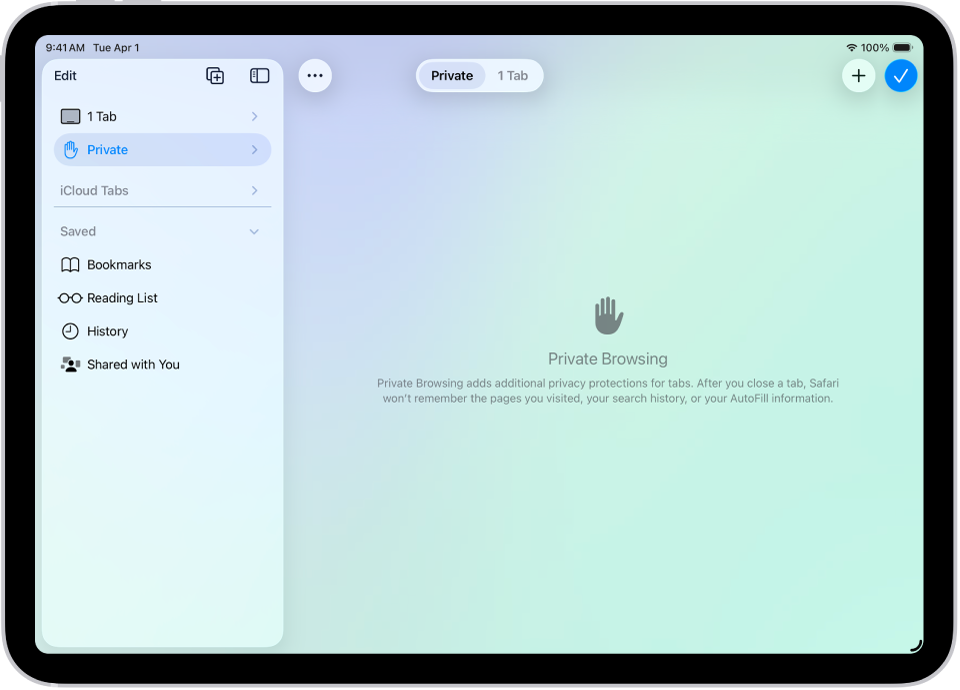
- Tap the Show Sidebar button, then tap Private.
If you don’t see Private, tap the Back button at the top of the sidebar.
- Follow the directions onscreen to unlock Private Browsing.
To exit Private Browsing, tap the Show Sidebar button, then tap a Tab Group. The websites you have open in Private Browsing stay open, and Private Browsing locks.
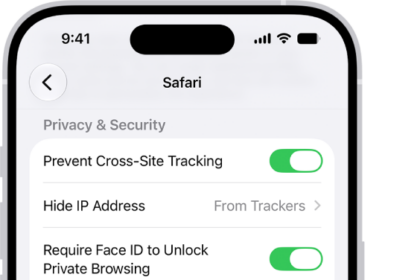
To allow Private Browsing to be locked, go to Settings > Apps > Safari, then turn on Require Passcode to Unlock Private Browsing, Require Face ID to Unlock Private Browsing (supported models), or Require Touch ID to Unlock Private Browsing (supported models).
Note: Any Safari extensions you have installed that have access to browsing data are automatically turned off in Private Browsing. To turn on an extension in Private Browsing, see Change Safari extension settings.
Choose a search engine for Private Browsing
- Open the Settings app on your iPad.
- Tap Apps, then tap Safari.
- Turn off Also Use in Private Browsing.
- Tap Private Search Engine, then choose a search engine.
View the Privacy Report
Safari helps stop trackers from following you across websites and seeing your IP address. To see a summary of the trackers Intelligent Tracking Prevention has encountered and prevented on the webpage you’re currently visiting, check the Privacy Report. In Safari settings, you can also make adjustments that keep your browsing private from other people who use the same device and help protect you from malicious websites.
- Open the Safari app on your iPad.
- Tap the Page Menu button and tap Privacy & Security.
- Tap Privacy Report.
Use iCloud Private Relay to browse the web with more privacy
When you subscribe to iCloud+, you can use iCloud Private Relay to help prevent websites and network providers from creating a detailed profile about you. When iCloud Private Relay is turned on, the traffic leaving your iPad is encrypted and sent through two separate internet relays. This prevents websites from seeing your IP address and exact location while it prevents network providers from collecting your browsing activity in Safari. See Protect your web browsing with iCloud Private Relay.
See Protect your web browsing with iCloud Private Relay to learn how to:
- Turn iCloud Private Relay completely on or off for your iPad.
- Turn iCloud Private Relay on or off for a specific Wi-Fi or cellular network.
- Turn iCloud Private Relay off temporarily.
- Set the specificity of your IP address location.
Note: iCloud Private Relay isn’t available in all countries or regions.
Temporarily allow a website to see your IP address
Some websites rely on IP filtering, monitoring, or rate-limiting and might need your IP address to be visible. For that website only, you can turn off iCloud Private Relay temporarily.
- Open the Safari app on your iPad.
- Go to the website.
- Tap the Page Menu button on the left side of the search field and tap Privacy & Security.
- Tap Show IP Address (if available).
Your IP address remains visible to that website until you leave the website or close its Safari tab. iCloud Private Relay remains on for other websites.
To turn off or pause iCloud Private Relay for all websites, see Protect your web browsing with iCloud Private Relay.
Control privacy and security settings for Safari
- Open the Settings app on your iPad.
- Tap Apps, then tap Safari.
- Turn any of the following on or off:
- Prevent Cross-Site Tracking: Safari limits third-party cookies and data by default. Turn this option off to allow cross-site tracking.
- Hide IP address: Safari automatically protects your IP address from known trackers. For eligible iCloud+ subscribers, your IP address is protected from trackers and websites as you browse in Safari. If this option is off, your IP address isn’t hidden.
- Fraudulent Website Warning: Safari displays a warning if you’re visiting a suspected phishing website. Turn this option off if you don’t want to be warned about fraudulent websites. (Not available in all countries or regions.)
- Camera: Choose whether Safari websites can use your camera without asking you first. Tap Camera and choose Ask, Deny, or Allow.
- Microphone: Choose whether Safari websites can use your microphone without asking you first. Tap Microphone, then choose Ask, Deny, or Allow.
- Location: Choose whether Safari websites can use your location without asking you first. Tap Location and then choose Ask, Deny, or Allow.
To set exceptions for a specific website, open the website in the Safari app, tap the Page Menu button, tap Website Settings, then tap the setting you want to change below Website Settings For.
See also