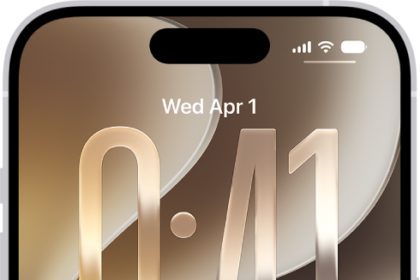
Your iPhone’s Lock Screen displays text message previews, allowing you to stay updated even without unlocking your device. However, this can be a privacy risk—you don’t want everyone to see the contents of your texts.
Notifications from the Messages app may contain sensitive or confidential information that you want to hide from prying eyes.
With your iPhone, you can customize the notifications so that you can turn off text message previews on the Lock Screen. You can even stop tex messages notifications from appearing on your iPhone Lock Screen altogether. Here’s how to hide messages on your iPhone lock screen.
What to consider before hiding text messages on your lock screen
Hiding messages or notifications on your lock screen is a smart way to keep your data safe. But before you set it up, think about what you won’t be seeing. You may miss the contents of a text message from your mom. Or if you’re waiting for an Uber®, you’ll see that you have a notification, but you won’t see your driver’s details on the screen. You’ll have to decide if the security risks outweigh the convenience of this feature.
How to hide texts on your iPhone lock screen
To hide messages on your iPhone Lock Screen:
- Go to Settings > Notifications.
- Scroll down and find the Messages app.
- Tap Show Previews. Choose between When Unlocked and Never.
Choose Never if you don’t want the notification preview to show even after you unlock your device.
Choose When Unlocked if you want the text message previews to appear on your Lock Screen without displaying any content. On iPhones with Face ID, glancing over your device can unlock it to reveal the text message preview. Meanwhile, if you have a device with Touch ID, you need to place your finger on the Touch ID sensor before you can see the text message previews.
How to turn off Lock Screen notifications
To stop messages from showing up on your iPhone Lock Screen altogether, go to Settings > Notifications > Messages. Under Alerts, deselect Allow on Lock Screen.
Alternatively, you can hide text messages on iPhone Lock Screen directly from the Lock Screen. When you get a notification from the Messages app, swipe left on the notification and tap the Options button.
This brings up a notification management menu. From here, simply tap the Turn Off option. Now messages won’t show up on the iPhone Lock Screen anymore.
Other Lock Screen privacy tips
For a broad approach, first head to Settings > Notifications and change Show Previews to When Unlocked. This will, for example, show a Lock Screen notification that you received an iMessage from Joe Smith, but won’t show the text itself.
To control where individual apps send notifications, scroll down on this menu, select an app, and disable Allow on Lock Screen to keep them from appearing there.
Of course, the most important function of the Lock Screen is to protect your device from outsiders. It’s thus important to know how to change your passcode or biometric security when needed.
Visit Settings > Face ID & Passcode (or Touch ID & Passcode for iPhone models without Face ID) for the relevant options. For iPhone models with Face ID, choose Reset Face ID if the feature is not working correctly and you want to restart Face ID from scratch.
There’s also an option to Set Up an Alternate Appearance. This allows you to, for example, add your spouse or trusted friend’s face to let them unlock your device. Face ID continually learns what you look like, so you shouldn’t need to use this feature for small changes like growing a beard or wearing a hat.
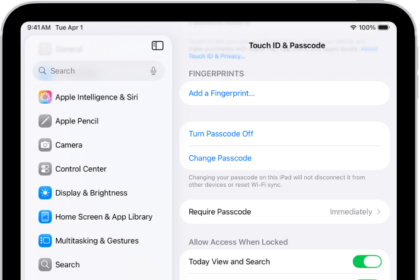
For devices with Touch ID, touch a finger to the scanner to identify it in the Fingerprints list. Tap an existing fingerprint to delete it, swipe on one to delete it, or tap Add a fingerprint to set a new one (you can have up to five).
Hit Change Passcode to create a new iPhone passcode. During the process, tap Passcode Options to change the length of the code or even use letters in it.
Scroll down to Allow Access When Locked to see a list of features that are accessible even when your device is locked. Disable the slider for anything that you only want to be accessible after you’ve unlocked your iPhone.
To keep your device safe and preserve your iPhone’s battery life, your phone automatically locks after a certain amount of time. At that point, the screen goes blank and you have to get past the Lock Screen to use your device.
You can customize how long your device goes without any input before locking at Settings > Display & Brightness > Auto-Lock. The shortest time is 30 seconds, with the longest being 5 minutes (as well as Never). We don’t recommend choosing a long time for this, as keeping the screen on wastes battery and makes your phone open to anyone who picks it up if you leave it unattended.
On iPhone models with Face ID, you should also visit Settings > Face ID & Passcode and make sure Attention Aware Features is on. With this, your iPhone won’t turn off the screen as long as you’re looking at it.