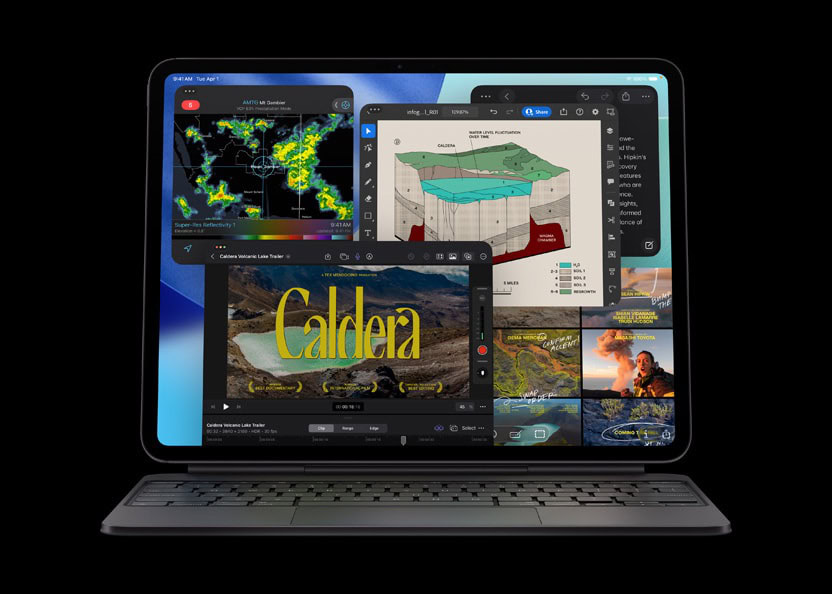
Apple announced iPadOS 27 on June 8, with key new features including “Siri AI” and a Siri app, a slider to adjust the appearance of Liquid Glass, expanded child safety features, faster performance, “tons of refinements” for improved reliability, and more.
Anyone with an Apple Developer account is able to install the iPadOS 27 developer beta for free, with Apple Developer Program membership for $99 per year no longer required in recent years. Here’s everything you need to know about downloading the iPadOS 27 beta on your iPad.
How to install iPadOS 27 beta on your iPad
Step 1: Check compatibility
To download iPadOS 27 developer beta on your iPad, you’ll need an iPad mini (6th generation and later).
The full list of iPadOS 27-compatible iPads is as follows:
- iPad Pro (M4 and later)
- iPad Pro 12.9‑inch (4th generation and later)
- iPad Pro 11‑inch (2nd generation and later)
- iPad Air 13-inch (M2 and later)
- iPad Air 11-inch (M2, M3, and M4)
- iPad Air 11-inch (4th generation and later)
- iPad (A16)
- iPad (9th generation and later)
- iPad mini (A17 Pro)
- iPad mini (6th generation and later)
To identify your iPad model, go to Settings > General > About.
Step 2: Back up your iPad
Apple recommends that you back up your iPad before installing the iPadOS 27 beta software. For this, you can’t just do a regular backup. You’ll need to archive a backup on your computer, which is a backup that can’t automatically be replaced or deleted. On your Mac, connect your iPad, open a Finder window, select your iPad, click Back Up Now, go to Manage Backups, right-click the backup you just created and then click Archive. The process is similar on Windows, but you’ll use the iTunes app instead.
Step 3: Sign in to Apple Developer Program
Once you’ve backed up your iPad to your computer, the next’s step is to enrolled your device to Apple Developer Program. This will help you get the latest iPadOS 27 betas from Software Update. You don’t need to join Apple’s Developer Program, no payment is required, just sign in. Here’s how:
- Go to the Apple Developer Center (developer.apple.com/account) and sign in with your Apple account information.
- Check the box for the terms and conditions and tap the Submit button.
Step 4: Enable iPadOS 27 Beta Updates
After logging into the Apple Developer Center, you need to enable the “Beta Updates” option in the Settings app to receive the latest iPadOS 27 beta updates on your iPad. Here’s how:
- Go to Settings > General > Software Update and tap Beta Updates.
- Choose iPadOS 27 Developer beta.
Note: Your iPad must be signed in with the Apple Account you use to sign into to the Apple Developer website in order to access the beta software
Step 5: Download iPadOS 27 beta
- Go to Settings > General > Software Update and wait for iPadOS 27 Beta to appear.
- Tap Update Now.
If you don’t see the iPadOS 27 Beta appear, try swiping down on the Software Update page a few times to refresh it.
Enter your passcode, agree to the terms and conditions and then just wait for the update to install on your iPad.
Once your phone reboots, you should be running the iPadOS 27 developer beta.
You can always switch to the “Off” option in the Beta Updates to stop receiving future iPadOS 27 Beta updates.
Step 6: Provide Feedback
Once the iPadOS 27 beta is installed, it will come with a built-in Feedback Assistant app, which can be launched from the second page of your Home screen. When you come across an issue that needs addressing, send your feedback to Apple with Feedback Assistant.
Should I download the iPadOS 27 beta?
In general, we don’t recommend download the iPadOS 27 beta on your main iPad. While they don’t typically contain any major issues, the beta versions can contain bugs and issues, like battery drain.
If you have an older iPad from the list above, then it’s probably worth downloading the iPadOS 27 beta on that. But if your need to test-drive the latest iPadOS features outweighs your concerns about minor bugs, then follow the steps above – at your own risk.