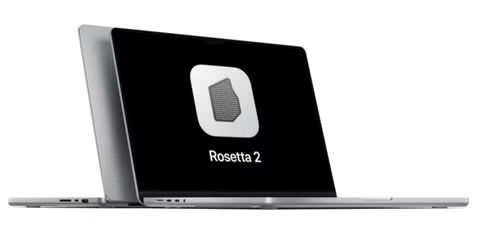
Rosetta 2 is necessary if you want to be able to run older non-native Intel x86 applications on Apple silicon Macs like the M1 MacBook Pro, MacBook Air, or Mac mini. Curiously, Rosetta 2 is not installed by default on these Macs however, so if you wish to run these apps you’ll need to install Rosetta 2 onto the Apple Silicon Mac yourself.
There are two ways to install Rosetta 2 onto an Apple Silicon Mac; using the Terminal, or by attempting to open a non-native x86 app which prompts an installer. You can use whichever method you’d like, as both will have the same end result of Rosetta 2 being installed onto the Mac.
Remember, Rosetta 2 is available only for Mac computers with Apple silicon. Rosetta 2 is not necessary on any Intel Mac (nor would Rosetta 2 install on Intel Macs anyway). Also, this capability is only available in macOS Big Sur or later.
How to Install Rosetta 2 via App Launch
If you have any x86 Intel apps available on the Apple Silicon Mac, simply launching the app will prompt the user to install Rosetta. Here’s how:
- Make sure that your Mac is connected to the internet
- Open any app that needs Rosetta.
- If Rosetta is not installed on Mac, you’re automatically asked to install it.
- Click Install, then enter your user name and password to install Rosetta 2 software onto the Mac.
How to Install Rosetta 2 via Command Line on Apple Silicon Mac
Another way to install Rosetta 2 on Mac computers with Apple Silicon is by using the familiar softwareupdate command line tool. Here’s how:
- Open the terminal. To do this:
Click the Launchpad icon in the Dock, type Terminal in the search field, then click Terminal. - In Terminal, type
softwareupdate --install-rosetta - Press return.
This will launch the rosetta installer and you’ll have to agree to a license agreement, which I’m sure you’ll read completely and thoroughly as we all do every time we install anything on every device.
You can also skip the license agreement by providing an additional flag:
/usr/sbin/softwareupdate --install-rosetta --agree-to-license
Which Mac Apps Require Rosetta 2?
Here’s how to check:
- Select the app’s icon in the Finder.
- From the File menu in the Finder menu bar, choose Get Info.
- In the Info window that opens, look for the information labeled Kind. If the kind is Application (Intel), the app needs Rosetta to work on a Mac with Apple silicon. If the kind is Application (Universal), the app doesn’t need Rosetta, because it supports both Apple silicon and Intel processors.
Some universal apps (apps that don’t need Rosetta) include the setting “Open using Rosetta.” This setting enables a universal app such as a web browser to use plug-ins, extensions, or other add-ons that do need Rosetta, because they haven’t been updated to support Apple silicon. If a universal app doesn’t recognize an add-on that you installed for the app, you can quit the app, select this setting, and try again.
Over time, more and more Mac apps will run natively on Apple Silicon, and Rosetta 2 will eventually become unneeded, in much the same way that Rosetta for PowerPC eventually became deprecated. But that’s still years away, as Apple is just at the beginning of the process of bringing Apple Silicon to the Mac hardware lineup.
How to use Rosetta on Mac
Rosetta is not an app that you open or interact with. Rosetta works automatically in the background whenever you use an app that was built only for Mac computers with an Intel processor. It translates the app for use with Apple silicon. Simply open your app and use it like you normally would.
In most cases, you won’t notice any difference in the performance of an app that uses Rosetta. But you should contact the app developer to inquire about a version that can natively use the full power and performance of Apple silicon.
Rosetta is a translation process that allows users to run apps that contain x86_64 instructions on Apple silicon. New Apple Silicon Macs run on different architecture, whereas Macs have been running Intel chips for quite some time. Rosetta 2 translates Intel x86 code to ARM so that it can run on the new Apple Silicon hardware. You can read more about the Rosetta 2 translation environment at the Apple developer site gif interested.