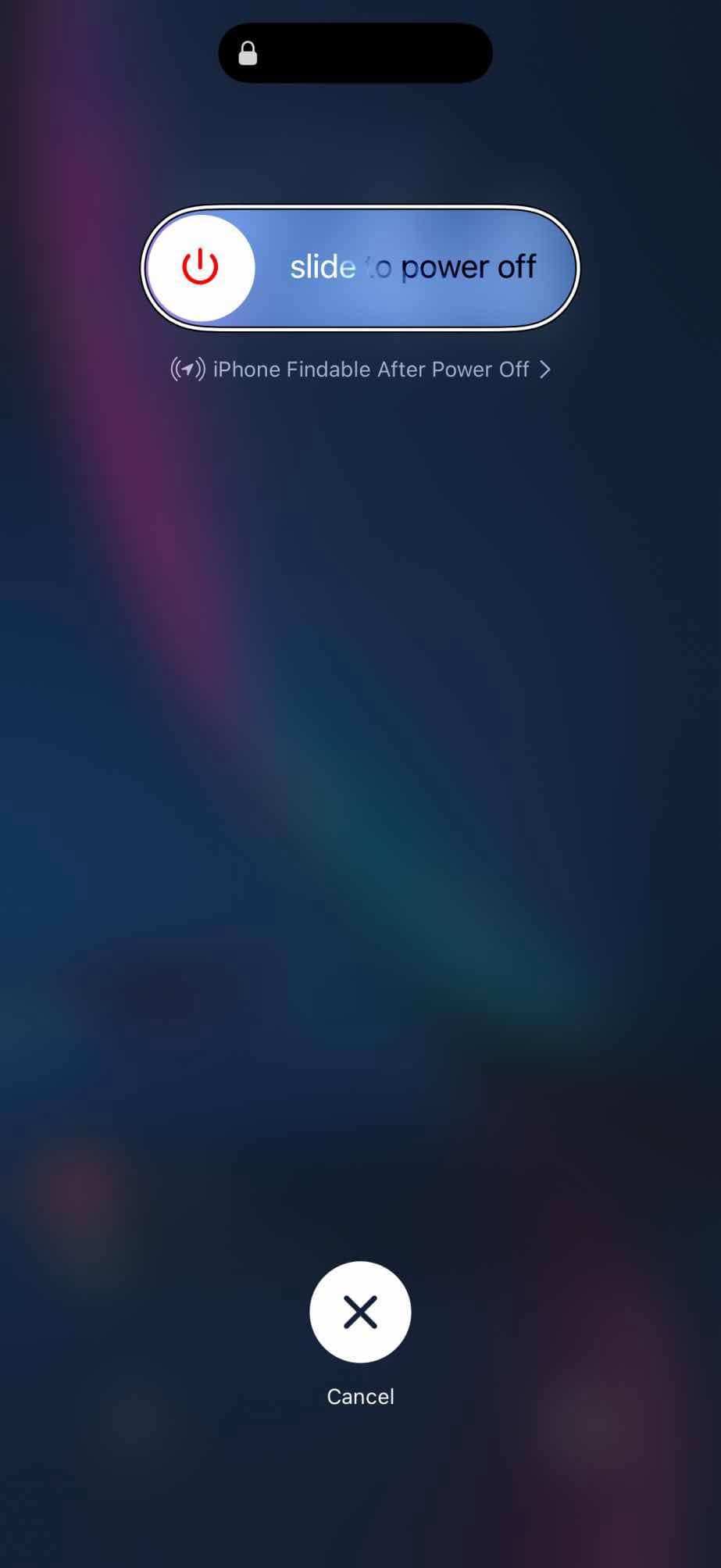
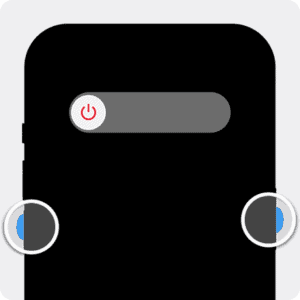
- To power off iPhone X or newer, press and hold down the Power and Volume buttons until a slider appears on-screen.
- To shut down your iPhone X or newer without the power button, go to Settings > General > Shut Down.
- You can force restart iPhone X or later by pressing Volume Up, Volume Down, and then Side button.
- Use the side button to turn on iPhone X or newer.
Typically, shutting down an iPhone (The iPhone X, iPhone 11, iPhone 12, iPhone 13, iPhone 14, iPhone 15, iPhone 16, iPhone Air, iPhone 17) involves pressing and holding either of the volume buttons on the left along with the side button on the right. But what would you do if one or both of the volume buttons fails? Luckily, you can turn an iPhone off or on without pressing physical buttons. In this article, I’ll show you how to power off your iPhone, how to turn it back on, and how to force restart your iPhone.
Note: instructions in this article apply to iPhone X or newer.
How to Power Off iPhone X or Newer with Buttons
If you need to turn off your iPhone 11, iPhone 12, iPhone 13, iPhone 14, iPhone 15, iPhone 16, iPhone Air, or iPhone 17, the easiest way to do so is by using a hardware button on your device.
Simultaneously hold the side button and the volume up or down button for about four seconds until the power-off slider appears on the screen.
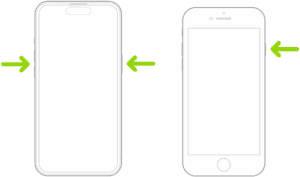
When the "Slide to Power Off" slider appears on the screen, place your finger on the white circle with the power icon and swipe your finger to the right.
After a moment, your iPhone will shut down and power off completely.
How to Turn Off iPhone X or Newer without Buttons
The physical buttons are a fast way to shut down the iPhone X or later. If you aren’t able to shut down your device using the physical buttons, you can turn off your iPhone in the Settings app. Go to Settings > General and select Shut Down. It’s at the very end.
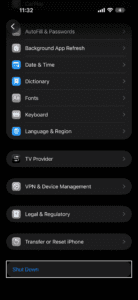
The "Slide to Power Off" slider will appear on the screen. Swipe it to the right, and your iPhone will turn off completely.

Another way to shut down your iPhone without holding any physical buttons is to use the Control Center. Swipe down from the top right corner of the screen to open the Control Center.
Press and hold (then release) the power button for a second.
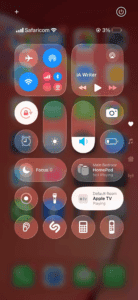
Drag the power slider to turn off your iPhone.
Personally, I find these methods work way better than pressing multiple buttons.
How to Turn off iPhone X or Newer Using Siri
Another way to shut down your iPhone is via Siri. All you need to do is say, "Hey Siri, turn off my iPhone." Siri should respond with a confirmation, asking, "Just to confirm, you want to power off this device?" Then, responding with “Yes” shuts down your iPhone right away.
See also: Is Your iPhone Not Turning Off? Here’s How to Fix It
How to Turn On iPhone X or Newer
To power on your iPhone, hold the Side button until you see the white Apple logo appear on the screen. Your iPhone will now begin booting up. If you don’t see the white Apple logo, wait a little longer and try again. Enter your passcode to begin using your iPhone again.

How to Turn On iPhone X or Newer without a Power Button
Turning your iPhone on without a power button is simple: just plug it in to charge over USB. Your iPhone will start up a few seconds after it starts charging (as long as the battery isn’t dead, in which case it takes longer).
How to Force Restart iPhone X or Newer (with Buttons)
If iPhone isn’t responding, and you can’t turn it off then on, try forcing it to restart.
If you have an iPhone 11, iPhone 12, iPhone 13, iPhone 14, iPhone 15, iPhone 16, iPhone Air, iPhone 17, a second- or third-generation iPhone SE released in 2020 and 2022 respectively, you can force restart your device using a series of button presses.
First, press and quickly release the volume up button, then press and quickly release the volume down button. Finally, press and hold the Side button until you see the Apple logo. Release the Side button and wait for your iPhone to restart.
You’ll need to act quickly when pressing the buttons. If it doesn’t work the first time, keep trying.