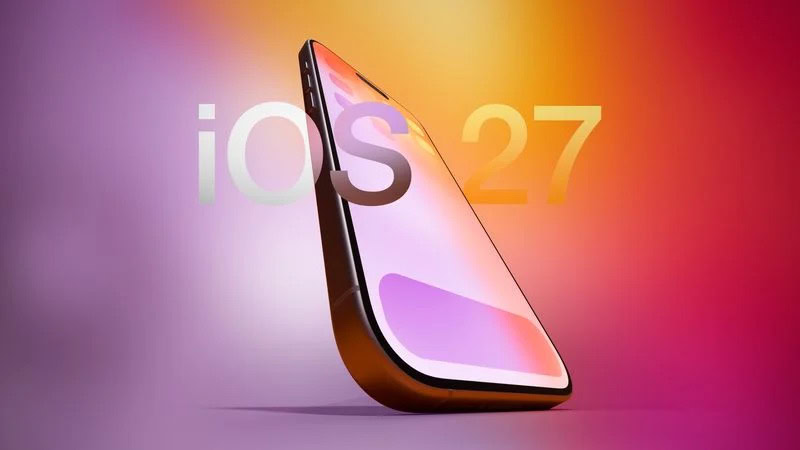
The iOS 27 public beta will be available to tens of millions of handsets later this month, and for the most part, the majority of these upgrades will be smooth and painless. But I like to take a few precautions before I let a new update go wild on my system.
Maybe I’m overly cautious, but I’ve been burned in the past, so I’d rather spend a few minutes now than a few hours later trying to recover my data and restore my phone.
If you’re the same way, keep reading. Plus, these tips also work for preparing your iPad for the new iPadOS 27 public beta update.
How to get your iPhone ready for iOS 27 Public Beta
1. Check availability
First things first: Make sure your phone can get the update. To get the iOS 27 public beta update, you need to have an iPhone 11 or newer.
The iPhone 11, iPhone 11 Pro, and iPhone 11 Pro Max are the oldest iPhones that support iOS 27.
Also: iOS 27, iPadOS 27, watchOS 27, macOS 27 supported devices
Here’s the list of compatible iPhones in full:
- iPhone SE, 2nd gen and newer
- iPhone 11 series
- iPhone 12 series
- iPhone 13 series
- iPhone 14 series
- iPhone 15 series
- iPhone 16 series
- iPhone 16e
- IPhone 17 series
- iPhone 17e
- iPhone Air
Although iOS 27 is compatible with the iPhone 11 and newer, it’s worth noting that Apple Intelligence features like Siri AI are limited to the iPhone 15 Pro and newer.
The following iPads will get iPadOS 27
- iPad Pro (M4 and later)
- iPad Pro 12.9‑inch (4th generation and later)
- iPad Pro 11‑inch (2nd generation and later)
- iPad Air 13-inch (M2 and later)
- iPad Air 11-inch (M2, M3, and M4)
- iPad Air 11-inch (4th generation and later)
- iPad (A16)
- iPad (9th generation and later)
- iPad mini (A17 Pro)
- iPad mini (6th generation and later)
2. Consider playing the ‘wait-and-see’ game
Almost every iOS update seems to have one bug or another. If you’re someone who relies on your iPhone, you might be tempted to delay the update for a few days so you can see just how buggy this release is, or maybe even wait for the iOS 27 public beta 2 bug fix release that will inevitably be rolled out soon after.
However, because iOS updates are usually brimming with security updates, I don’t recommend waiting. If you insist on taking this course of action, you do need to make sure that your iPhone isn’t going to automatically update itself during that time.
To do so, go to Settings > General > Software Update and turn off Automatic Updates until you are ready to update.
3. Update your apps and free up space
I recommend updating all your apps if you’re the sort of person who has disabled automatic updates and forgets to do it manually. Running older apps on the new release can cause glitches and issues.
Making space before installing a new update is also a good idea. A new iOS release is a good motivator to get rid of any apps you’re not using anymore.
You need at least ten gigabyte to carry out iOS 27 public beta update. Having a few gigabytes of free space will speed up the update process. With less space than that, your iPhone will have to do a lot of housekeeping to make room, and that takes a lot of time, processor power, and battery.
iOS updates can delete apps to make space to install the update and then redownload the apps, but this makes the update take a lot of time, sometimes many hours.
4. Back up your data
Whether you think it now or not, your data is important. Imagine your photos gone. Your banking app deleted. All those open tabs on your browser, bye bye!
Even having to start from scratch having lost everything takes a huge amount of time and effort.
If this fills you with dread, you need backups!
I recommend having two backups of your data — one in the cloud in case things go bad, and one on a PC or Mac in case things go really bad.
We have a guide detailing how to make effective backups to iCloud on a Mac or PC.
5. Charge your device
While you can technically update iOS with only 50% battery, it’s better to be safe than sorry and put it on a charger. Running out of power mid-update wouldn’t be good.
6. Check your connectivity
It is possible to update an iPhone over a sketchy internet connection, but it’s far better and less frustrating to carry out the update over a fast, reliable connection.
7. Download the update on your terms
Now you’re ready for the update!
Once it is available, anyone will be able to install the iOS 27 public beta on a compatible iPhone for free by following the steps outlined below.
- Sign up at beta.apple.com for free.
- Open your iPhone’s Settings app and tap General → Software Update → Beta Updates.
- Select the iOS 27 Public Beta option (restart your iPhone if you don’t see it) and follow the on-screen steps.
If you are impatient, anyone can install the iOS 27 developer beta for free right now.
Keep in mind that the revamped version of Siri has a waitlist. To join the waitlist, open the Settings app on iOS 27 and tap on Siri and you will find it there. In some cases, it can take a few weeks to receive access to Siri AI and the Siri app.
Beyond the new Siri, iOS 27 features Liquid Glass design enhancements, performance improvements, expanded child safety features, and more.
8. Be prepared for poor battery life and bugs
I’ve been using the iOS 27 beta since developer beta 1, and one thing I’ve experienced is poor battery life. I don’t know if this will be fixed in the public beta, but I’ve been carrying a power bank around with me.
Another thing is bugs. It seems that no matter how long an update is in beta, there are always bugs. It’s just a thing we have to get used to, as holding back on updates is now not feasible given how many security updates are baked into each release.
Warning: While the first public beta is usually more stable than the first developer beta, iOS betas often have bugs and performance issues. You may not be able to use some apps that you rely on, and issues can extend to CarPlay. Backing up your iPhone before installing beta software is highly recommended, and relying on a secondary iPhone altogether is always a good idea if possible.
See also: iOS 27 beta problems and how to fix them