You’ve probably heard of a SIM card—or Subscriber Identity Module card—but do you know what it does? And did you know that you can remove a SIM card from your iPhone® and change it with a new one? Apple makes it easy to take out the SIM card no matter which model iPhone you have, all you need is a SIM removal tool.
We’ll show you how to remove the SIM card from your iPhone and change it with a new one.
These instructions cover any iPhone that uses a Nano SIM card.
What is a SIM card?
SIM stands for "Subscriber Identity Module," and a SIM card is essentially the card that holds your subscriber identity data. It’s the small chip-like card that you insert into your phone before you can begin using it. A SIM is essentially an integrated circuit that holds the data needed to confirm your subscription identity to a carrier’s network.
Why remove a SIM card?
You might need to remove the SIM card from your iPhone when you upgrade to a new device, change network, troubleshoot network issues, clean the SIM card, or send your phone away for repair. Thankfully, removing and replacing the SIM card in your iPhone is easy.
What Happens When You remove the SIM Card
When you remove the SIM card from your iPhone, you can’t receive phone calls, SMS and MMS. Additionally, you can’t make phone calls or send SMS and MMS. The only exception would be emergency calls to 911, which you can place even without a SIM card. You also can’t use cellular data anymore, although you can still connect to Wi-Fi.
All you need to do to remedy this is put in a new SIM card linked to an account with calls, texts, or cellular data for you to use. Alternatively, put your existing SIM card into a new phone and start using that instead.
What you need to remove the SIM Card from your iPhone
To remove the SIM Card from your iPhone, you’ll need the SIM eject tool that came with your iPhone. It’s also a good idea to find a flat, clean surface to work on.
Find the SIM tray on your iPhone
The SIM tray has a small hole and will be on the left or right side of your iPhone, depending on which model you have.
Find your iPhone model below to locate the SIM tray.
The SIM tray is on the left side for these iPhone models:

- iPhone 16 Pro Max
- iPhone 16 Pro
- iPhone 16 Plus
- iPhone 16
- iPhone 15 Pro Max
- iPhone 15 Pro
- iPhone 15 Plus
- iPhone 15
- iPhone 14 Pro Max
- iPhone 14 Pro
- iPhone 14 Plus
- iPhone 14
- iPhone 13 Pro Max
- iPhone 13 Pro
- iPhone 13
- iPhone 13 mini
- iPhone 12 Pro Max
- iPhone 12 Pro
- iPhone 12
- iPhone 12 mini
In China mainland, the SIM tray on iPhone 16 Pro Max, iPhone 16 Pro, iPhone 16 Plus, iPhone 16, iPhone 15 Pro Max, iPhone 15 Pro, iPhone 15 Plus, iPhone 15, iPhone 14 Pro Max, iPhone 14 Pro, iPhone 14 Plus, iPhone 14, iPhone 13 Pro Max, iPhone 13 Pro, iPhone 13, iPhone 12 Pro Max, iPhone 12 Pro, and iPhone 12 can hold two nano-SIM cards.
Except when purchased in the United States. An iPhone 14 model or later purchased in the United States doesn’t have a SIM card.
The SIM tray is on the right side for these iPhone models:

- iPhone 11 Pro Max
- iPhone 11 Pro
- iPhone 11
- iPhone XS Max
- iPhone XS
- iPhone XR
- iPhone X
- iPhone SE (1st, 2nd, and 3rd generation)
- iPhone 8 Plus
- iPhone 8
- iPhone 7 Plus
- iPhone 7
- iPhone 6s Plus
- iPhone 6s
- iPhone 6 Plus
- iPhone 6
- iPhone 5s
- iPhone 5c
- iPhone 5
- iPhone 4s
- iPhone 4 (GSM model)
The SIM tray is on the top for these iPhone models:

- iPhone 3GS
- iPhone 3G
- Original iPhone
Remove the SIM card
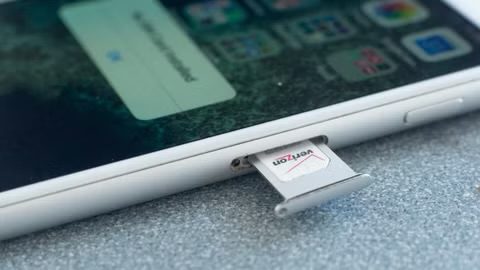
To remove the SIM card from your iPhone, insert a SIM eject tool into the hole on the tray and firmly push it in towards the iPhone until the tray pops open. Gently pull the tray out and remove the SIM card.
If you’re having difficulty opening the SIM card slot on your iPhone, reach out to an Apple Store for help.
Reinsert a SIM card
To change the SIM card in your iPhone, line up the notch in the corner of the SIM card with the notch in the tray. Once the SIM card is in place, insert the tray into the iPhone completely in the same orientation that you removed it.
The tray only fits one way and you should only use the SIM tray that came with your iPhone.
There might be additional onscreen steps to follow and then your iPhone will be ready to go.
How to remove a SIM card from an iPhone without a tool
If you don’t have or can’t find the SIM removal tool, you can use an unfurled paperclip, a needle, an earring, or pretty much anything else that is slim and pointy to open the SIM tray.