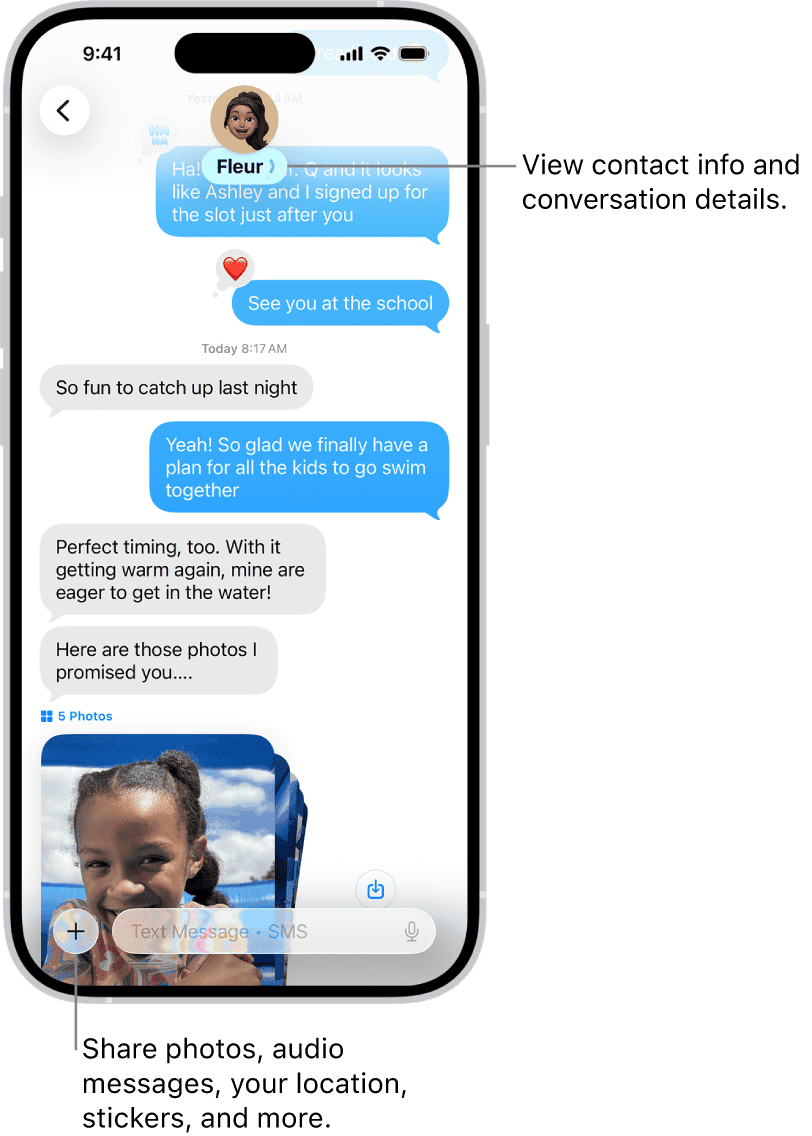
This article explains how to reply to a message on iPhone. Messages are grouped by conversation in the conversation list. A dot indicates you haven’t yet read one or more messages in that conversation.
Reply to a message on iPhone
- Open the Messages app on your iPhone.
- Go to the conversation that you want to participate in.
- To reply to the message with text, tap the text-entry field, type your reply and then tap Send.
See also: How to send text message on your iPhone
Reply to messages from your Lock Screen
If your iPhone is locked when you receive a text message, you can
- Launch the Messages app: Tap the notification.
- To reply to the message with text, tap the text-entry field, type your reply and then tap Send.
- Reply without unlocking your iPhone: Long-press the notification.
- To reply to the message with text, tap the text-entry field, type your reply and then tap Send.
- Clear the notification: Slide the notification left, and then tap Clear.
If your iPhone is unlocked when you receive a notification, you can:
- Launch the Messages app: Tap the notification.
- To reply to the message with text, tap the text-entry field, type your reply and then tap Send.
- Reply in place: Long-press the notification. Tap the text-entry field, type your reply and then tap Send.
Reply inline to a specific message
You can respond to a specific message inline. An inline reply quotes the message you’re responding to. This keeps a busy conversation organized by clarifying which response relates to which message.
- Open the Messages app on your iPhone.
-
In the conversation list, tap the conversation that you want to participate in.
- Do one of the following:
- Swipe right on the message bubble that you want to reply to.
- Long-press the message bubble that you want to reply to, then tap Reply.
-
Type your message in the text field, then tap the Send button.
Note: Everyone in a group conversation can see your inline reply. To reply privately, tap the group icon at the top of the conversation, touch and hold the icon of the person you want to message privately, then tap Message. -
To return to the main conversation, tap the blurred background.
Long-press a message to react with a Tapback, such as a thumbs-up or a heart.
Tip: To copy a message, long-press it, and then tap Copy. To copy part of a message, long-press it, tap Select, drag the handles to select what you want, and then tap Copy.
To read or reply to a message after you’ve dismissed its notification, tap the Messages icon. If a message other than the one you’re interested in appears on the screen when you launch the Messages app, tap the < icon in the top-left corner of the screen, and then tap the sender’s name; that person’s messages appear on the screen.
Tip: If you don’t see the send icon, type one or more characters to make the send icon replace the microphone icon on the right side of the text-entry box.
Long-press a sender’s name (on the Messages screen) to peek at a preview of their last few messages. Tap a sender’s name to open the message in the Messages app. This technique is great for triaging lots of messages quickly.
Tip: Be sure you’re pressing the sender’s name and not the circular picture or monogram on the left. Long-pressing the sender’s picture or monogram displays options for responding with a message, a phone call, a FaceTime video chat (if available), or an email, or even paying the sender with Apple Pay.
You can also tap the microphone icon in the text-entry box or the microphone key next to the spacebar on the keyboard and then dictate your reply to Siri, who will translate it to text and type it in the text-entry box for you.
Why are some bubbles blue and others green?
In your text conversations, the individual messages appear as a series of bubbles. Your messages appear on the right side of the screen, in blue bubbles if the recipient is using iMessage or green bubbles if the person is using SMS, MMS, or RCS; the other person’s messages appear on the left in gray bubbles.
See also: Why Your iPhone Messages Turn Green