On iPhone, in select regions and countries, you can report traffic incidents like accidents, hazards, speed checks, and road work, though features vary by region and country. Apple evaluates incoming incident reports, and when there’s high confidence in them, markers appear in Maps for other users. You can also report on the status of a hazard or accident.
Report an incident
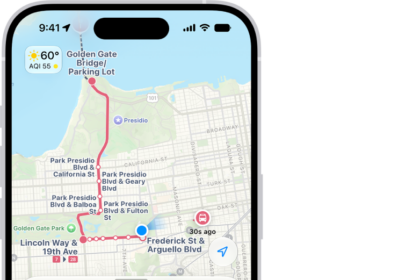
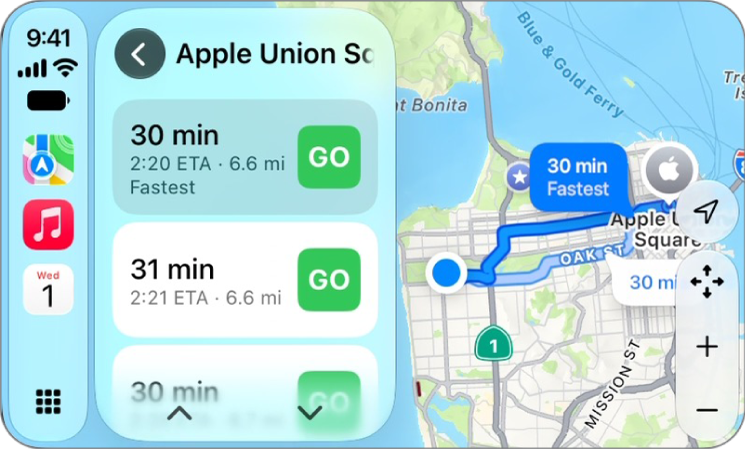
With turn-by-turn directions showing, select the Report button, then choose from one of the available options.
Apple evaluates incoming incident reports, and when it has a high level of confidence in them, Accident, Hazard, and Road Work incident markers appear in Maps for other users.
Note: You won’t see speed checks with incident markers. Notifications for them appear when you follow turn-by-turn directions instead.
Report on the status of a hazard or accident
Incident markers show information about hazards and accidents, and you can report their status when you’re near their locations.
- Select the incident marker.
- Select Cleared or Still Here.
Note: You can’t clear reports of speed checks.
After evaluating incoming incident reports, Apple removes an incident’s marker from Maps when there’s high confidence in reports that it has been cleared.
Note: Apple is committed to keeping personal information safe and private. To learn more, go to Settings > Apps > Maps, then tap “See how your data is managed.”