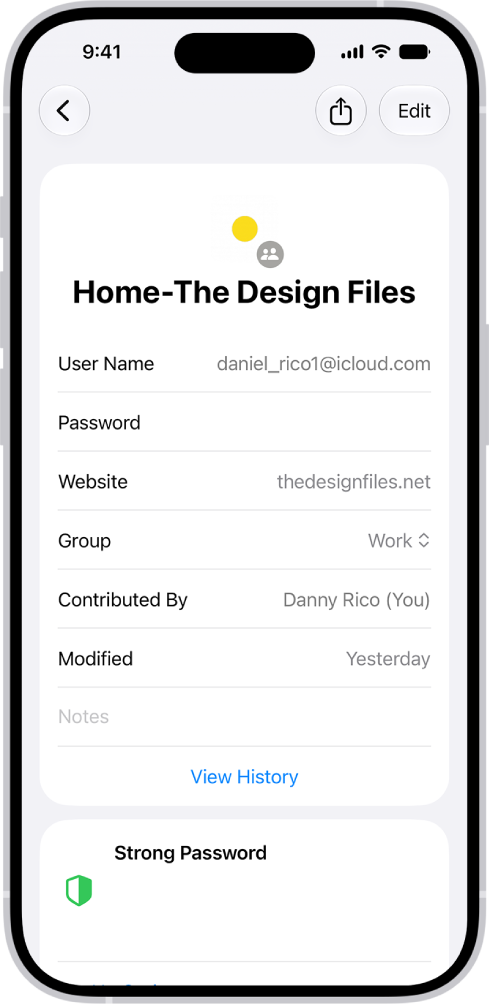
On iPad, you can see your Mac’s FileVault recovery key in Passwords. When you secure the data on your Mac with FileVault, you get a recovery key during setup. If you forget your Mac password, you can reset it by entering the recovery key, and you can see that key in the Passwords app on your iPad.
You can copy the recovery key to use elsewhere, too. It shows up on your iPhone or iPad, as long as it’s signed in to the same Apple Account as your Mac.
- Go to the Passwords app on your iPad.
- Tap All, then tap the name of your Mac in the list.
- Tap the Recovery Key field.
- To copy the password to use elsewhere, tap Copy Recovery Key.
Note: You can see the recovery key for your Mac in the Passwords app on your iPhone or iPad where you’re signed in to the same Apple Account as your Mac.