





When a picture is worth a thousand words, you need to know how to send a photo with message on iPhone.
How to send a picture in an iPhone message
To send a photo through a text message on your iPhone, follow these steps:
- Go to the Messages app on your iPhone.
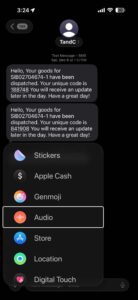
- In a conversation, tap the add icon (+) to the left of the text-entry box.

- Tap Camera to shoot a new photo, or tap Photos to select an existing photo.
- Add a message (optional), then tap the Send button.

Send photos faster
You can send smaller-sized previews of images so your recipients get them right away, before the full-resolution images arrive.
- Open the Settings app on your iPhone.
- Tap Apps, then tap Messages.
- Turn on Send Low Quality Photo Previews.
When Low Data Mode is on, only the preview is sent.
To remove a photo or video from the message bubble before sending it, tap the Cancel button.
Note: Attachments you send over iMessage (such as photos or videos) may be uploaded to Apple and encrypted so that no one but the sender and receiver can access them. To improve performance, your iPhone may automatically upload attachments to Apple while you’re composing a message. If you decide not to send your message, the attachments are deleted from the server after several days.
If you receive a picture in an iMessage, it appears in a bubble just like text. Tap the element to see it full-screen. Tap the share icon in the lower-left corner for options including Message, Email, Facebook, Save Image, Assign to Contact, Copy, and Print. You’ll also see an option to share the photo or video via AirDrop. If you don’t see the share icon, tap the picture or video once to summon it.
See also: Is Your iPhone Not Receiving Pictures? Here’s How to Fix It
Tap the avatar at the top of a conversation and then tap the Photos tab to see every image in this conversation. Similarly, tap the Links tab to see links, the Documents tab to see documents, the Locations tab to see locations, or the Wallet tab to see Apple Pay transactions.
If the call icon (phone receiver) and FaceTime video call icon (video camera; appear below the avatar on the details screen, tap the call icon to start an audio call with the contact or tap the FaceTime video call icon to start a video call.
See also: Is Your iPhone Not Sending Pictures? Here’s How to Fix It


, tap photos, select a picture, then tap Send.)