Facebook-f Twitter
GeeksChalk Logo GeeksChalk Logo
Notification
  • Home
  • iPhone
  • iPad
  • Mac
  • Apple Watch
  • Pages
    • About Us
    • Contact Us
    • Advertise With Us
  • 🤩 Trending:
  • 100 new iOS 26 features for iPhone
  • 10 Best iOS 26 Tips & Tricks
  • iPhone 16: Everything We Know
  • iPhone 16 Pro: Everything We Know

GeeksChalk is the leading source for all things iPhone, Mac, iPad, Apple Watch, Vision Pro, and more

GeeksChalkGeeksChalk
  • Home
  • iPhone
  • iPad
  • Mac
  • Apple Watch
Search

Popular Post

iPhone 15 Pro in black titanium, white titanium, blue titanium, and natural titanium finishes.
iPhone

Apple CarPlay GPS Not Working, Showing Wrong Location: Fix

iPhone 14 Pro and iPhone 14 Pro Max are shown in gold.
iPhone

How to Fix iPhone not sending text messages to Android

Connect an iPhone to car Bluetooth
Troubleshooting

How to fix Bluetooth not working on iPhone after iOS 26 update

iPhone outline with an Apple logo
iPhone

Need to restore an iPhone backup? Here’s how

Follow US
Copyright © 2026 www.GeeksChalk.com
The Apple Account Settings shown with a list of options including—personal information, subscriptions, Find My, and more.
GeeksChalk > iPad > How to sign in and manage your Apple Account on iPad

How to sign in and manage your Apple Account on iPad

You can sign in and manage your Apple Account on iPad, change your account settings, and add or update a payment method.

Last updated: October 18, 2026 10:25 am
By Kristina Terech - Staff Writer
Share
2 Min Read

On iPad, your Apple Account gives you access to Apple services such as the App Store, the Apple Games app, the iTunes Store, Apple Books, Apple Music, FaceTime, iCloud, iMessage, and more.

If you didn’t sign in during setup, you can bring your other iPhone or iPad nearby, as long as it has iOS 17, iPadOS 17, or later, and follow the onscreen instructions. Or you can sign in manually with your email address or phone number and password.

When you create a new Apple Account in China mainland or India, you can use your mobile phone number as your Apple Account user name.

Sign in to your Apple Account

If you didn’t sign in during setup, do the following:

  1. Start the Settings app on your iPad.
  2. Tap Apple Account.
  3. Tap one of the following:
    • Use Another Apple Device: Bring your other iPhone or iPad (with iOS 17, iPadOS 17, or later) nearby and then follow the onscreen instructions.
    • Sign in Manually: Enter your email address or phone number, then enter your password. If you don’t have an Apple Account, you can create one.
  4. If you protect your account with two-factor authentication, enter the six-digit verification code.

Change your Apple Account settings
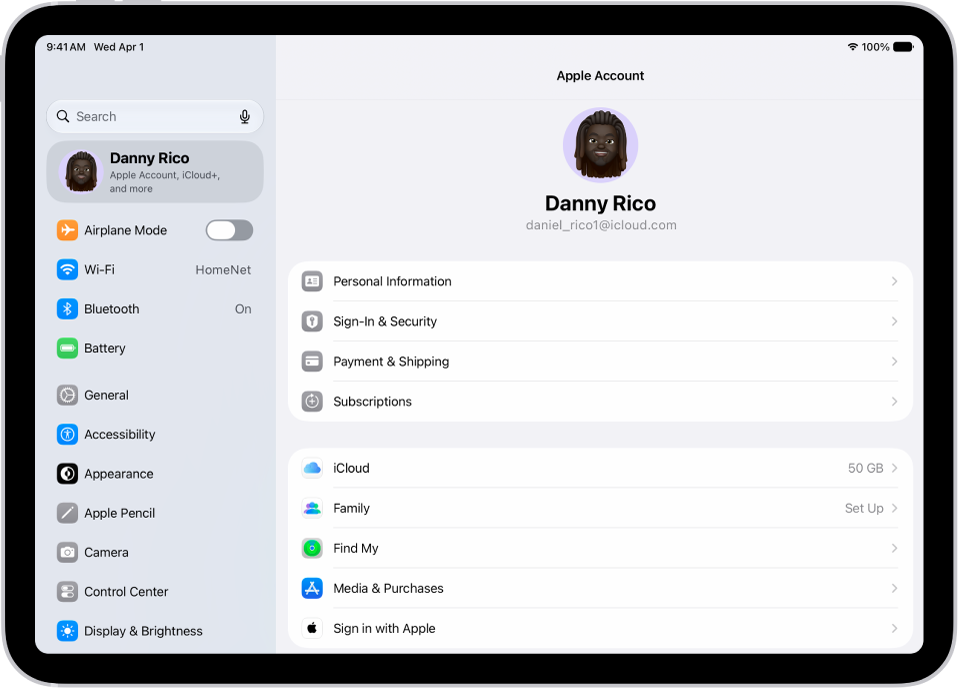
The Apple Account Settings shown with a list of options including—personal information, subscriptions, Find My, and more.

  1. Start the Settings app on your iPad.
  2. Tap your name, then do any of the following:
    • Update Personal Information: Update your name, birthdate, and Memoji or photo associated with your Apple Account. You can also set up your preferences for communication from Apple, and see how your data is managed.
    • Change Sign-In & Security: Change your Apple Account password, turn on two-factor authentication, add or remove phone numbers and emails you can use to sign in, and set up Account Recovery or Legacy Contact.
    • Manage Payment & Shipping: Select your payment methods and shipping address for your Apple Account and purchases from the Apple Store.
    • View and manage your subscriptions: View and manage your subscriptions from Apple and subscriptions that you purchased in apps from the App Store.
    • Use iCloud.
    • Manage Family Sharing.
    • Use Find My.
    • Manage Media & Purchases: Manage the accounts linked to Apple Music, Apple Podcasts, Apple TV, and Apple Books and select purchasing settings.
    • Use Sign in with Apple.

Add or update the payment method associated with your Apple Account

The payment information tied to your Apple Account covers Apple media purchases and services.

  1. Start the Settings app on your iPad.
  2. Tap your name, then tap Payment & Shipping. You may need to authenticate with Face ID or Touch ID.
  3. Tap Add Payment Method or tap an existing payment method.

See also
  • Keep your Apple Account secure on iPad
TAGGED:Apple Account
ByKristina Terech
Staff Writer
Follow:
Kristina is a staff writer at GeeksChalk, and is interested in all things Apple. This includes its best products such as the iPad, iPhone, Mac, AirPods, and Apple Watch. When she's not tinkering with the latest Apple gear, you’ll find her watching movies, taking pictures and exploring the great outdoors.
Leave a Comment Leave a Comment

Leave a Reply Cancel reply

Your email address will not be published. Required fields are marked *

Recent News Flash

A screen showing a document being scanned. The Take Picture button is at the bottom center.

How to work with PDFs in Notes on iPad

A screen showing a document being scanned. The Take Picture button is at the bottom center.

How to scan text and documents in Notes using the iPad camera

Apple Pencil (USB-C).

How to pair and charge Apple Pencil (USB-C) with iPad

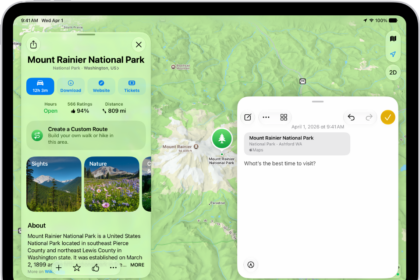
A Quick Note in a window overlay over a map of Mount Rainier National Park. The note has a link to the map, a photo, and text.

How to add photos, video, and more to notes on iPad

Trending Now

The Photos app is open to the Memories collection.

How to view your memories in Photos on iPhone

An inbox in the Mail app showing two emails. The back button is at the top-left and the compose button is at the bottom-right.

How to read and write mail on Apple Watch

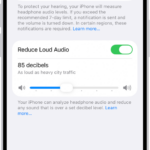
The Headphone Safety screen, showing the number of headphone notifications sent in the last 6 months, the Reduce Loud Audio option, a slider for changing the maximum decibel level, and the selected decibel limit of 85 decibels.

How to connect Apple Watch to Bluetooth headphones or speakers

Explore More

Recommended For You

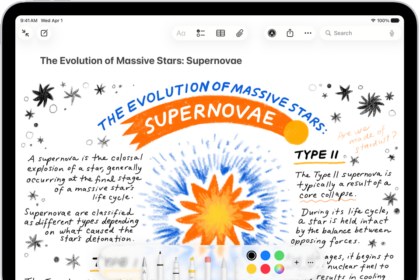
A note showing a drawing and Markup tools along the bottom of the screen.

How to add drawings and handwriting in Notes on iPad

Apple Pencil Pro

How to pair and charge Apple Pencil Pro with iPad

A note is open in the Notes app, and the Markup toolbar is open at the bottom of the screen. The Markup tools from left to right are: the Pen, Mono line, Marker, Eraser, Lasso, Ruler, and Pencil, followed by color buttons, the Add button, and the More button.

How to quickly write notes with Apple Pencil on iPad

A drawing on a Freeform board with drawing tools visible.

How to draw with Apple Pencil on iPad

GeeksChalk Logo GeeksChalk Logo
  • Home
  • Contact Us
  • Advertise
  • Our Staff
  • Editorial Guidelines
  • Terms
  • Privacy
  • Accessibility
  • Copyright
  • About Us
  • Fact Checking Policy
  • Correction Policy
  • Ethics Policy
  • Ownership Policy
Copyright © 2026 www.GeeksChalk.com
Welcome Back!

Sign in to your account

Username or Email Address
Password

Lost your password?