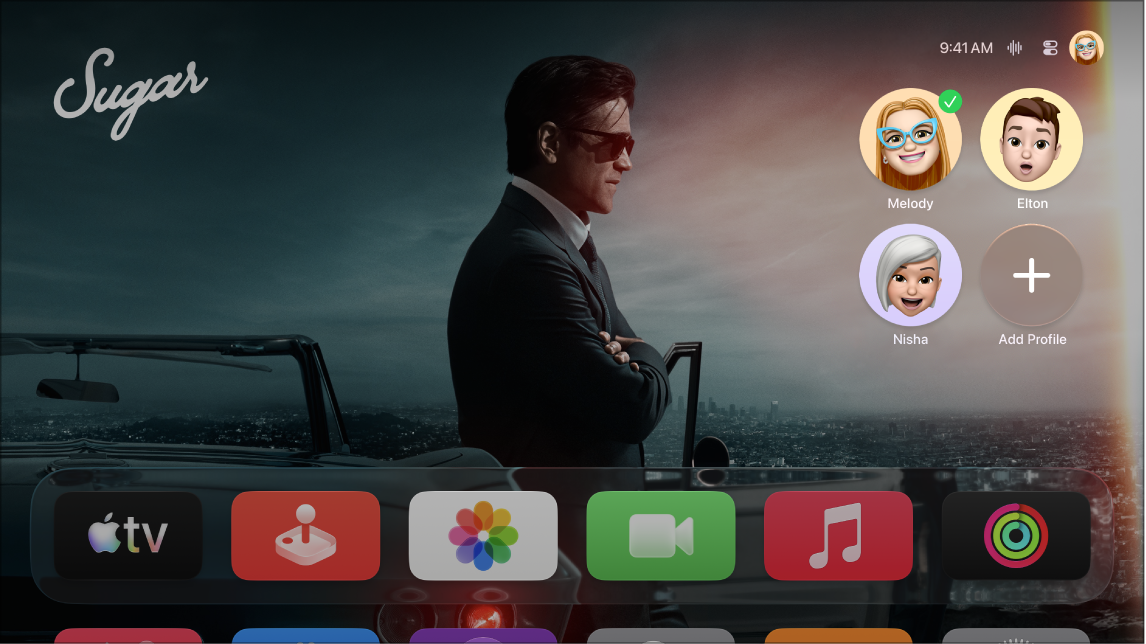
You can quickly switch between profiles in the profiles tab in Control Center on Apple TV 4K. When you switch, the TV and Music apps refresh with the new profile’s own watchlist, collections, and recommendations, and the previous profile is signed out. You can add a profile from there, too.
Quick tip: If your profile on Apple TV 4K has voice recognition set up, press and hold the Siri button on your remote and say, “Switch to my profile.”
Switch profiles
- Press and hold the TV button on your remote to open Control Center.
- Go to the profiles tab and select the profile you want to switch to.
When you switch to another profile, the previous profile is signed out, and the TV and Music apps refresh with the new profile’s unique watchlist, video or music collections, and recommendations.
Note: Switching profiles does not change Photos app or other settings associated with the default profile’s Apple Account. See Change the default profile on Apple TV 4K.
Add a profile
- Press and hold the TV button on your remote to open Control Center.
- Go to the profiles tab, then select Add Profile and follow the onscreen instructions.
Note: If a member of your Home or family group signs in to an Apple device such as Apple TV 4K, the device may suggest adding other Home or family members by displaying their Apple Account name and profile photo. To remove suggested profiles from the list in the profiles tab, select a person, then choose “Don’t suggest [name of person].”
Not all features and content are available in all countries or regions or on all Apple TV hardware models.
See also