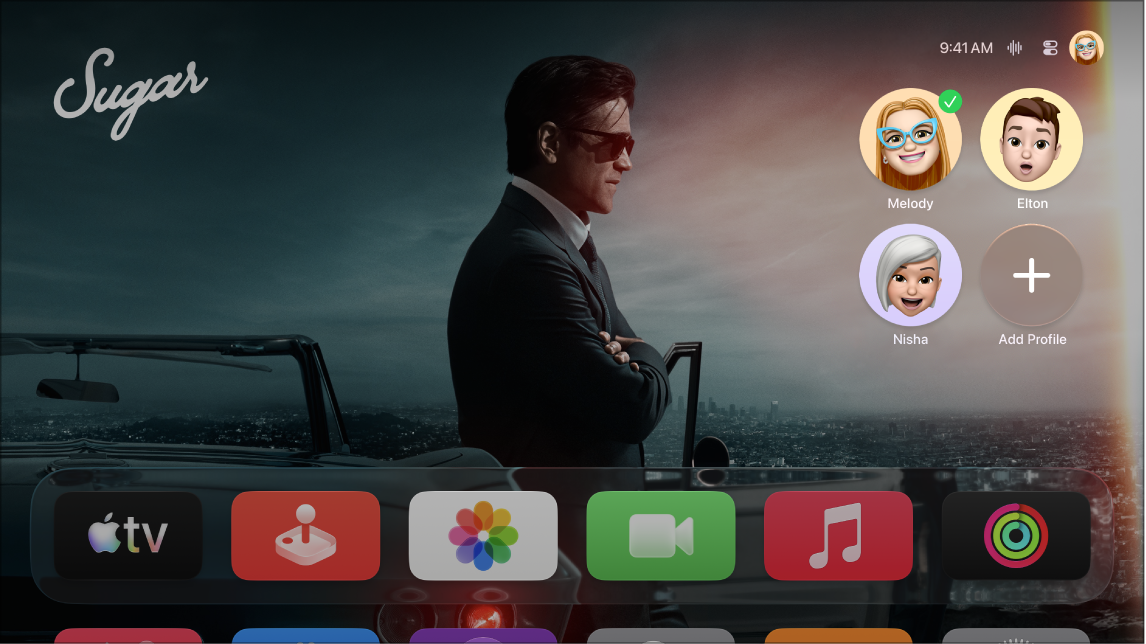
The current profile is the profile selected in Control Center, and only one profile at a time can be active on Apple TV 4K. When you turn Apple TV on and the profile screen appears, you can select a different profile right there. You can also open Control Center and select a different profile in the Profiles tab, or use Switch Current Profile in Settings. To turn off the profile screen, you can adjust settings for profiles and accounts.
To change the current profile on Apple TV 4K, use any of these options:
- When you turn Apple TV on and the profile screen appears, select a different profile.
Tip: To turn off the profile screen, see Adjust settings for profiles and accounts on Apple TV 4K.
- Press and hold the TV button on the remote to open Control Center, navigate to the Profiles tab, then select a different profile.
- Go to Settings, go to Profiles and Accounts > Switch Current Profile, then select a name from the list and sign in if prompted.
Not all features and content are available in all countries or regions or on all Apple TV hardware models.
See also