





Your iPhone isn’t slacking off when it sits in your pocket. No, it’s industriously counting your every step, ready to tell you the total so you can celebrate by buying cake if you hit your daily goal. The good news is that the iPhone pedometer comes built-in, and requires no third-party apps to do its stuff. The even better news is that there’s a free app — Pedometer++ — that makes it even better. In this article, we’ll show you how to track your steps on iPhone.
How to track steps on iPhone
To track your steps on iPhone, first enable Motion Tracking. This way, your iPhone will actually record the data from the M10 (or earlier) motion co-processor chip that counts your steps. This is done in Settings>Privacy & Security > Motion & Fitness — just visit that page and toggle Fitness Tracking on. Now your iPhone will count your steps.
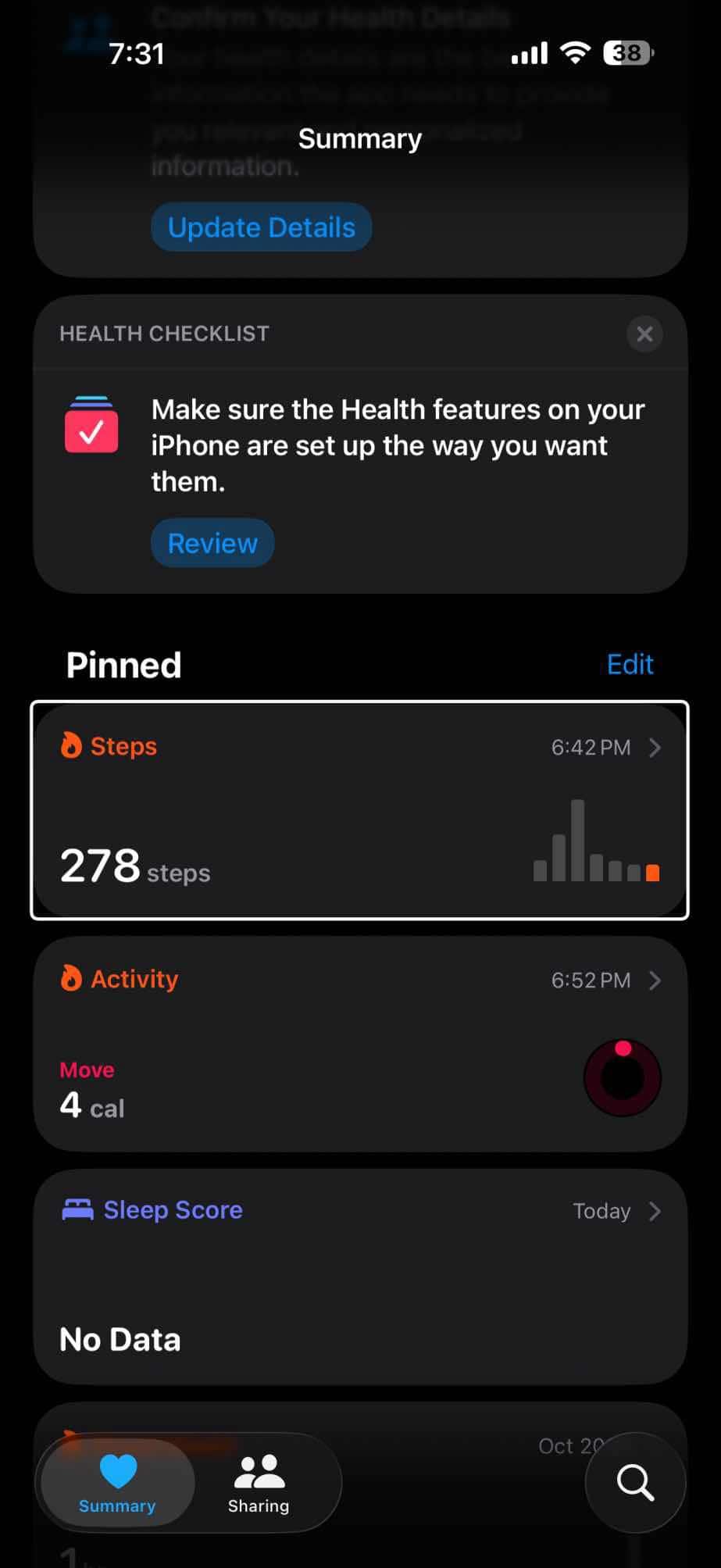
Next up, you should visit the Health app. Here we’ll tell the iPhone how tall you are so that it can better estimate your stride length, and then we’ll add the step count to the Health app’s dashboard.
Follow these steps to set up your Health Profile:
- Open the Health app on your iPhone.
- Tap the Summary tab, then tap your profile picture in the upper corner.
- Tap Health Details, then tap Edit.
- Add your information, like your date of birth and blood type.
- Tap Done.
Now follow these steps to pin Steps in the Health app:
- Open the Health app on your iPhone.
- Tap the Summary tab.
- Tap Edit next to Pinned.
- To add Steps to your Pinned list, tap it.
- Tap Done.
After pinning steps, you’ll see how you’re doing in the Steps category that day. To see more information about the Steps category, tap it.
How to Add a Steps Widget on iPhone
You can easily add a steps widget on your iPhone.
First, make sure that you have the Fitness app installed on your iPhone. Go to the App Store and then search for fitness. Once you click Search, press on the one that looks like a colorful target. If necessary, re-download the app to your iPhone.
Once the app is installed, open it up, then go through the onboarding steps. Once you get to the home page of the app, you will see your steps counter on the screen.
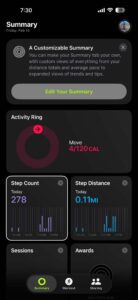
Screenshot: Moses Johnson/GeeksChalk
Go to the Home Screen on your iPhone, then find the Home Screen page where you want to add the steps widget.
Touch and hold the background until the apps begin to jiggle, tap Edit at the top of the screen, then tap Add Widget.
Scroll or search to find Fitness, tap it, and the app will give you a few different options on how you want to display the widget on your home screen.
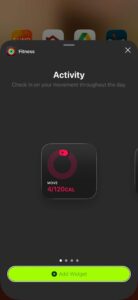
Swipe through the size and style options.
I personally prefer the larger option.
When you see the size you want, tap Add Widget.
While the apps are still jiggling, move the widget where you want it, then tap Done.
And that’s how you add a steps widget on iPhone.
Pedometer++, the iPhone’s best step-counting app
Pedometer++ is the simplest and best step-counter app for iPhone.
Pedometer++ is a free app that counts your steps. It uses the data provided by the built-in pedometer, and presents it as a chart, or — and this is the one you want — as a widget on your Today view. Stick the widget on your Today screen, and your step count is just a swipe away from your home screen. Pedometer++ also lets you set a goal (the default is a daily 10,000 steps), and gives you a confetti shower when you achieve it. If you double the goal, you get a special prize.
The other advantage of Pedometer++ is that it obviates all the tedious setup detailed above. Just download it, launch it, and give the app permission to access your Motion data, and you’re good to go.
If you keep the iPhone in your pocket the whole time, and you’re the kind of OCD nerd who loves to count things, you’re going to love the iPhone pedometer function. I switched mine on the day I got an iPhone with a Motion Coprocessor, and it’s been running ever since. I can’t say that it has motivated me to do more walking, but on the days I reach 15km (just shy of ten miles), I use the step-count as an excuse to let me buy a pound of baklava.










 motion co-processor chip that counts your steps.)