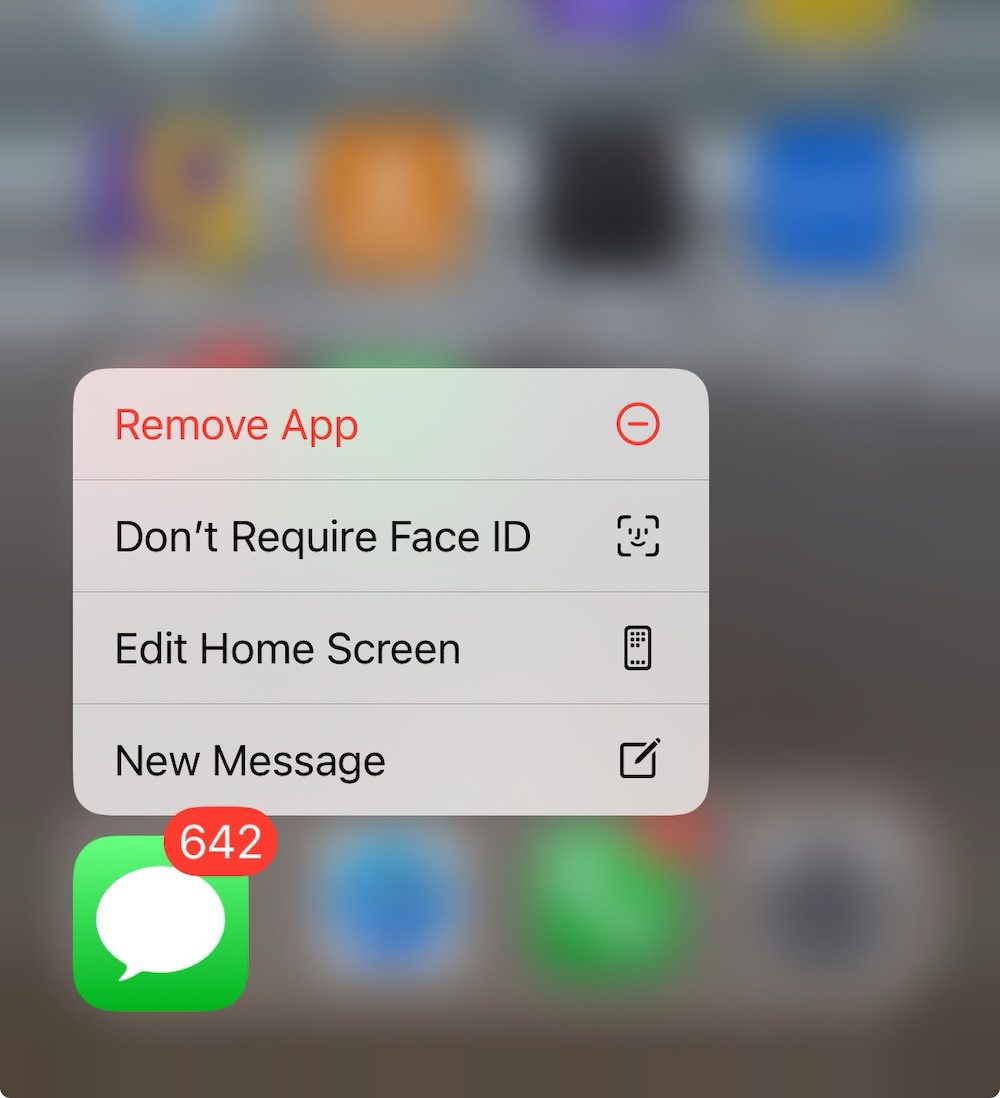
With the release of iOS 18, Apple introduced Face ID for apps, a feature designed to enhance security by requiring facial authentication to access your messages. While this feature enhances privacy for sensitive information, some users may find it unnecessary or inconvenient for daily use. However, these settings are not always where you might expect—menus like Privacy & Security or Face ID & Passcode don’t contain the options you’re looking for. Instead, managing these features often requires exploring less obvious methods.
For instance, in a previous guide, we explained how to lock Messages on iPhone to keep your chats private.
Many users appreciate the extra security for their private conversations, but others might find the process confusing or unnecessary. This article focuses on turning off Face ID specifically for Messages and aims to clarify the steps for anyone encountering similar frustrations.
After updating to iOS 18 on my iPhone, I decided to enable Face ID for Messages during the setup process, curious to see how it could enhance the security of my conversations. Initially, it seemed like a convenient feature, but over time, I found it cumbersome and wanted to disable it. If you find yourself in a similar situation, here’s how you can turn it off.
Steps to Turn Off Face ID for Messages on an iPhone in iOS 18
- Go to the Home Screen.
- Locate the Messages app.
- Touch and hold the Messages app icon until the quick actions menu opens.
- Tap Don’t Require Face ID. You will feel haptic feedback, and your iPhone will quickly use Face ID to verify your identity before disabling the feature. Note that If you change your mind later, use this step to turn it on again.
Please note, if you have “stolen device protection” enabled on your iPhone, you may need to wait for an hour before you can disable Face ID for Messages. This waiting period is part of Apple’s security measures. While it can be frustrating, it is designed to protect your device.
If you’re having trouble finding how to manage Face ID for specific apps, the solution might lie within the app icon itself. Many app-specific settings can now be accessed by holding down the app icon until the edit menu appears.