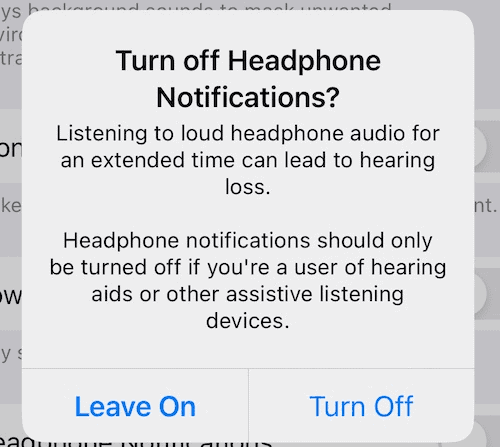
Listening to audio on your headphones too loud for an extended period of time can damage your hearing. Headphone Notifications let you know if your audio exposure has been loud enough for long enough to affect your hearing—for example, over 80 decibels (dB) for 40 hours total within the last 7 days.
Your iPhone can alert you when you’ve exceeded 100% of the 7-day exposure limit while wearing headphones. These notifications give you more awareness around your listening habits to help you protect your hearing. When you receive a notification, you’ll be prompted to turn down your volume. After receiving a notification, the next time you plug in your headphones or connect them via Bluetooth, your volume will be automatically set to a lower level. You can still turn your volume back up if you choose.
This feature is called Headphone Notifications and will not only send volume level warnings but will also automatically reduce the volume. Even though you can turn up the volume manually, some people still seem to find this feature annoying. If you do not want to receive these notifications, you will need to turn off Headphone Safety.
Please know that turning this off may allow loud music (or other sound) to harm you. According to a study published in 2021, people using headphones for 80 minutes or longer in a noisy environment are at great risk of hearing loss. This is why there are safety rules and regulations limiting noise exposure that Apple needs to comply with. Because of this, you cannot turn off this feature in certain countries.
According to Apple, this feature should be turned on. Further, Apple says that this feature should be disabled only if you are using assistive listening devices such as hearing aids. In fact, we will use the Accessibility features of your device to turn this off.
How to enable or disable Headphone Notifications
Here’s how to turn off Headphone Safety on your iPhone:
- Open the Settings app on your iPhone.
- Tap Sounds & Haptics.
- Tap Headphone Safety.
- Turn off the switch next to Headphone Notifications.
Note: youll only see the Headphone Notifications option if you are in a place where there are no laws or regulations to protect people from developing hearing loss. However, most countries implemented restrictions, and thus, you may not see this option. If you do not see the option, you can use the accessibility features of your device to turn it off:
- Open the Settings app on your iPhone.
- Tap Accessibility.
- Scroll down and tap Audio & Visual under the Hearing section.
Turn off the switch next to Headphone Notifications.
If you want to turn it on again, repeat the same steps.
If you turn Headphone Notifications off on your iPhone, be careful. You may suffer hearing loss which may be permanent and irreversible. Younger populations should especially be careful because children’s ears require more protection.