





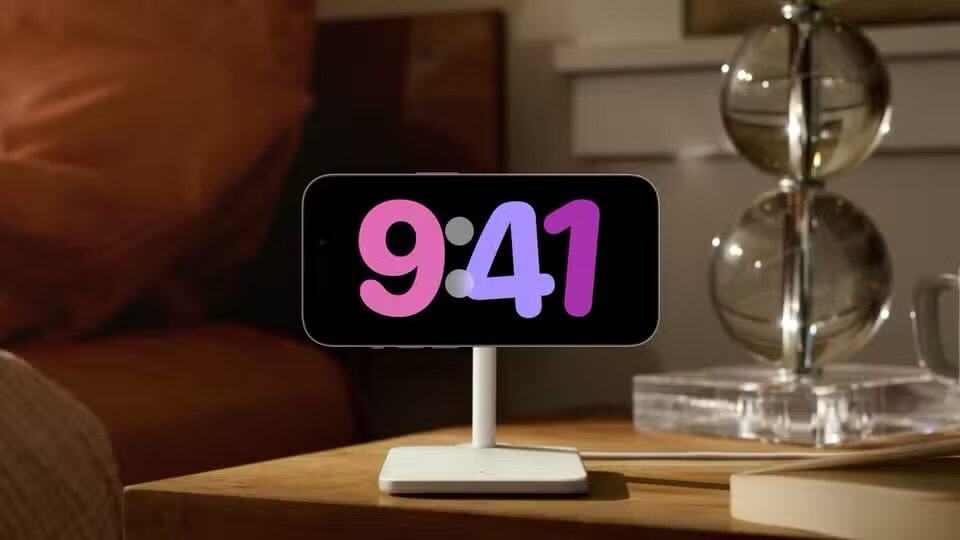
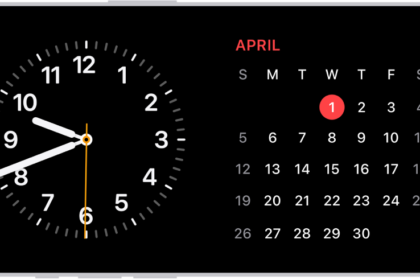
StandBy can be thought of as a kind of smart display for your iPhone that offers fast access to different screens of glanceable information that can be viewed at a distance, when your iPhone is charging on a kitchen, desk, or nightstand, for example. If you charge your iPhone at night, StandBy adapts to low light and takes on a red tone. StandBy mode is is a great feature, but it can also be alarming when you don’t expect it. If you find yourself trapped in this automatic screensaver mode, there’s an easy way to turn this off—as long as you know where to look.
It’s late and you’ve fallen asleep watching the latest episode of The Traitors on your iPhone. Suddenly, a noise wakes you up, and you face an unexpected jump scare: a picture of your ex staring back at you from your phone screen. Panicked, you try to swipe away from the photo—only to be bombarded with clocks, calendars, and other widgets. How do you escape this nightmare?
Maybe you haven’t had this exact experience, but don’t blame me for seeking some camaraderie in my blunt discovery of the iPhone’s StandBy mode. The intention behind iOS 17’s StandBy mode is for the feature to transform your phone into a bedside clock, or create an informative screensaver. The mode only activates when your phone is charging and in landscape orientation.
But StandBy is not for everyone. Because it’s been automatically enabled since iOS 17, you might not even know it’s there (I didn’t). Unfortunately, this can make it difficult to disable StandBy when you don’t know what it’s called.
How to Disable StandBy on Your iPhone
After erroneously sifting through Display & Brightness settings in my quest to disable the feature, I eventually located StandBy as its own setting category. Once you know where to look, it’s very easy to disable StandBy on your iPhone. Follow these steps:
- Open the Settings app on your iPhone.
- Scroll down and tap StandBy.
- Toggle off the switch next to StandBy to disable the feature completely.




)