- You can easily unblock a blocked number on your iPhone if you no longer want to prevent that number from sending you calls, texts, or FaceTime requests.
- The process of blocking a number takes only a few seconds, and the unblocking process is equally simple and quick.
- Here’s how to unblock a blocked number or contact on your iPhone.
There are many good reasons to block a caller on your iPhone.
Maybe you’re screening every call you get and blocking the spam calls as they come in. Maybe you don’t want texts from friends popping up on your screen while you’re at work. Or maybe you don’t want a certain ex to be able to contact you anymore.
The good news is that blocking a contact takes only a few seconds. The better news is that blocking a number isn’t permanent, so if you change your mind, you can undo the blocking. In fact, unblocking a number is even easier than blocking it in the first place.
Unblock a number in Settings
- Open the Settings app on your iPhone.
- Tap Apps, then tap Phone.
- Tap Blocked Contacts, then tap Edit.
- Swipe left on the contact you want to unblock, then tap Unblock.
Unblock a number in your contacts
- Open the Phone app on your iPhone and tap on the "Contacts" tab.
- Find the contact you want to unblock and open it.
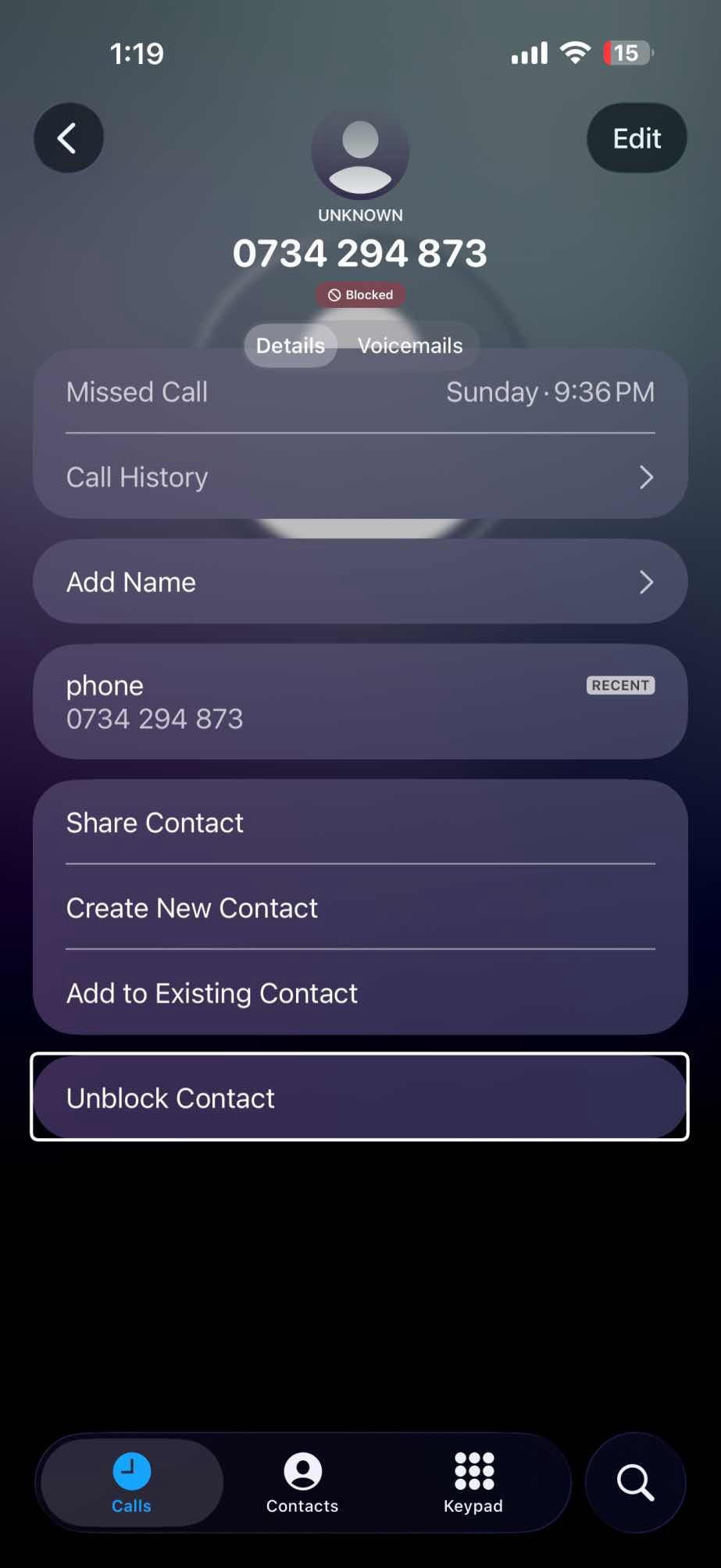
- Scroll to the bottom of the contact record and tap Unblock Contact.
Unblock a caller in your recent calls list
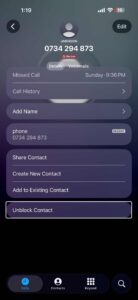
If you blocked a recent caller who’s not in your iPhone contacts and now want to unblock them, here’s what to do.
- Open the Phone app on your iPhone.
- Tap Recents, then tap the phone number or contact that you want to block or the Info button in Classic view.
- Scroll down, then tap Unblock Contact.