Summary
- To block a caller on your iPhone, tap the Calls tab in unified view or the Recents tab in classic view.
- In unified view, tap the button for a call from that caller.
- In classic view, tap the info icon ( i -in-a-circle) on such a call.
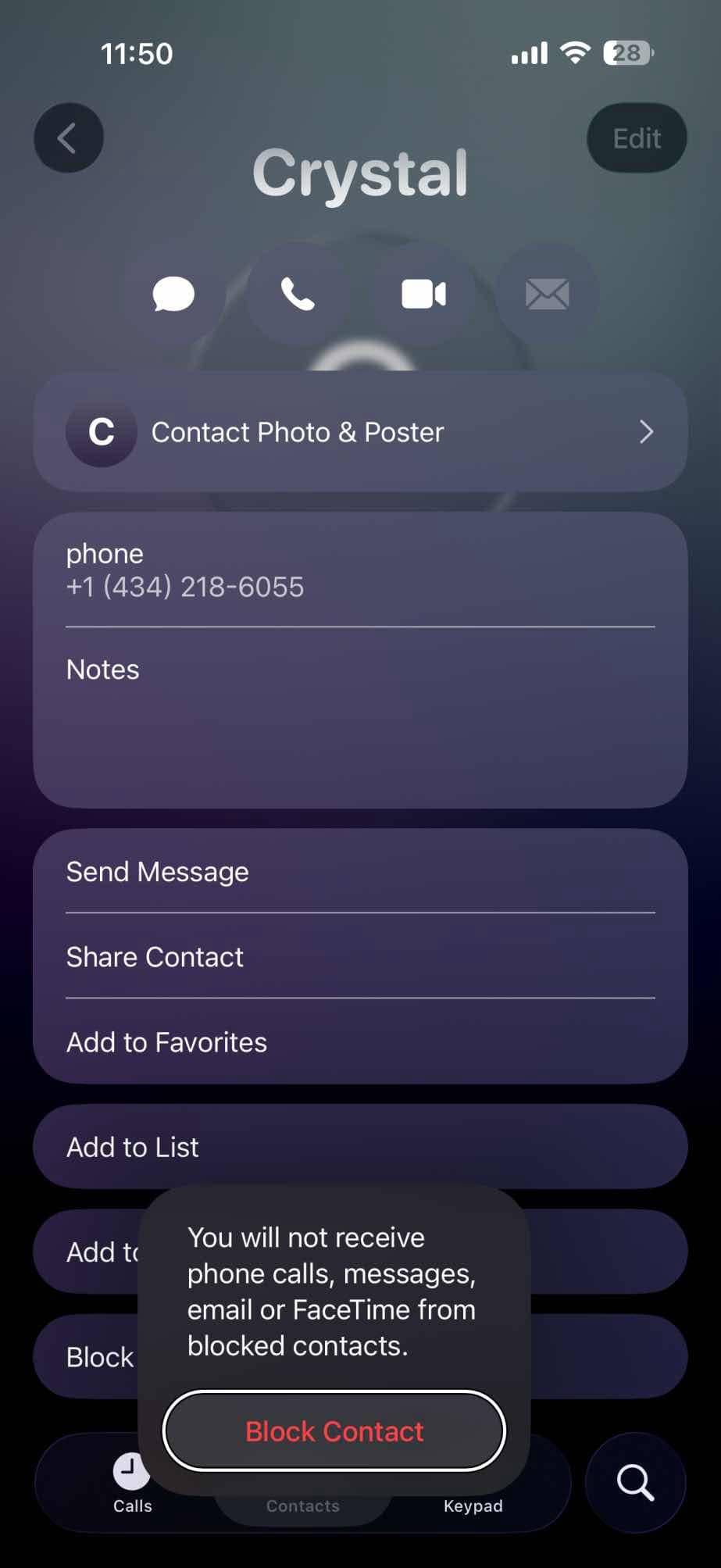
- Scroll down to the bottom the screen for that caller, tap the Block Contact button.
- Tap the Block Contact button in the confirmation dialog to add the caller to the Blocked Contacts list. Your iPhone then sends any future calls from the caller straight to voicemail.
Blocking a number on your iPhone can help ward off unsolicited calls and texts, especially from scammers.
Most spam calls are annoying but are harmless beyond that; you hear a recorded voice spout off about student loan debt forgiveness, dental care plans, solar panels, and so on, and … you hang up.
Sometimes, however, the unwanted call in question is placed by an actual person, and in the worst cases, it will be a scammer trying to deceive you into giving them money. Here’s a quick tip to keep in mind during tax time: the IRS will never call you trying to collect cash. If anyone claiming to be from the Internal Revenue Service contacts you and asks for funds, end that call immediately.
The silver lining here is that you can take steps to lessen the number of spam calls you get, with said steps being quite easy if you use an iPhone: just block every spam number that ever calls you.
To block a caller on an iPhone, just follow these simple steps.
How to block a caller on your iPhone
- Open the Phone app on your iPhone.
- Tap Recents, then tap the phone number or contact that you want to block or the Info button in Classic view.
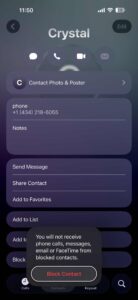
- Scroll down, then tap Block Contact.
- Tap the Block Contact button in the confirmation dialog to add the contact to the Blocked Contacts.
See also:Blocked Number Still Calling or texting on iPhone or iPad? How to fix
How to block one of the contacts in your iPhone
Blocking a contact that’s already in your iPhone is even easier. If you’re done being in contact with someone you know, go to your contacts, tap their name, and hit "Block Contact" at the bottom of their contact page. In the next’s screen, tap "Block Contact" to confirm. That’s it. They’re blocked.
See also: Can you call a number you blocked on iPhone? Here’s the truth
How to view blocked contacts on iPhone
To see the list of blocked contacts on your iPhone, go to Settings ⇒ Apps ⇒ Phone ⇒ Blocked Contacts. On the Blocked Contacts screen, you can quickly unblock a contact by swiping partway left on the contact and then tapping Unblock, or by swiping all the way left, so that the Unblock button grows and engulfs the contact’s entry.
See also: How to Tell if Someone Has Blocked Your Number on an iPhone