If you forgot your iPhone passcode and are unable to unlock your device, you can reset it to remove the passcode lock and then restore it from a backup later. We’ll show you how to unlock your iPhone passcode without a computer if you’re using iOS 17 or later. We’ll also show you how to unlock your iPhone passcode without a computer if you’re using an earlier version of iOS and how to unlock it using a computer.
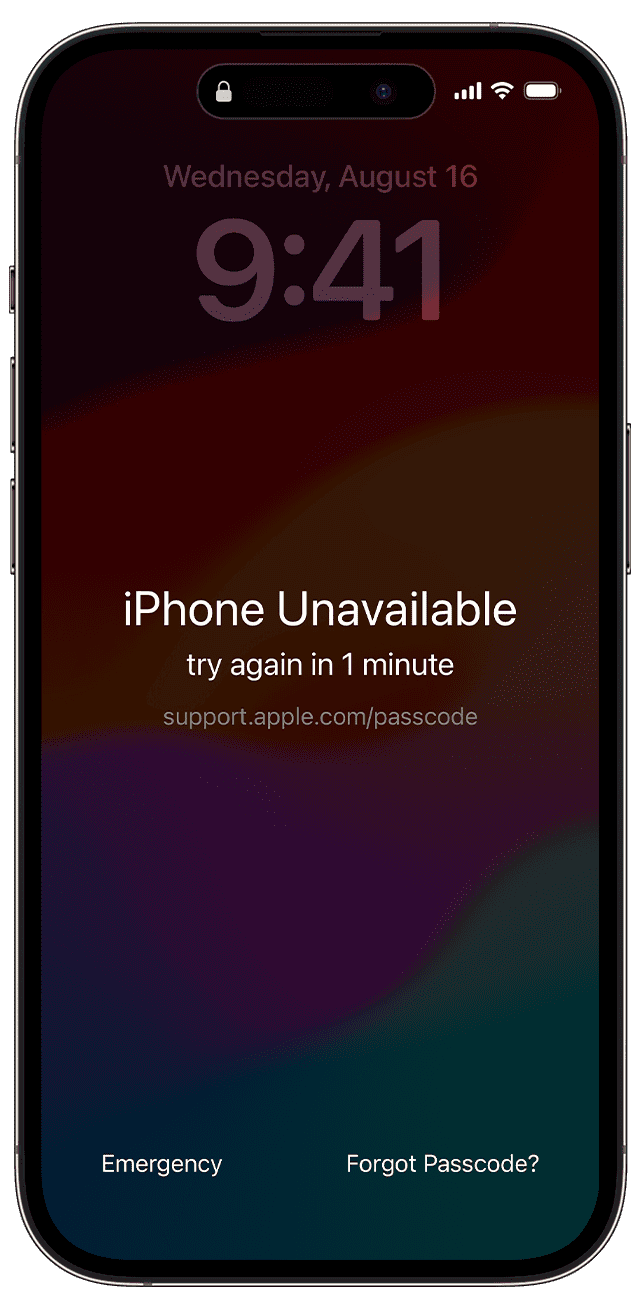
If you’ve entered your passcode incorrectly too many times, your device will be disabled and there will be an option to reset your iPhone in the bottom right corner of the screen.
On your iPhone, the Forgot Passcode? option will appear in the bottom right corner of the screen when you have a device that uses iOS 17 or later and you are connected to a cellular or Wi-Fi network. An Erase iPhone option will appear in the bottom right corner of the screen if you have a device that uses iOS 15.2 or iOS 16, and you are connected to a cellular or Wi-Fi network.
Note: If you restart your iPhone when you see "Security Lockout" on the Lock Screen, you won’t be able to reconnect to a Wi-Fi network until your device is unlocked. Cellular devices will reconnect to a cellular network if you have active service.
Here’s how to unlock your iPhone without your passcode.
How to unlock your iPhone passcode without a computer
If you forgot your iPhone passcode, you can use your Apple Account and password to erase and reset your device without a computer.
To unlock your iPhone passcode without a computer:
- You’ll need to know your Apple account information that you used to set up your iPhone.
- Your iPhone need to be connected to the internet using Wi-Fi or cellular data.
- Your iPhone need to be using iOS 15.2 or later.
Unlock your iPhone passcode without computer in iOS 17 or later
Step 1: From your iPhone’s Lock Screen, try to enter your passcode until the "iPhone Unavailable" screen appears and your device asks you to try again later.
Step 2: When you’re able to, tap the Forgot Passcode? option in the bottom corner of the screen.
Step 3: On the Security Lockout screen, tap Start iPhone Reset to confirm.
Step 4: Enter your Apple account password when prompted, then tap Done.
Step 5: If your iPhone has an eSIM, you’ll be asked if you’d like to keep your eSIM or delete it. Both options will erase all content on your iPhone. However, if you delete your eSIM, you’ll need to contact your carrier to set up a new one. Choos your option to continue.
Step 6: The process of resetting your iPhone will begin, which might take a moment.
All content and settings on your iPhone will be erased, including any photos or notes, along with the passcode. If you have a backup saved in iCloud or on your computer, you can restore your content when this process finishes.
Step 7: Once your iPhone has been erased, the Hello screen will appear. You can then follow the prompts to restore your iPhone from a backup if you have one.
If you recently changed passcodes, use your old passcode to temporarily sign in
When you change your passcode in iOS 17 and later, Passcode Reset gives you 72 hours when your old iPhone passcode can be used to sign in to your iPhone. When you sign into your iPhone this way, you must immediately change your passcode again.
To use Passcode Reset:
Step 1: From your iPhone’s Lock Screen, try to enter your passcode until the "iPhone Unavailable" screen appears and your device asks you to try again later.
Step 2: When you’re able to, tap the Forgot Passcode? option in the bottom corner of the screen.
Step 3: Tap Try Passcode Reset.
Step 4: Enter your old passcode then follow the onscreen instructions to set a new passcode.
Unlock your iPhone passcode without computer in iOS 16 or earlier
Step 1: From your iPhone’s Lock Screen, try to enter your passcode until the "iPhone Unavailable" screen appears and your device asks you to try again later.
Step 2: When you’re able to, tap Erase iPhone.
Step 3: Tap Erase iPhone again and then enter your Apple account password when prompted, then tap Done.
Step 4: Now, the process of erasing your iPhone will begin. This might take a moment.
All content and settings on your iPhone will be erased, including any photos or notes along with the passcode. If you have a backup saved in iCloud or on your computer, you can restore your content when the process is complete.
If your iPhone has an eSIM, your eSIM will be deleted and you’ll need to contact your carrier to set up a new one.
Step 5: Once your iPhone has been erased, the Hello screen will appear. You can then follow the prompts to restore your iPhone from a backup if you have one.
How to unlock iPhone passcode using computer
If you forgot your iPhone passcode, you can use recovery mode and computer to reset it. To use this option, you’ll need a Mac or a Windows PC and a compatible cable. You also might need to allow your Mac to connect to your iPhone. You also need an internet connection. You can use this option regardless of which version of iOS is on your iPhone. If your iPhone has Find My enabled, you’ll need to have your Apple account information ready.
Step 1: Turn off your iPhone
If you have an iPhone X or later, a second generation or later iPhone SE, an iPhone 8, or an iPhone 8 Plus, press and hold the side button and one of the volume buttons until the Power Off slider appears. Then, drag the slider to power off your iPhone. Wait a minute to make sure that it turns off completely.
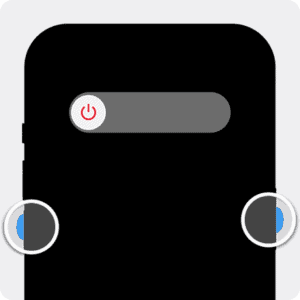
If you have an iPhone 7 or an iPhone 7 Plus, press and hold the side button until the Power Off slider appears. Then, drag the slider to power off your iPhone. Wait a minute to make sure that it turns off completely.
If you have a first generation iPhone SE or an iPhone 6S or earlier, press and hold the side or top button until the Power Off slider appears. Next, drag the slider to power off your device. Wait a minute to make sure that it turns off completely.
Step 2: Put your iPhone in recovery mode
If you have an iPhone X or later, a second generation or later iPhone SE, an iPhone 8, or an iPhone 8 Plus, connect the cable to your Mac or Windows PC. Next, connect the cable to your iPhone and quickly hold the side button. Do not release it.
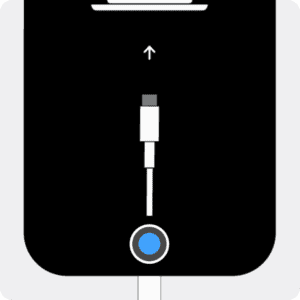
Continue to hold the side button while the Apple logo appears. Do not release the side button until an image of a computer and a cable appears. This might take a moment.


If you have an iPhone 7 or an iPhone 7 Plus, connect the cable to your Mac or Windows PC. Next, connect the cable to your iPhone and quickly hold the volume down button. Do not release it.
Continue to hold the volume down button while the Apple logo appears. Do not release the volume button until an image of a computer and a cable appears. This might take a moment.

If you have a first generation iPhone SE or an iPhone 6S or earlier, connect the cable to your Mac or Windows PC. Next, connect the cable to your iPhone and quickly hold the home button. Do not release it.
Continue to hold the home button while the Apple logo appears. Do not release the home button until an image of a computer and a cable appears. This might take a moment.
Step 3: Use your computer to restore your iPhone
If you’re using a Mac with macOS Catalina or later, open the Finder and locate your iPhone in the sidebar under Locations. Select Trust your iPhone on your Mac if necessary. When the option to Restore or Update your device appears, click Restore.
If you’re using a Windows PC, open Apple Devices app and select your iPhone in the sidebar. Select Trust your iPhone on your Windows PC if necessary. Then, select General. If you have a backup, select Restore Backup and follow the onscreen instructions. If you don’t have a backup, select Restore iPhone and follow the onscreen instructions.
If your Windows PC doesn’t have the Apple Devices app, or your Mac is using macOS Mojave or earlier, open iTunes. Select Trust your iPhone on your Windows PC if necessary. Then select the iPhone icon in the top of the window. Click Summary in the sidebar. Then, click Restore iPhone. When the option to Restore or Update your device appears, click Restore.
All content and settings on your iPhone will be erased, including any photos or notes, along with the passcode. If you have a backup saved to your computer or iCloud, you can restore it after this process is done.
Click Restore and Update when you’re ready. Follow any other prompts, which might include reviewing and accepting the terms and conditions, to continue.
Your computer will begin to download and install the latest available version of iOS on your iPhone.
If the download takes more than 15 minutes and your device exits the recovery mode screen, let the download finish, then turn off your iPhone and start again. Make sure to leave your device connected while it’s restoring.
Step 4: Follow the onscreen instructions to set up your iPhone
Once the restore process is finished, your iPhone will restart and the Hello screen will appear. You can then disconnect your phone from the computer and set up and use your iPhone.
Bonus methods to unlock iPhone without passcode
If you forgot your iPhone passcode, you can use iCloud website or Find My app to erase your device and remove your passcode. For these methods to work, you’ll need to know your Apple account information that you used to set up your device and your device need to be connected to the internet using Wi-Fi or cellular data.
Unlock your iPhone without a passcode using iCloud
If you know the Apple account information you used to set up your iPhone, you can sign into iCloud® on another device to unlock your iPhone without your passcode. Here’s how:
Step 1: Go to icloud.com/find, then sign in to your Apple Account.
Step 2: Select your iPhone below All Devices on the left.
Step 3: Click Erase This Device.
Step 4: Follow the onscreen instructions.
If your iPhone is online, the remote erase begins after you follow the onscreen instructions. If your device is offline, the remote erase begins the next time it’s online.
Once your iPhone has been erased, your passcode will be removed. You can then use your Apple Account information to reactivate your iPhone.
Unlock the iPhone without a passcode with Find My app
You can use the Find My app on another iPhone, iPad, or Apple device to erase your phone and bypass the Lock Screen if you need to unlock your iPhone without the password—here’s how.
Step 1: Open the Find My app on another iPhone or iPad.
Step 2. Tap Devices at the bottom of the screen, then tap the name of the iPhone you want to unlock.
Tip: If this is not your iPhone, tap Me at the bottom of the screen, then tap Help a Friend. This will open iCloud.com/find so others can sign in and find their devices from this iPhone.
Step 3: Tap Erase This Device, then tap Continue.
Step 4: Tap Erase.
Step 5: Enter your Apple Account password, then tap Erase again.
If your iPhone is offline, you see Erase Pending. The remote erase begins the next time it connects to a Wi-Fi or cellular network.
Once your iPhone has been erased, your passcode will be removed. You can then use your Apple Account information to reactivate your iPhone.
Conclusion
In this comprehensive guide, we have discussed all the ways you can unlock your iPhone without your passcode. If you still need help, contact Apple Support to speak with an advisor or make an appointment at an Apple Store or Apple-authorized service provider.