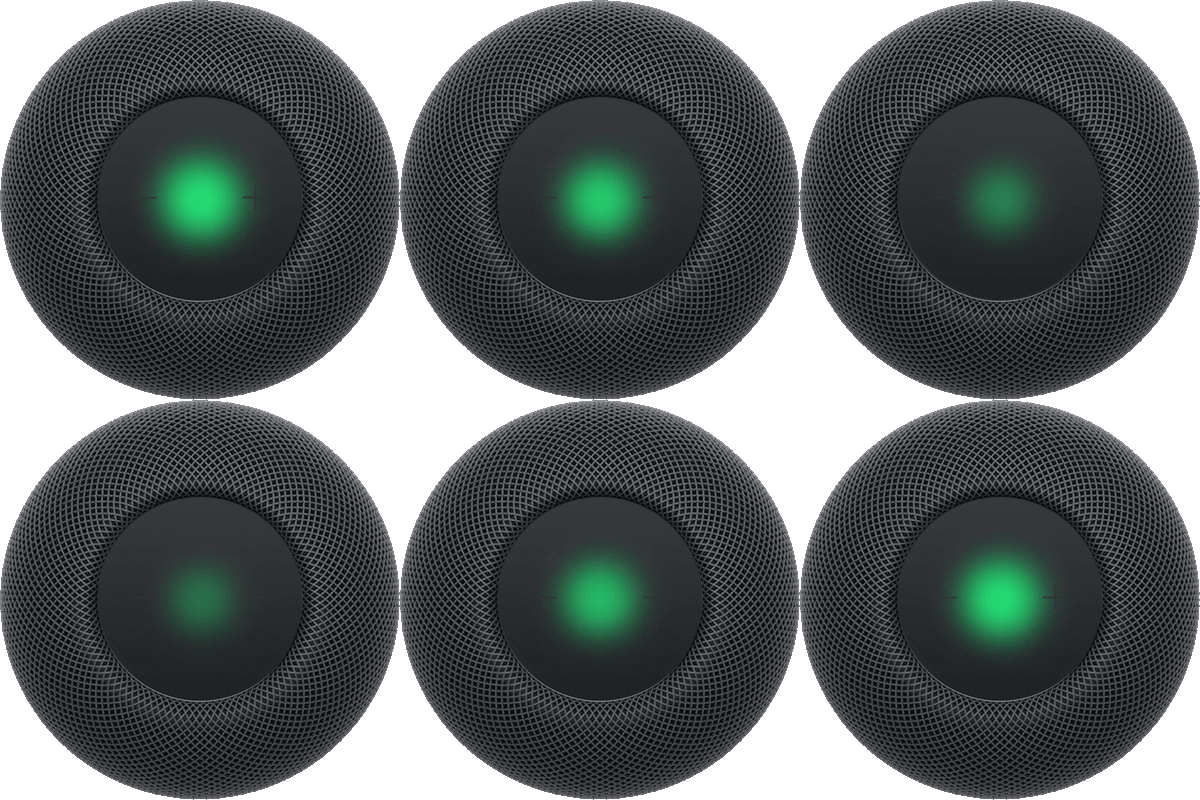
HomePod can wake you up to your favorite song, keep track of multiple timers, and tell you the current time in your location or a different zone. You can stop sounding alarms and timers with Siri on any HomePod, or on your iPhone or iPad, too.
Set alarms
Siri: Ask Siri something like:
- “Wake me up at 5 a.m.”
- “Snooze.”
Ask about the time
Find out the current time in your location or in a different zone.
Siri: Ask Siri something like, “What time is it in Stockholm?”
Set timers
Siri: Ask Siri something like:
- “Set a 3-minute timer.”
- “Set a pasta timer for 8 minutes.”
- “How much time is left for the pasta timer?”
- “Pause my exercise timer.” (Timers are deleted after 48 hours.)
- “What timers do I have running?”
- “Resume my exercise timer.”
- “Stop.”
You can stop sounding alarms and timers using Siri on any HomePod, your iPhone or iPad, or the iPhone or iPad of a member of your home. (Devices need to be on the same Wi-Fi network for Timer management.)
For help setting a sleep timer for music and podcasts, check out our article, Play audio.
This guide is for HomePod software version 27 or later.
See also