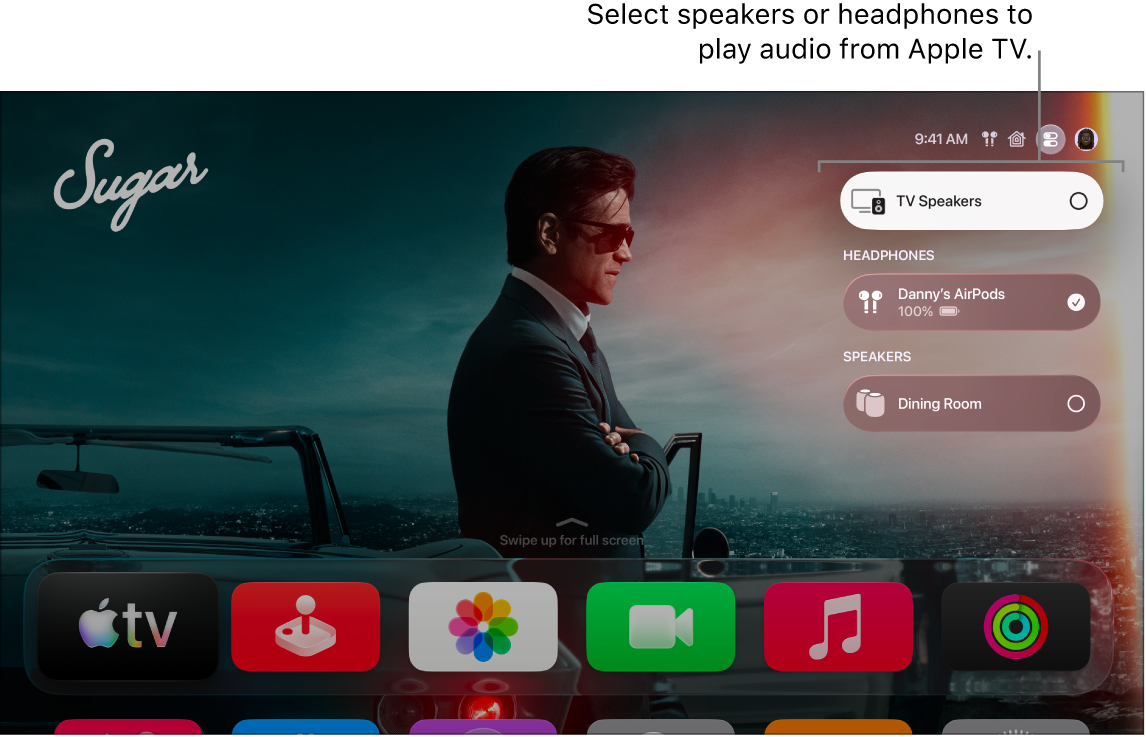
You can stream audio from Apple TV 4K to HomePod speakers, or to AirPlay-enabled speakers on the same network, except for system alerts and game sounds. You’re able to set them as your temporary audio output in Control Center or as your default audio output in Settings. A temporary choice resets after Apple TV 4K is put to sleep.
On Apple TV 4K, you can set the speakers as either a temporary or a default audio output:
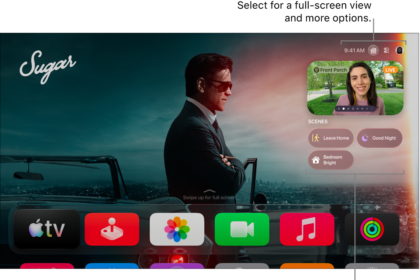
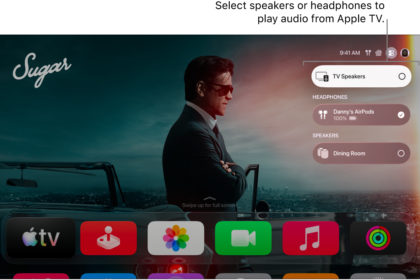
- Set HomePod or AirPlay-enabled speakers as your temporary audio output: Press and hold the TV button on your remote to open Control Center, then select the Audio Controls button and choose the speakers you want to use.
When you select AirPlay-enabled speakers (other than HomePod speakers) as your temporary audio output, Apple TV 4K plays audio through your AirPlay speakers except system alerts and game sounds, which play through your default audio output. Your speaker selection resets to the default audio output after Apple TV 4K is put to sleep.
- Set HomePod or AirPlay-enabled speakers as your default audio output: Go to Settings on Apple TV 4K, then go to Video and Audio > Audio Output and choose the speakers you want to use.
When you select AirPlay-enabled speakers (other than HomePod speakers) as your default audio output, Apple TV 4K plays audio through your AirPlay speakers except system alerts and game sounds, which play through your TV speakers.
Not all features and content are available in all countries or regions or on all Apple TV hardware models.
See also